ppt-bird

  • Subscribe to our RSS feed.
  • Twitter
  • StumbleUpon
  • Reddit
  • Facebook
  • Digg

Monday, 11 July 2011

Must-have iPad 2 Apps (Part 1)

Posted on 19:58 by Unknown
Now you have a new iPad 2 and curious which are the best, most must-have apps you need to install first?

1. TeamViewer

TeamViewer for iPad extends accessibility of your iPad 2 to remote control other PCs, like Windows, Mac or Linux system (with permission first of course). This incredible handy tool helps you a lot like getting PowerPoint documents, shutting down your PC or providing remote technical support from thousands of miles away.
TeamViewer


2. iBooks

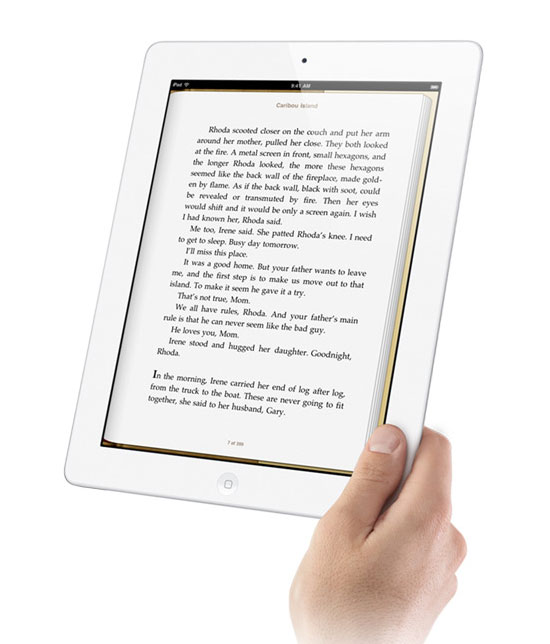
iBooks enables you to download and read books from the iBookstore where you can download latest best-sailing books too. The books will be placed in your own library with beautiful bookshelf. You can tap to open it, flip through pages or add note to your favorite passages.
iBooks

3. Keynote

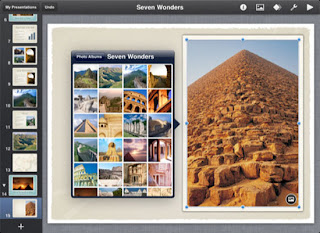
The latest version of Keynote is 5.0.5 and was released in January 2011 just in time for the iPad 2’s release. Keynote is the most powerful presentation app designed for mobile devices. Besides iPad, it could also work on iPhone and iPod Touch. It offers fast and easy way to view and edit presentations like PowerPoint.
Keynote
How to View PowerPoint on iPad 2 with all the original elements

4. Twitter App

The upgrade version of Twitter app makes it possible to use Twitter on iPad 2 now. It is specially designed for large screen and with other media content. It allows the user to read the currently discussed topics, post tweets, shorten links, re-tweet and reply to other users.
Twitter App

Download Free PowerPoint Templates Download Free PowerPoint Templates
Read More
Posted in Smartphone/Tablet | No comments

Complet List and Translations of Harry Potter Abracadabras

Posted on 00:20 by Unknown
Harry Potter has companied us for over 10 years and this week it will mark an end after the last (8th) movie Harry Potter and the Deathly Hallows: Part 2 is on the screen.Here we list the complete abracadabras Harry Potter says and what it means.Let's say these abracadabras loudly and farewell, Harry Potter!


Accio Makes an object fly to you
Alohomora Opens a lock
Apareciu Turns invisible ink visible
Avada Kedavra Kills an opponent, the unforgivable  curse
Avifors Turns objects into birds
Avis Causes birds to fly out of the tip of your want, along with a loud sound
Crucio Tortures your opponent, another  unforgivable curse
Confundus Confuses the target temporarily
Conjunctivitis Makes an opponent’s eyes swell up and itch
Deletrius Erases the evidence of the last spell cast by a wand
Densaugeo Makes the target’s teeth grow out of control
Diffindo splits objects in two
Dissendium opens a door into a cellar
Engorgio Makes an item swell up
Enervate Now called Rennervate, see below
Expecto Patronum Created a Patronus from the end of a wand
Expelliarmus Knocks an object such as a weapon or wand out of an opponent’s hands
Ferula wraps up a broken limb with a splint and bandages
Fidelius Hides a secret in a person’s soul, very powerful
Finite Incantatum Ends a spell that has been cast or that is being cast
Flipendo Knocks something backwards, away from the user
Furnunculus Makes an opponent break out in horrible boils
Homorphus Causes a human who has assumed an animal shape to rever to their human shape
Immobulus Immobilizes the target
Impedimenta Slows down or stops something or someone that is coming at you
Imperio Allows the user to gain complete control over another person
Impervius Makes water slide off a surface
Incendio Starts a fire
Legilimens Lets the user look into the memories of another person
Locomotor Mortis Locks the target’s legs together
Lumos Creates a light at the tip of a wand
Mobiliarbus Moves a tree
Mobilicorpus Moves a body
Morsmordre or Morsmorde Summons the Dark Mark
Nox Douses a light, such as that created by Lumos
Obliviate Erases the memories of an event, making the person oblivious
Orchideous Creates flowers to come out of the tip of a wand
Petrificus Totalus Petrifies the target totally
Point Me Makes a wand act like a compass
Prior Incantato Reveals the last spell that a wand was used to cast
Protego Protects the user
Quietus Makes a room or person quieter
Reducio Makes an item shrink
Reducto Blasts apart a solid object into little pieces
Relashio Causes binding to be released
Rennervate Used to be calle Enervate; brings a stunned person back to consciousness
Reparo Repairs a broken item
Rictusempra makes a person curl up with laughter, as in tickling them
Riddikulus makes a boggart assume a funny shape, thereby depriving it of its power to scare
Serpensortia Conjures a snake
Sonorus Amplifies the voice of the user
Stupefy Stupefies the target
Tarantallegra makes a person’s legs dance out of control
Waddiwasi Blasts out an object that is blocking something
Wingardium Leviosa Makes an object levitate

Download Free Harry Potter PowerPoint Templates Download Free Harry Potter PowerPoint Templates
Read More
Posted in Moive Review | No comments

Sunday, 10 July 2011

Trim Audio and Video in PowerPoint 2010

Posted on 23:48 by Unknown
Whenever you are making a PowerPoint presentation, you will inevitably need to insert a song or video clip here and there. Not only more video formats are supported in PowerPoint 2010 like MP4 and FLV but also can we trim the audio and video clips we inserted as well. That is to say, if you think the audio or video is too long or you just want part of it, you can now clip out the unwanted portions from the beginning or end directly within PowerPoint 2010.

How to Trim an Audio Clip in PowerPoint 2010:

  • 1. Select the audio clip you inserted.
  • 2. Under “Audio Tools”, on the “Playback” tab, in the “Editing” group, click “Trim Audio”.
    Trim Audio in PowerPoint 2010


  • 3. In the “Trim Audio” dialog box, do as the following:
    a. To trim the beginning portion of the audio clip, point your mouse over the start point (shown in the image below as a green marker, on the far left). When you see the two-headed arrow, drag the arrow to the desired starting position for the audio clip.
    Trim Audio in PowerPoint 2010: Trim the beginning


    b. To trim the end of the audio clip, click the end point (shown in the image below as a red marker, on the right), then drag the arrow to the desired ending position for the audio clip.
    Trim Audio in PowerPoint 2010: Trim the end


    c. You can also fill the accurate timing in the “Start Time” and “End Time” to trim the audio clip.

How to Trim a Video Clip in PowerPoint 2010:


Trim Video in PowerPoint 2010

  • 1. Select the video that you want to trim.
  • 2. Under “Video Tools”, on the “Playback” tab, in the “Editing” group, click “Trim Video”.
  • 3. Drag the green slider where to the spot where you want the video to begin.
  • 4. Drag the red slider to the spot where you want the video to end.
  • 5. If you know the time limits where you want to trim your video, you can type in the values manually in the “Start Time” and “End Time” boxes.
  • 6. To move through the video frame by frame (to display the exact portion of the video you want), click the left pointing or right-pointing arrow. This advances the video one frame at a time.
  • 7. When finished, click "OK".

Download Free PowerPoint Templates Download Free PowerPoint Templates
Read More
Posted in PowerPoint Tips | No comments

How to Add SWF Files into PowerPoint

Posted on 23:46 by Unknown
SWF file has its own advantage for its small size which is really great for uploading to websites. All most all the online small games are flash games and once you download it you’ll find out the file format is SWF.


Usually the songs and videos are inserted to PowerPoint the most but there are limitations. When you take the PowerPoint to another computer, you have to make sure that computer has the same video encoder and the video should be copied as well. But if you insert SWF to PowerPoint, the SWF will be embedded in PowerPoint and you will be able to play this PPT slideshow on any computer that has Adobe Flash Player installed.


In PowerPoint 2010, Adobe Flash files can be directly added to PowerPoint just click “Insert”. But in previous versions, things are different. In this article we’ll talk about how to insert SWF to PowerPoint 2007, and you can apply this instruction to previous PowerPoint versions like PowerPoint 2003 with slight modifications.


Step 1:

Open PowerPoint options and in the “Popular” tab check “Show Developer Tab in the Ribbon”.


Step 2:

Click the icon in the Developer Tab that looks like a tilted hammer (circled in red) and select “Shockwave Flash Object” from the pop up window.


Insert SWF to PowerPont 2007:Step2


Step 3:

Draw a rectangle using your mouse on the PowerPoint, right click and select “Properties”.

Type the full location of the SWF file in the “Movie” property. The Flash SWF file could be in some folder on your hard drive (e.g. D\:a.swf) or you can fill in the URL of a SWF file that’s available online (e.g. http://www.a.com/b.swf).


Insert SWF to PowerPont 2007:Step3


Step 4:

Other settings. If your want the SWF file to play as soon as the PowerPoint slide is viewed, set “Playing” property as “True”. Similarly if you want to make it play again and again automatically, set the “Loop” property as “True”.


Now you are done. Press F5 to preview the SWF embedded in PowerPoint. If you want to insert another SWF file, just repeat the above steps.

Download Free PowerPoint Templates Download Free PowerPoint Templates
Read More
Posted in PowerPoint Tips | No comments

Thursday, 7 July 2011

Motorola Titanium

Posted on 19:41 by Unknown
Motorola will release a new Smartphone on July 24 at Sprint at $150 for 2 years contact. This Sprint customized Smartphone is called Motorola Titanium which is certified to Military Specification MIL-SPEC 810G for extremely bad circumstances like dust, shock, vibration, low pressure, solar radiation, high temperature and low temperature.

Titanium is the first iDEN device to combine with Sprint’s Nextel Direct Connect which works around 800MHz and has the Push to Talk direct speak function. It is running on Android 2.1 (seems a little old now) and features full QWERTY keyboard, 3.1-inch touch screen display, 5MP camera and 1820mAh battery (quite big for Smartphone for now).

Full Specifications of Motorola Titanium:


Motorola TITANIUM Features
Talk and Standby Time2 405min/235hours
Bands/Modes 800/900MHz iDEN, 900MHz DirectTalk
Dimensions 4.71 x 2.44 x 0.53inch
Display 3.1" 320x480 HGVA display with multi-touch capable Touchscreen + QWERTY keyboard
Weight 5.2 once
Battery 1800 mAh
Bluetooth® Wireless Technology3 Bluetooth 2.1 EDR, Class 2.0 Profiles: GAP, SDP, GAVDP, A2DP, AVRCP, SPP, HSP, HFP, OBEX, OPP, PAPB, FTP, HID
OS Android 2.1 (Éclair)
Connectivity Wi-Fi (802.11 b/g), Bluetooth, USB 2.0 High speed
Network iDEN
Messaging/Web/Apps Google Maps™ Navigation Beta, Google Talk™, Google Mail™, YouTube™
Camera 5MP AF camera with LED flash
Audio AAC, AAC+, eAAC+, AU, MP3, WMA, Ogg Vorbis, MIDI
Video H.263, H.264, MPEG4, WMV
Memory 512MB internal memory 300MB preloaded - expandable to 32GB with micro SD
Antenna Internal antenna
Location Services aGPS (assisted), AGPS (autonomous), eCompass
Security Screen lock and remote data wipe

For an Android phone you can view Office documents like PowerPoint, word, Excel on Motorola Titanium using Android apps like Quickoffice, Documents of Go and Thinkfree, but some animations or transitions cannot be viewed. So if you want to view PPT on Motorla TiTanium with all the original PowerPoint effects, converting PPT to video using Moyea PPT to Video Converter will be a better idea.

Download Free PowerPoint Templates Download Free PowerPoint Templates
Read More
Posted in Smartphone/Tablet | No comments

Tuesday, 5 July 2011

How to View PowerPoint on HTC EVO 4G

Posted on 23:45 by Unknown
HTC is well-known for the “flagships”. Anyway it is HTC’s sales strategy just like Apple’s “Hungry sale”, although the methods are different, the aim is the same. In 2010, if we say the most popular HTC Smartphones, HTC EVO 4G would have its place. It is the first WiMAX phone and marketed by Sprint.

HTC, though a junior in the Smartphone market, has lots of creations and breakthroughs. That’s why it could quickly come up to the top 3 most famous Smartphone manufacturers. Unlike many other Smartphones in the consumer market, the EVO 4G has a large 4.3-inch (480x800) touch screen. It is powered by Qualcomm QSD8650 chipset with a Snapdragon 1GHz processor and an embedded Adreno 200 graphics chip.
HTC EVO 4G


The camera is always the strong point of HTC Smartphones with a high pixels and great shooting capability. This EVO 4G features a rear-facing 8MP camera capable of recording videos in 720p at 30FPS and dual flash. Also a 1.3MP front-facing camera is equipped for video callings.

From the above information you may have a general understanding of this powerful Smartphone. Besides the movies, video games and web browsing most people do, view PowerPoint on HTC EVO 4G is not a bad idea.

Method 1: View PowerPoint on HTC EVO 4G using Office Apps.

Unlike Apple’s iPhone 4 which runs on iOS, this Android Smartphone has different Office Apps for viewing PowerPoint.

A. Documents to Go

Documents to Go is one of the best free viewers for Android Smartphones. It allows you to view Microsoft Word, Excel and PowerPoint presentations. Microsoft Office 2010 is supported too.

B. Quick Office Pro

Quick Office Pro is available in the Marketplace for only $7.99 and allows you to view, create and edit Microsoft Word, PowerPoint and Excel files on your Android in the following formats: doc,. docx,. xls,. xlsx,. ppt,. pptx .

C. ThinkFree Office

Another Office Apps to view Microsoft Office documents. You can also view email attachments and integrate documents online with ThinkFree Online where 1GB of storage is available to you for free. Google Docs is also supported.

D. Office Suite Pro

It offers 30-day trial. Office Suite Pro enables you to view and edit Microsoft Office documents as well as view PDF files.

Method 2: View PowerPoint on HTC EVO 4G using PPT to Video converter

By converting PowerPoint to video, Moyea PPT to Video Converter bridges PowerPoint with HTC 4G too. The output video format could be any popular video formats and the video parameters are editable to match the HTC EVO 4G’s hardware. The most important is that all the transitions, animations, music, videos, fonts and languages will be preserved perfectly.

Step 1: Import PowerPoint files to the converter.
Step 2: Choose a video format and set suitable parameters for the output video.
Step 3: Start PowerPoint to HTC EVO 4G conversion.

Download Free PowerPoint Templates Download Free PowerPoint Templates
Read More
Posted in PowerPoint Tips, Smartphone/Tablet | No comments

Monday, 4 July 2011

How to View PowerPoint on Samsung Fascinate Android Smartphone

Posted on 19:52 by Unknown
The Samsung Fascinate brings the Galaxy S family to Verizon Wireless. Samsung Fascinate for Verizon Wireless brings a fully integrated entertainment, messaging, and social networking experience to your mobile phone, thanks to its open and innovative Android 2.1 platform. You'll be able to zip through the Web and multitask between a bevy of apps with the Fascinate's 1 GHz processor and ultra-fast 7.2 Mbps 3G connectivity.
Samsung Fascinate

Technical Details:
  • 1. 3G-enabled, Android 2.1-powered smartphone with 4-inch Super AMOLED touchscreen display and 16 GB pre-loaded microSD card (plus 2 GB internal memory)
  • 2. Google mobile services; VZ Navigator and Bing Maps for directions; can be used as a 3G Mobile Hotspot for up to five Wi-Fi connected devices
  • 3. 5-megapixel camera; 720p HD video recording; Wireless-N Wi-Fi networking; Bluetooth 3.0 connectivity; Swype keyboard
  • 4. Up to 7 hours of talk time, up to 312 hours (13 days) of standby time; released in August, 2010
  • 5. What's in the Box: handset, rechargeable battery, wall/USB charger, 16 GB microSD card, quick start guide
Is this your type?

Many people nowadays spent lots of money to buy a powerful Samrtphone mainly for games, movies and online entertainment. Of course that's a reasonable choice. There are also more and more people who want to view PowerPoin on portable devices like Smartphone and tablet to save time and enhance the study or business.

How can we view PowerPoint on Samsung Fascinate?

Till now there is no one Smartphone that can directly play Microsoft PowerPoint so we need to convert PPT to video first use Moeya PPT to Video Converter for example. In this process the most important two things are:
PPT to Samsung Fascinate converter

  • 1. All the original PowerPoint elements like dynamic animations and transitions, background pictures, audio and video clips, fonts and languages must be preserved perfectly.
  • 2. The music and movie inserted should be synchronized flawlessly with the PowerPoint after conversion.
Download Free PowerPoint Templates Download Free PowerPoint Templates
Read More
Posted in PPT Tool, Smartphone/Tablet | No comments
Newer Posts Older Posts Home
Subscribe to: Posts (Atom)

Popular Posts

  • How to Use Different themes in One PowerPoint File
    Usually when we create a PowerPoint slideshow, we would use a certain PowerPoint theme. We can get it by creating by ourselves, choose from ...
  • Earth Day 2012 PowerPoint Background Free Download
    Earth Day 2012 is coming in two days. This is the first Earth Day that I really pay some attention to. I know every April 22 is the annual...
  • The new iPad Unboxed: What does it Look Like?
    On March 7 we finally get to know that the next generation iPad is neither iPad 3 nor iPad HD , but simply “ the new iPad ”. It seems tha...
  • Best Portable Devices of 2011
    The year 2011 has become a history but absolutely not the technical gadgets (Smartphones & Tablets) that hit the market. Here is a list ...
  • How to Mute Video in a PowerPoint Presentation
    Really strange question, huh? Mostly people will ask you how to keep the sound in PowerPoint when playing on another computer or something...
  • Tutorial of Converting PPTX to MP4 Video with Professional PPTX to MP4 Converter
    How to convert PPTX to MP4 with this professional Moyea PPTX to MP4 Converter ? The following will show you the step by step guide on conver...
  • 8 Online Applications to Save PDF as Word You Should Add to Your Favorites
    PDF has its advantage as a popular document file. As I know, many eBooks, contact, order and many other files are saved as PDF for various r...
  • How to Add Music to PowerPoint 2007 and Playing Across Slides
    Many people asked the question on how to add music to PowerPoint 2007 and at the same time the music can play across the entire PowerPoint s...
  • How to Add Captions to Photo Album in PowerPoint 2010
    If you have made a Christmas Photo slideshow using PowerPoint 2010 before, you should have noticed that although it is perfect to see each p...
  • How to View PowerPoint on Huawei Ascend P1 S
    Yesterday we heard the news that Huawei is disqualified to bid in the BroardBrand Project by Australia government due to Cyber security reas...

Categories

  • Back to School
  • Famous Quotes
  • Free Resources
  • Halloween
  • Holiday
  • iPhone 5
  • London Olympics
  • Moive Review
  • News
  • Others
  • photo slideshow maker
  • PowerPoint
  • PowerPoint background
  • PowerPoint Background Music
  • PowerPoint Templates
  • PowerPoint Tips
  • PPT Tool
  • Smartphone/Tablet
  • The Twilight Saga: Breaking Dawn Part 1
  • Wallpaper
  • Wallpapers
  • YouTube

Blog Archive

  • ▼  2013 (5)
    • ▼  April (2)
      • 5 PowerPoint Alternatives for Making Presentations...
      • How to View PowerPoint on Sony Xperia ZL?
    • ►  March (2)
    • ►  February (1)
  • ►  2012 (109)
    • ►  November (2)
    • ►  October (8)
    • ►  September (6)
    • ►  August (13)
    • ►  July (13)
    • ►  June (12)
    • ►  May (12)
    • ►  April (11)
    • ►  March (12)
    • ►  February (12)
    • ►  January (8)
  • ►  2011 (179)
    • ►  December (16)
    • ►  November (18)
    • ►  October (17)
    • ►  September (17)
    • ►  August (29)
    • ►  July (19)
    • ►  June (20)
    • ►  May (15)
    • ►  April (7)
    • ►  March (19)
    • ►  February (2)
Powered by Blogger.

About Me

Unknown
View my complete profile