
No.1 Keynote (Mac)

No.2 Prezi

No.3 Google Docs

No.4 OpenOffice/LibreOffice Impress

No.5 SlideRocket


 |
| How to play PPT on Sony Xperia SP? |


At the end of last month, Microsoft brought out its first self-branded tablet - Microsoft Surface. Actually, Surface's launch was not a surprise, as the Windows giant is keen to compete with Apple's flagship iPad. And according to IHS iSuppli, Microsoft's Surface may be a more lucrative tablet than Apple's iPad. Then we can see that how fierce the rivalry between Microsoft and Apple. And on the other hand, we can also infer that Microsoft Surface is definitely a great competitive device.
So, which one would you like to choose, the Microsoft Surface or iPad 4?

To help you make a good buying decision, we present a detailed comparison of specifications, features and key differences that might help you make up your mind.
iPad 4 vs Microsoft Surface: Display
Surface offers a 10.6-inch display claiming to manage a display resolution at a 1,366 x 768 pixels. However, iPad 4 comes with a 9.7-inch Retina Display which supports a superior display resolution at 2,048 x 1,536 pixels.
We can see even the display of iPad 4 is a little smaller than that of Surface, it cannot make great influence on the glamour of the iPad 4. As we all already know, Apple's latest iPad comes with its visually enhanced Retina Display, which makes it ideal for use as an entertainment device. Of course, iPad 4 is not an exception. So from this point, iPad 4 is more favorable than Microsoft Surface.
iPad 4 vs Microsoft Surface: Operating System
The iPad 4 runs Apple's latest mobile operating system - iOS 6, which adds more than 200 new features to the previous iteration of the software, including a new Maps app with turn-by-turn navigation and a new flyover view. Maybe there is also a long way for Apple to go to develop a perfect a new Maps app. But we are sure Apple’s iOS operating system has the potential to become increasingly perfect.
The Microsoft Surface runs the new Windows 8 operating system. And maybe the strongest point of Microsoft Surface is the addition of Microsoft's Office 2013 suite which means if you invest in a Microsoft Surface, you can take advantage of Microsoft's Office 2013 suite for free. It really an exciting gift for those who always make good use of Microsoft Office.
iPad 4 vs Microsoft Surface: Processor
The Surface tablet is powered by an Nvidia T30 quad-core processor clocked at 1.4GHz, while the iPad ships with the revamped A6X processor.and both of the two devices are equipped with an additional USB port for supporting game controllers. But apparently, a stronger quad-core processor coupled with Nvidia graphics in the Surface tablet is more attractive for power-hungry mobile gamers. No needless to say with the Xbox 360, Microsoft is already such a strong player in the games market.
iPad 4 vs Microsoft Surface: Battery
Battery is always an important consideration when we choose a tablet. Microsoft claims that the Surface tablet can provide 8 hours of battery backup on a single charge, while Apple promises an impressive ten hours on Wi-Fi or nine on the mobile data network with a 11560mAh battery which boasts offer twice of the standby time as that of the Windows tablet. It sounds compelling.
In my opinion, after taking all the factors into consideration, of course including the price, those looking for a budget tablet for office work should opt for the Surface, while the iPad 4 is perfect for entertainment freaks.
Recently, shortly after Apple’s dropping its latest version of smartphone – iPhone 5, Sumsung also hurried to took the wraps off its all-new Galaxy Note 2. Immediately, a big battle between the two popular smartphones began. Then, when faced with the two hottest smartphones, which one will you prefer to choose? I think only after a detailed comparison can you pick out the most suitable one per your need.
Galaxy Note 2 vs. iPhone 5 Appearance
For starters, to a large extent, what the first impression a smartphone give us depend on its appearance. Sometimes it can even decisively influence the transaction. Yes, it is not so difficult to understand. You know, at most times, many other than a few people will buy something which they actually do not need just because it looks so nice or attractive. So in this case appearance of a smartphone is of great significance.
As we already know, compared with iPhone 5 or even other smartphones, Galaxy Note 2 has a relatively larger size. Just because of this fact, a vast majority of Galaxy Note 2 users are required to hold the device with their two hands. So, if you are fond of a mini device, then you can choose iPhone 5, otherwise, you just pick Galaxy Note 2.

Galaxy Note 2 vs. iPhone 5 Display
Display is very important for a smartphone because we need it to do everything, for example, brow a webpage, watch movies and play games. Without it we can do nothing and the phone becomes just of no use at all.
Compared with iPhone 4S, iPhone 5 comes with a little larger 4-inch retina display with a 1136 x 640 resolution, but it is not a full HD resolution. However, Galaxy Note 2 offers a larger 5.55-inch HD Super AMOLED display with a 1280 x 720 resolution. It seems that users who plan to watch lots of TV, movies and HD content may appreciate the added 1.55-inch screen size. If you are one of them, without thinking you know which one is the best fit for your needs.

Galaxy Note 2 vs. iPhone 5 Map
At present, to make people’s travel outside more convenient, most smartphones equipped with 3D maps. It really does great help for those who travel frequently.
We know, with the arrival of IOS 6, Apple just give up google map and use its new maps as an alternative. However, according to the reviews from the numerous iPhone 5 users, it seems that Apple’s new map can perform much better. As a popular android device, undoubtedly, Galaxy Note 2 use google map which performs better. So, in this sense, if you need to travel frequently and you are accustomed to rely on the map, you’d better choose Galaxy Note 2, but if you make little use of the map, maybe you can consider to try iPhone 5.

Of course, there are many other differences between Galaxy Note 2 and iPhone 5 and I can’t list all of them here. Click Galaxy Note 2 vs. iPhone 5 and you can learn more.
Nowadays, for various kinds of reasons, for example, making the PowerPoint slideshow more interesting or attractive, people are required to add some effects to PowerPoint files, especially animations and videos when they are preparing a PowerPoint slideshow. Of course, Microsoft Office PowerPoint allows people to add videos to PowerPoint slideshow, so it would be very easy to make it. But in fact, in this process People always encountering such a headache of failing to play a flash video inserted in their PowerPoint files.
Why could this happen? Actually it is very easy. As we already know, People always finding out videos they need mainly on the Internet. And a vast majority of these videos are flash videos which are not supported by Microsoft Office PowerPoint. In this case, they surely will fail to play the videos inserted in their PowerPoint files.
As a matter of fact, to solve this problem is as easy as a piece of cake. We just need to convert the flash videos to another format that supported by Microsoft Office PowerPoint. Then, what formats are supported by Microsoft Office PowerPoint? To the best of my knowledge, such video formats as AVI,MPG,WMV,ASF are ok. Among them AVI is strongly recommended.
Next I will introduce how to convert the flash videos to AVI so as to play them in PowerPoint. Undoubtedly, you are required to turn to a third-party app which is known as Leawo FLV Converter. It is a much-loved video converter which allows you to easily convert FLV to common video and 3D video in popular formats like AVI, MP4, MPEG, WMV, MOV, MKV, etc easily.
Click "Add"icon to import one or more flash videos you want to convert into the powerful FLV to AVI converter.

Step 2 Set Output Format
Choose “Common Videos” > “AVI-Audio-Video Interleaved (*.avi)” in the drop down list of “Profile” .

Step 3 Start Converting
Finally, click "Start" icon to start converting the flash videos to AVI format.

After all the steps, you are free from the problem of failing to play a “flash video” inserted in their PowerPoint files. If you think it is useful, please share it with more people around you!
Recently, I find many netizens are concerned with a problem which is how to encrypt PowerPoint file. For various kinds of reasons, these netizens expect that others can just view the PowerPoint files but cannot edit them, so they naturally hope to find a method to protect their PowerPoint files by encrypting PowerPoint files.
Actually, it is incredibly easy. On one hand, Microsoft Office PowerPoint itself has provided us with a method to encrypt our PowerPoint files. On the other hand, many PPT masters also concluded good ways to encrypt PowerPoint files. Today, I would like to introduce 3 methods to encrypt your PowerPoint file, and I will take Microsoft Office PowerPoint 2010 as an example, hope it is useful to you!
Method 1 Encrypt PowerPoint File by Password
Microsoft Office PowerPoint 2010 allows its users to encrypt their PowerPoint File by setting Passwords. Clicking “File” > “Save AS” to open a new dialog box. Click the “Tools” button in the lower left corner of the dialog box and choose “General Options” in the drop down menu. Immediately you can see another dialog box in which you are enabled to set Passwords for the PowerPoint file. “Password for open” is used to view the PowerPoint file and “Password for modify” is used to edit the PowerPoint file.

Method 2 Save the PowerPoint Files as PPS format
Another easy way is to save the PowerPoint files as PPS format. Click “File” > “Save AS” and set “Save as type” as PPS format.

Method 3 Save the PowerPoint Files as PDF format
This method is similar to the above one, you just Substitute PPS format with PDF format.

The 3 methods are free and also very easy to handle, if you think it is useful to you, please try it by yourself. And you can also share these methods with your friends. Then there will not be so many people disturbed by this problem.
Nowadays, PowerPoint is becoming a more and more popular tool to efficient presentation. It is common to see people work with PowerPoint. Sometimes it requires some information from certain webpage. However, it is impractical to copy the whole webpage to the PowerPoint. So it is of great significance to insert the webpage into PowerPoint. In this case, this post is focus on how to insert a webpage into PowerPoint. You have two choices.
Select the object on which you want to build a link including pictures, words and buttons. Then click "Insert">"Links">"Hyperlink" and input url in the "Address" option in the dialog box appears before you. Finally click "OK" button to create a hyperlink in the PowerPoint.

The advantage of this method is that it is easy for you to handle. On the contrary, its disadvantage is that it fails to allow you to display the webpage directly in the PowerPoint. Only turn to other browsers can you show the information in the webpage.
Step 1 Insert a Micro Web Browser Control
Click "Developer" > "More Controls">"Micro Web Browser" to insert a Micro Web Browser control. And then click the "button" icon which is exclusively designed to add a button in the PPT to insert a button.

Step 2 Write the Codes
Check out the inserted button and right click to choose "View Code" and then you will see a new dialog box. In the box you can see the following codes:
You just need to write down the url of the webpage in the bracket.

After all the operations, you can view the webpage directly in your PPT file when you play the PowerPoint. It is really very convenient.


In my opinion, an efficient PowerPoint presentation owes much to the speaker’s elaborate planning and careful preparation as well as consummate PowerPoint skills. Then I would like to express my view of how to make an efficient PowerPoint presentation.
If necessary please try your best to express your thoughts by graphics which can make sure your idea understood by your audience easily. And at the same time make your presentation more attractive and impressive.

If your speech content is relatively professional, please take your audience into consideration. You’d better make every effort to avoid the terms which is difficult to understand by your audience. If you have to, please make sure you explain it clearly. Remember that if your audience can not understand what you are talking about, you are just wasting of your time. No need to say make an efficient PowerPoint presentation.
It is not recommended to add effects when making PowerPoint presentations on formal occasions. A simple and regular PowerPoint is always above praise but also criticism. Of course it is favored to add some effects on informal occasions but in my opinion it is better to add not more than three kinds. Then your PowerPoint can still keep concise instead of messy.

Please wear suit when making a PowerPoint presentation. It helps you to leave an authoritative impression to your audience. I have not ever seen anyone wearing jeans or shirt to make a speech. Do not mention about Bill Gates, he can do this and if you were Bill Gates I would say nothing. And before the presentation, keep energetic and positive while making sure you are proper dressed up. I believe your attitude will have a great influence on your audience. Besides, make sure that keep eye contact with your audience during the speech so that you can communicate with them through eye contact. You can recognize what they want and respond them in time. Thus the audience will know you care about them.

These are all my advice and hope it is useful to you.
According to the latest news reported by the foreign media, Samsung executives JK Shin announced that Samsung will release its new phone - Galaxy S3 mini in October in German.

When it comes to Mini, many people will definitely think of the top electronic products - Apple iPad Mini. Even thought Galaxy S3 mini is smartphone while iPad mini is tablet, we can also see the great competition between Samsung and Apple. Then, compared with Apple's new generation iPhone - iPhone5, what is the shinning point of Galaxy S3 mini?
JK Shin said Galaxy S3 mini is designed for the middle and lower-range market segment. According to the leak, by narrowing its screen size to 4 inches, Galaxy S3 mini has a similar appearance with the original Galaxy S3 but just with a smaller size. The screen on it is a super AMOLED display with an 800×480 resolution. The phone will run Android 4.1 Jelly Bean like the Galaxy Note II. And the Galaxy S III Mini will sport a 5MP rear-facing camera with LED flash, a front-facing camera (no additional details given), NFC, a microSD card slot, and a 1500mAh battery.

It is said that Samsung Galaxy S III mini has two colors – white and blue to be chosen from. And it is expected to be available on 29 this month. As to its price, rumors are that it is priced at about 399 euros which is much lower than the price of Galaxy S III.
More details about Galaxy S III are deserved to our further focus. Maybe it prepares for the consumers more surprises! Of course, we can know only after the conference. Let us waiting for it!
Several days ago, I found an excellent PowerPoint blog online. From that blog I have learned unintentionally a wonderful PowerPoint skill – how to make a PowerPoint look like a book. It is really amazing. So today I cannot help to sharing the skill with all of you. I am sure you will like it.
Step 1 Turn on your Microsoft Office PowerPoint, click “Insert”> “Picture” to insert a picture into the PPT. Adjust the size of the picture to the size of a book.

Step 2 Copy the picture and paste it on the same slide show, and then put the two pictures together. It looks a little like a book now, isn’t it? Add some words on it will be more vivid.

Step 3 Click “Insert”> “Text Box” to insert a text box into one picture and then write some words in it.

Step 4 Click “Design” to choose a theme, then it looks more perfect.

The following is my work, hope you will like it!

Several days ago, a friend wrote me a letter:
Dear Abby,
I have been fallen in love with my girlfriend for almost ten years and now I am preparing to propose to her. To give her a surprise, I have made a PowerPoint by using our photos. I am going to play the slide show during proposal. But now I find this plan will not work because I have to take so much equipment such as computer, projector, projection screen etc. Do you have any good suggestions? Your early reply will be truly appreciated.
After reading his letter, I was really moved. I think, in any case, I have to help him. Actually, I really have a good idea - Convert PowerPoint to DVD, then you can play the converted PowerPoint with a DVD player. Here I would like to share the method with all of you.
Before conversion you should download a PPT to DVD Burner and install it on your computer. Then you can finish the conversion within several steps.
Step 1 Import a Local PowerPoint
Click the “Import” button to import a local PowerPoint and soon you will see the following picture. If you want to remove the PowerPoint, you just click the “Del” button.

Step 2 Set Output Options
Click “Option” to set Aspect Ratio and output path.

Step 3 Add Background Music
Click “Music” and select a Playback No. and click “add” icon to add background music to DVD.

Step 4 Add Watermark
Click “Logo” and then click “Add” to add watermark to DVD.
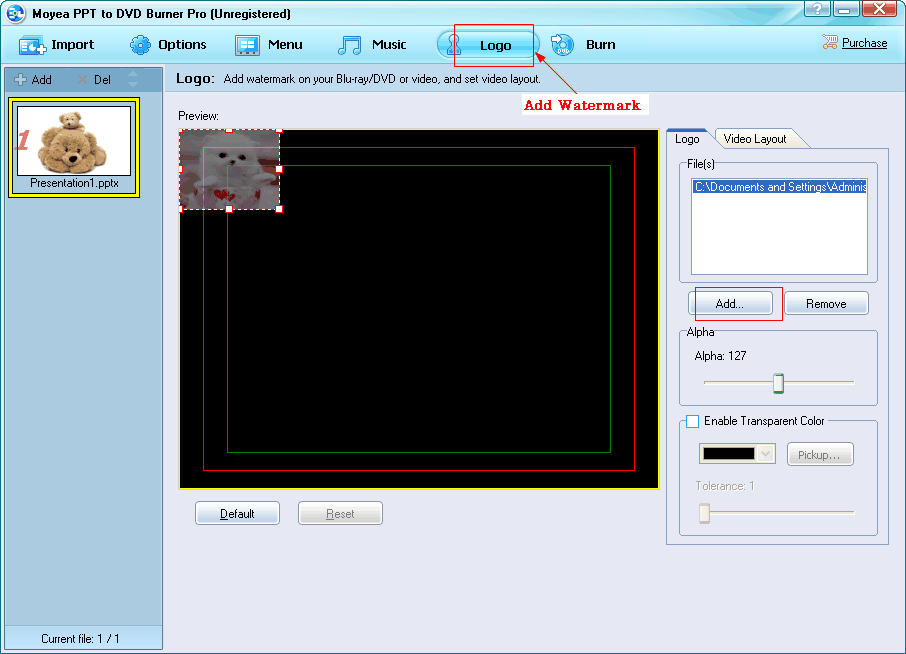
Step 5 Start Burning
Click “Burn” and then click “Start” to start burning.

After all the steps, the PowerPoint was burned to DVD. Then you can enjoy it on your DVD player. Please try it, maybe it will come in handy one day when you are proposing to your lover.
As we know, using animation program in the PowerPoint will make our PowerPoint looks more vivid and interesting. It has great significance in attracting audiences' attention. The more attention the audiences paid to our PowerPoint, the more possible we make efficient presentation.
PowerPoint 2010 provides its users with many animation effects. This was supposed to be an advantage, but, in PowerPoint 2010, animation effect of each picture can only be showed one by one. That is to say, we will have trouble in making two or more pictures move at the same time.
Is there any cool way to solve this problem? Of course there is. Actually, it is very easy. If you turn the two or more pictures into one, you can make it. Can you guess the resolution? Ok, let me introduce it to you.
Step 1: insert pictures Open Microsoft Office 2010 and click "Insert" > "Picture" to insert the pictures. Here I just insert two pictures.

Step 2: Combine pictures Select both the two pictures and right click, choose "Group" > "Group". Then the two pictures become one.


Step 3: choose animation effects Click "Animations" > "Animation Styles" to choose animation effects for the picture. Then you have made it. You can see the effects when you click "Slide Show" > "From Current Slide". Here I choose "Swivel".


