ppt-bird

  • Subscribe to our RSS feed.
  • Twitter
  • StumbleUpon
  • Reddit
  • Facebook
  • Digg

Thursday, 24 November 2011

Macy's Thanksgiving 2011 Parade Routine

Posted on 00:58 by Unknown

Every year I am looking forward to Macy's Thanksgiving Parade, for its extraordinary balloons. This annual parade is presented by Macy’s, a department store who started this tradition as early as 1924. The event will be held for three hours in New York City starting at 9:00 a.m. EST on Thanksgiving Day.

"The Macy's Thanksgiving Day Parade dates as far back as the 1920's, when Macy's employees, many of whom were immigrants, began this tradition in an attempt to connect with American culture by celebrating Thanksgiving."

Parade Routine:

Beginning at 77th Street and Central Park West, the parade marches south on Central Park West, and then turns east onto Central Park South. When it reaches 7th Avenue, the procession turns south at the corner of Central Park South and marches to 42nd Street. It then travels east along 42nd Street from 7th to 6th Avenue. At 6th Avenue, the Parade veers south and marches to 34th Street. At 34th Street, it heads west to Herald Square, ending at 34th Street and 7th Avenue.

More about Thanksgiving 2011:

Free Thanksgiving Wallpaper for Thanksgiving 2011

Free Thanksgiving PowerPoint Backgrounds

Funny Short Thanksgiving Stories
Read More
Posted in Holiday, News | No comments

Tuesday, 22 November 2011

Moyea Black Friday Offer: DVD4Web giveaway, Products with 40% off or 56% off

Posted on 18:28 by Unknown

Moyea 2011 Thanksgiving & Black Friday Activity


Shenzhen, P.R.C (November 22, 2011) – Moyea Software (http://www.moyeamedia.com/ ) gives you another reason to be thankful this Thanksgiving & Black Friday weekend with special offer of giveaway, high discounted sales and free resources. This Moyea Thanksgiving feast kicks off Thursday, Nov. 24 till Wednesday, Nov. 30, last for 1 week.


Moyea Software is an award-winning and professional multimedia software provider, owning a professional development team who are always in pursuit of product excellence and providing a wide range of products as multimedia solutions for business and education as well as for daily life. Products include PPT to DVD Burner series, PPT to Video Converter series, PPT to PDF Converter and SWF Converter series.

Express Your Thankfulness on Our Thanksgiving Wall

Thanksgiving is a time for you to give thanks to your family, friends, loved ones and all the blessings that life has brought you. Showcase thanks and praise on our Thanksgiving Wall, discover the fullness of your life!

Share to Get Giveaway Together with Your Friends

On Thanksgiving Day we acknowledge our dependence. Enjoying time with your family, sharing happiness with your friends are the themes of Thanksgiving. By sharing you will be rewarded with Moyea's giveaway. Leave your name, email and at least two of your friends' emails. Moyea will deliver your Thankfulness to your friends and also offer you Moyea DVD4Web Converter for Free. In return, your friends will receive our special offer too. Your personal information is totally safe with us. Anyway, you can also get the giveaway by sharing with your friends on Facebook or Twitter. For more details please refer to: http://www.moyeamedia.com/software-giveaway/

Enjoy Oneself with Up to 56% Off Thanksgiving & Black Friday Discount

Surprises never lack in Moyea 2011 Thanksgiving & Black Friday promotion. Enjoy up to 40% and 56% off discount respectively for two main Moyea product lines specializing in Flash SWF and PowerPoint converting. For Moyea's flagship SWF to Video Converter Pro and PPT to DVD Burner Pro, you will get as high as $40 price off at our activity page. Also you will get $10-$20 instant cash savings with just one coupon code (THX-45K2D4693S) for all featured Moyea products.


Free Thanksgiving Resources

By sharing happiness doubles. Making a PowerPoint/DVD slideshow with these delicately designed free Thanksgiving-themed PowerPoint templates as Thanksgiving gift will surely touch the receiver's heart. Facebook and Twitter fans are entitled with easy access to those free resources @Moyea_Software (http://twitter.com/#!/Moyea), or Facebook (http://www.facebook.com/Moyea).

Links:

Company Website: http://www.moyeamedia.com/

Thanksgiving Giveaway and Sale: http://www.moyeamedia.com/software-giveaway/

Contact:
Steven
Moyea Software Co., Ltd.
Chief Executive Officer
Email: contact@moyeamedia.com
Tel: +86-755-26553081
Fax: +86-755-26738705

Source from: http://www.dvd-ppt-slideshow.com/blog/moyea-2011-thanksgiving-black-friday-activity-unveiled/
Read More
Posted in Holiday, News | No comments

Saturday, 19 November 2011

Twilight: Breaking Dawn Part 1 wallpapers/PowerPoint Backgrounds

Posted on 18:40 by Unknown
The 4th movie of Twilight saga series - Twilight: Breaking Dawn Part 1 has been on srceen sice November 18th. Here I colletcted some Twilight: Breaking Dawn Part 1 wallpapers/PowerPoint Backgrounds from Free online resources. I love thes ones, especially Bella!

Twilight: Breaking Dawn Part 1 wallpaper - 1:
Twilight: Breaking Dawn Part 1 wallpapers

Twilight: Breaking Dawn Part 1 wallpaper - 2:
Twilight: Breaking Dawn Part 1 wallpapers

Twilight: Breaking Dawn Part 1 wallpaper - 3:
Twilight: Breaking Dawn Part 1 wallpapers

Twilight: Breaking Dawn Part 1 wallpaper - 4:
Twilight: Breaking Dawn Part 1 wallpapers

Twilight: Breaking Dawn Part 1 wallpaper - 5:
Twilight: Breaking Dawn Part 1 wallpapers

Twilight: Breaking Dawn Part 1 wallpaper - 6:
Twilight: Breaking Dawn Part 1 wallpapers

Twilight: Breaking Dawn Part 1 wallpaper - 7:
Twilight: Breaking Dawn Part 1 wallpapers

Twilight: Breaking Dawn Part 1 wallpaper - 8:
Twilight: Breaking Dawn Part 1 wallpapers

More Free Twilight: Breaking Dawn Part I Wallpapers.

Related:

Harry Potter and the Deathly Hallows: Part 2 Wallpapers

Free Thanksgiving Wallpaper for Thanksgiving 2011

Free Download HD Christmas Wallpaper

20 Free Beautiful HD iPhone 4S Wallpapers
Read More
Posted in PowerPoint Templates, Wallpaper | No comments

Thursday, 17 November 2011

How to Play Music/Video with Full Control in PowerPoint 2010

Posted on 19:15 by Unknown

Someone asked this question on Yahoo Answer that how to add music in PowerPoint and he can click to play, pause, stop as he want.

Usually when we insert a song into PowerPoint slide, we will set it play “Automatically”, this way, the song is set as background music. Like the question said, what if we want to full control the music playing process?

There is an amazing method – using “Developer” function in PowerPoint. If you’re using PowerPoint 2007, you can read it here. (The blog post is talking about embed video using Developer.)

Here we will use PowerPoint 2010 as example and insert music using Developer for full control.

How to Play Music  with Full Control in PowerPoint 2010

Step 1: Add “Developer” to your ribbon. This function is hidden by default. Right click anywhere on the ribbon and choose “Customize the Ribbon”.
Play Music  with Full Control in PowerPoint 2010

In the pop up window, check the “Developer” box on the right.
Play Music  with Full Control in PowerPoint 2010

Note: You can also get there by File > Options > Customize the Ribbon.

Step 2: Now you will see the “Developer” tab on the ribbon. In the “Controls” group, click the “More Controls” button.
Play Music  with Full Control in PowerPoint 2010

In the pop up window, choose “Windows Media Player” and click “OK” to close the window.
Play Music  with Full Control in PowerPoint 2010

Drag you mouse and draw a rectangle on the slide, then you will see the Windows Media Player inserted like below:
Play Music  with Full Control in PowerPoint 2010

Step 3: Insert the music. Right click on the player and choose “Properties”.
Play Music  with Full Control in PowerPoint 2010

In the pop up window, fill the path of the music on your computer (e.g. E:\Music\You Drive Me Crazy.mp3) in the “URL” column. Close the window.
Play Music  with Full Control in PowerPoint 2010

Now, press F5 to view the slide, you will find that you can full control the music playing process: play, pause, volume, stop or select the playing time freely.
Play Music  with Full Control in PowerPoint 2010

Related:

Free Thanksgiving Wallpaper for Thanksgiving 2011

Free Download HD Christmas Wallpaper

How to Set Music Play Across Entire Slides in PowerPoint 2010

How toConvert PPSX to PPTX in PowerPoint 2010 Easily

How to Superscript Text in PowerPoint 2010

Read More
Posted in PowerPoint Tips | No comments

Wednesday, 16 November 2011

How to Superscript Text in PowerPoint 2010

Posted on 18:53 by Unknown
In the past, when I was still at school, we take lots of test. While in Mathematics, we meet lots of superscript numbers, like “a2“ in some Math equations. Because these test papers are all printed from Microsoft Word files, I wonder how to type that in Word?

Now in my work I do a lot of PowerPoint stuff, and we also use such superscript in our documents. How to type that in PowerPoint then?

In fact format text as superscript is the same in Word, PowerPoint and Excel. So here I’d use PowerPoint 2010 as example to show how to make it.

How to format text as superscript in PowerPoint 2010


Method 1: As plain text

I know two methods to format text as superscript; the first one is as plain text. Open your PowerPoint 2010, type in “a” in the text box first.

On the Home tab, in the Font group, click the Dialog Box Launcher .
How to Superscript Text in PowerPoint 2010

In the Font dialog box, under Effects, select the Superscript or Subscript check box.
How to Superscript Text in PowerPoint 2010

Now type in “2”, you will see the text like below:
How to Superscript Text in PowerPoint 2010

Method 2: As equation

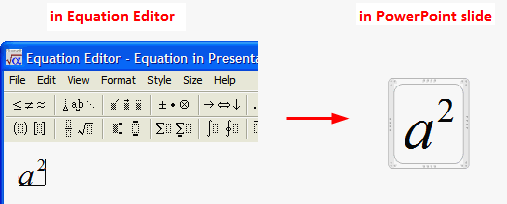
If you have business with Math or Physics equations, you may be familiar with the Microsoft Equation Editor.
On Insert tab, in the Text group, click the Insert Object button.
How to Superscript Text in PowerPoint 2010

In the Insert Object dialog box, click the Create New option, and then click Microsoft Equation 3.0.
How to Superscript Text in PowerPoint 2010

The Equation Editor window will pop up, where you can create your own equation. Type in “a” first, and click the superscript text.
How to Superscript Text in PowerPoint 2010

Then type in “2”, you will see it like this:
How to Superscript Text in PowerPoint 2010

The example is very simple, just to tell you the steps clearly. You can use these two methods to create much more complicated superscript text. Have a try!

Related:

Free Thanksgiving Wallpaper for Thanksgiving 2011

How toConvert PPSX to PPTX in PowerPoint 2010 Easily

How to Crop Picture Using Shapes in PowerPoint

How to Set Music Play Across Entire Slides in PowerPoint 2010

How to Convert Word, Excel, PowerPoint to PDF for Free


Read More
Posted in PowerPoint Tips | No comments

How to Convert PPSX to PPTX in PowerPoint 2010 Easily

Posted on 00:41 by Unknown
Have you got this kind of experience that you downloaded a wonderful PowerPoint slideshow from online, but you see it is in PPSX format? When you open the file, it is directly in PowerPoint Show mode, and you cannot edit it.

How can we easily convert PPSX to PPTX right in PowerPoint 2010?

In fact it is very easy! People get used to open a file by double click it, but they have forgotten there are other ways to open the PPSX file.

Run your PowerPoint 2010 first, this should be a blank slide. Click File > Open and browse PPSX file you want to open.
convert PPSX to PPTX in PowerPoint 2010

Now, you should see the PPSX file be opened just like ordinary PPTX file, you can edit it, jump to any slide, etc.
convert PPSX to PPTX in PowerPoint 2010

Finally, click File > Save As and choose PPTX as the output format.
convert PPSX to PPTX in PowerPoint 2010

Easy, isn’t it? Have a try yourself!

Other PowerPoint Tips:

How to Set Music Play Across Entire Slides in PowerPoint 2010

How to View 4 PowerPoint Files in One Window

Totally Free Methods to Convert PowerPoint to Video

How to Convert Word, Excel, PowerPoint to PDF for Free
Read More
Posted in PowerPoint Tips | No comments

Tuesday, 15 November 2011

How to View PowerPoint on HTC Zeta

Posted on 19:08 by Unknown
The world is crazy now. We are flooded with all kinds of rumors, leaks about the new Smartphones that we don’t know whether it is true, and we don’t even have time to check out for such “news” comes over and over again.

Just a week ago, we heard that HTC is going to release its first quad-core Smartphone HTC Edge, follow by Samsung Galaxy S3. Now another rumor leaked out saying that HTC plans a much more powerful HTC Zeta.
HTC Zeta title=

The most astonishing feature of HTC Zeta is its quad-core 2.5GHz APQ8064 processor. Let’s take a look back: HTC Edge runs on quad-core 1.5GHz processor, and Samsung Galaxy S3 runs on quad-core 2.0GHz processor. So in the words battle, HTC Zeta is undoubtedly the most powerful Smartphone.

The source of this leak also claims that it's got a 4.5-inch 720p display, 8MP camera, 1080p video capture, 1.3MP shooter around front, 1GB or RAM, 32GB of storage, Bluetooth 4.0 and a 1830mAh battery.

On the software side, we've been told to expect Beats Audio and Android 4.0 Ice Cream Sandwich beneath HTC's custom Sense UI 4.0.

As a Android Smartphone, to view PowerPoint on HTC Zeta won't be an easy thing. Although you can install the Office apps for Android OS like Quick Office, Documents to Go, ThinkFree Office, etc. You cannot enjoy all the original PowerPoint effects.

Five methods to view PowerPoint on Android


In my opinion, save PowerPoint (PPT, PPTX, PPS, PPSX, etc) as video with all the PowerPoint effects would be a greate idea. Thus PPT to Video converter is right for us.
PowerPoint to HTC Zeta Converter

Related:


Full Specifications of Nook Tablet

Samsung Galaxy Note Review

How to Play PowerPoint on PS3 with High Definition

How to View PowerPoint on HTC EVO 4G
Read More
Posted in PowerPoint Tips, Smartphone/Tablet | No comments
Newer Posts Older Posts Home
Subscribe to: Posts (Atom)

Popular Posts

  • How to Use Different themes in One PowerPoint File
    Usually when we create a PowerPoint slideshow, we would use a certain PowerPoint theme. We can get it by creating by ourselves, choose from ...
  • Earth Day 2012 PowerPoint Background Free Download
    Earth Day 2012 is coming in two days. This is the first Earth Day that I really pay some attention to. I know every April 22 is the annual...
  • Best Portable Devices of 2011
    The year 2011 has become a history but absolutely not the technical gadgets (Smartphones & Tablets) that hit the market. Here is a list ...
  • The new iPad Unboxed: What does it Look Like?
    On March 7 we finally get to know that the next generation iPad is neither iPad 3 nor iPad HD , but simply “ the new iPad ”. It seems tha...
  • How to Mute Video in a PowerPoint Presentation
    Really strange question, huh? Mostly people will ask you how to keep the sound in PowerPoint when playing on another computer or something...
  • 8 Online Applications to Save PDF as Word You Should Add to Your Favorites
    PDF has its advantage as a popular document file. As I know, many eBooks, contact, order and many other files are saved as PDF for various r...
  • Tutorial of Converting PPTX to MP4 Video with Professional PPTX to MP4 Converter
    How to convert PPTX to MP4 with this professional Moyea PPTX to MP4 Converter ? The following will show you the step by step guide on conver...
  • How to Add Captions to Photo Album in PowerPoint 2010
    If you have made a Christmas Photo slideshow using PowerPoint 2010 before, you should have noticed that although it is perfect to see each p...
  • How to Add Music to PowerPoint 2007 and Playing Across Slides
    Many people asked the question on how to add music to PowerPoint 2007 and at the same time the music can play across the entire PowerPoint s...
  • Three Spotlights of iPad 2
    Apple Inc. is expected to release iPad 2, its second generation iPad on March 2, and the CEO Steve Jobs may appear on the press conference s...

Categories

  • Back to School
  • Famous Quotes
  • Free Resources
  • Halloween
  • Holiday
  • iPhone 5
  • London Olympics
  • Moive Review
  • News
  • Others
  • photo slideshow maker
  • PowerPoint
  • PowerPoint background
  • PowerPoint Background Music
  • PowerPoint Templates
  • PowerPoint Tips
  • PPT Tool
  • Smartphone/Tablet
  • The Twilight Saga: Breaking Dawn Part 1
  • Wallpaper
  • Wallpapers
  • YouTube

Blog Archive

  • ▼  2013 (5)
    • ▼  April (2)
      • 5 PowerPoint Alternatives for Making Presentations...
      • How to View PowerPoint on Sony Xperia ZL?
    • ►  March (2)
    • ►  February (1)
  • ►  2012 (109)
    • ►  November (2)
    • ►  October (8)
    • ►  September (6)
    • ►  August (13)
    • ►  July (13)
    • ►  June (12)
    • ►  May (12)
    • ►  April (11)
    • ►  March (12)
    • ►  February (12)
    • ►  January (8)
  • ►  2011 (179)
    • ►  December (16)
    • ►  November (18)
    • ►  October (17)
    • ►  September (17)
    • ►  August (29)
    • ►  July (19)
    • ►  June (20)
    • ►  May (15)
    • ►  April (7)
    • ►  March (19)
    • ►  February (2)
Powered by Blogger.

About Me

Unknown
View my complete profile