ppt-bird

  • Subscribe to our RSS feed.
  • Twitter
  • StumbleUpon
  • Reddit
  • Facebook
  • Digg

Thursday, 8 December 2011

Greate Graduation Quotes for PowerPoint/DVD Graduation Slideshow

Posted on 19:44 by Unknown
Graduation Quotes
In the past two days I was trying to look for my classmates in my middle school times on Facebook, and I find it is really hard to get in touch. For we have neither mobile phone nor IM number then. The time is not easy when the graduation time comes and all your best friends will leave you. But it is also sweet to recall the happy times you spent together. At that time, we will take photos and exchange with each other, or buy a new notebook and ask all our classmates to write some words on it. For now, it is a great idea a make a PowerPoint/DVD slideshow with the photos, graduation music and your words. These great graduation quotes would add color to your slideshow.

Great Graduation Quotes for PowerPoint/DVD Slideshow

1. I hope your dreams take you... to the corners of your smiles, to the highest of your hopes, to the windows of your opportunities, and to the most special places your heart has ever known.

2. You cannot get to the top by sitting on your bottom.

3. To accomplish great things, we must not only act, but also dream; not only plan, but also believe.

4. School is like a big chapter of your life in the beginning of a book. When you’ve finished that chapter the final and best part begins.

5. A journey of a thousand miles begins with a single step.

6. Education make a people easy to lead, but difficult to drive, easy to govern, but impossible to enslave.

7. Go confidently in the direction of your dreams. Live the life you have imagined.

8. College professor–someone who talks in other people’s sleep.

9. Little minds have little worries; big minds have no time for worries.

10. Your schooling may be over, but remember that your education still continues.

11. The future lies before you like a field of driven snow, Be careful how you tread it, For every step will show.

12. When you leave here, don't forget why you came.

13. To those of you who received honors, awards and distinctions, I say well done. And to the C students, I say you too may one day be president of the United States.

14. The trouble with learning from experience is that you never graduate.

15. Education is what remains when one has forgotten everything he learned in school.

16. It was only when I finished the course and left my graduation diploma on the bus that I realized I'd become an actor.

17. Twenty years from now you will be more disappointed by the things that you didn't do than by the ones you did do. So throw off the bowlines. Sail away from the safe harbor. Catch the trade winds in your sails. Explore. Dream. Discover.

18. High School is a lot like toilet paper, you only miss it when it’s gone.

19. Education is a progressive discovery of your own ignorance.

20. A graduation ceremony is an event where the commencement speaker tells thousands of students dressed in identical caps and gowns that 'individuality' is the key to success.

Thank you for passing by my graduation quotes page.

Free Education PowerPoint Templates:
Free Education PowerPoint Templates
Read More
Posted in Famous Quotes | No comments

Wednesday, 7 December 2011

Websites to Download Christmas Wallpapers for Free

Posted on 18:17 by Unknown

The Christmas 2011 holiday is coming; it’s time for us to decorate everything with Christmas feeling. Not just the traditional Christmas tree, Christmas lights, etc. Don’t forget the thing we put most of time on, no matter at home or work – computers. Decorate your computer desktop with Christmas Wallpaper is what I do every year. It really feels great that every time you open your computer and the Christmas air comes to you! Here are a few websites collected for downloading Christmas Wallpapers for free.

1. WallpaperStock

Free Christmas Wallpapers Websites
WallpaperStock is a great resource for all types of desktop wallpaper, let alone just Christmas, so this is a good place for us to start. On this site, you’ll find several pages of high-quality wallpapers. Clicking on a thumbnail of one will take you to that wallpaper’s page. One of the best things of this site is that it provides several picture sizes for you to choose before download.

2. Free Christmas Wallpaper

Free Christmas Wallpapers Websites
As its title suggests, this site shares all Christmas-themed wallpapers for free. You can find all kinds of Christmas wallpapers here, any wallpaper that is Christmas related: Christmas tree, candles, cats, dogs, gifts, nature, Santa Claus, snowman and so on. Just click on any wallpaper you like, and the original size will be open in a new tab, right click and save the image to your local drive.

3. HD Wallpapers

Free Christmas Wallpapers Websites
You can find a few HD Christmas wallpapers on this site, although not many. It is very convenient to download wallpapers here, click the Download button and you can save the Christmas wallpaper to your computer.

4. Christmas Carnivals

Free Christmas Wallpapers Websites
If you haven’t found any HD Christmas wallpapers you like on the previous websites. You can still find your luck on Christmas Carnivals. The wallpapers are mainly in 1024x768 resolution, not so high-definition to match the recent widescreen desktops. But it does have lots of amazing Christmas wallpapers divided into different categories.

5. PowerPoint E-learning

Free Christmas Wallpapers Websites
Although most of the contents are about PowerPoint e-learning and PowerPoint skills, you can find many gorgeous Christmas-themed wallpapers here. When doing a Christmas PowerPoint presentation, we will undoubtedly add some Christmas pictures to make it looks good, Christmas wallpaper is one of the sources.

If you have any other great sites for download Christmas Wallpapers for free, please be generous enough to share with us all.

HD Christmas Wallpapers on this blog:

Free Download HD Christmas Wallpapers

HD Christmas Wallpapers for iPhone 4S

5 Free iPhone 4S Apps for Christmas 2011
Read More
Posted in Holiday, Wallpaper | No comments

Tuesday, 6 December 2011

How to Add Animation to Picture and Text in PowerPoint 2010

Posted on 19:58 by Unknown
PowerPoint 2010 has change a lot compare to the previous version PowerPoint 2007. More video formats like FLV/MP4 are supported, saving PowerPoint as PDF/Movie is added and lots of other new features. If you want to make your PowerPoint presentation attract your audiences’ eyes, Animation is one of the best tools you should learn to use. Adding animations in PowerPoint 2010 is a bit different for many buttons we are used to have been changed, removed or emerged into one. Now we will take a look at how to add animations in PowerPoint 2010.

Basically animations are added to pictures and texts, and we would talk about each respectively.

Adding Animation to Picture:

Select the picture first and click “Animations” tab on the ribbon. Below in the “Animation” group choose “Animation Styles” and select one animation.
Add Animation in PowerPoint 2010 -1
Do you see the “Add Animation” button in the “Advanced Animation” group? Yes, click it and you can add multiple animations to one object. For example, one animation to fly in and another fly out.
Add Animation in PowerPoint 2010 -2

Click “Animation Pane” (same to “Customize Animations” in PowerPoint 2007) so you can further adjust the settings of the animations, like trigger, timing and other effect options.
Add Animation in PowerPoint 2010 -3

Adding Animation to Text:

Adding animation of text is almost the same as picture. But there are some differences. Choose “Zoom” from the “Animation Styles”.
Add Animation in PowerPoint 2010 -4

Text does have some different “Effect Options”. By selecting a sequence, you decide whether the text appears as one object, all at once, or by paragraph.
Add Animation in PowerPoint 2010 -5

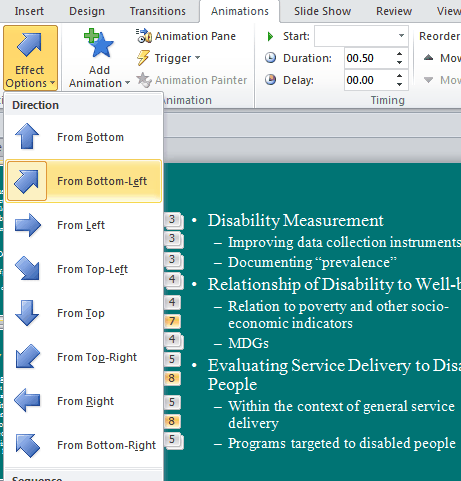
Different animation has different effect options. If you choose “Fly in” animation, when you click “Effect Options”, you can choose which direction you want the text to fly in.
Add Animation in PowerPoint 2010 -6

Preview Your Animations:

Click on the “Preview” button anytime to see what the animation looks like and modify if necessary.
Add Animation in PowerPoint 2010 -7


Read More
Posted in PowerPoint Tips | No comments

Monday, 5 December 2011

4 Methods to Share PowerPoint for Mac Presentations on Facebook

Posted on 22:48 by Unknown
Facebook is the most popular social network sites. Millions of people are sharing their information, hobbies, music, video, etc. on Facebook. According to report, people spend 2 hours a day on average on Facebook. If you want to share your PowerPoint for Mac Presentations on Facebook, this article is written for you.

Method 1: SlideShare app on Facebook

Facebook has an app called “SlideShare” which is so practicable that you can now upload the PowerPoint to Facebook easily, although it more likes pictures than slideshow, without the transitions, animations and other elements. Login Facebook, and search “Slideshare“, and add it in your application area. Click the link on your front page to enter Slideshare, and click “Upload” to upload your PowerPoint to Facebook.

Facebook has great support for videos, so if you can save PowerPoint as QuickTime movie, you can share it on Facebook easily.

Method 2: Export PowerPoint as QuickTime Movie

Click “File”, and choose “Save as Movie”. In the pop up window, type in the file name and select a destination folder for the output movie. Click “Movie Options” to adjust the movie parameters, such as size, quality, slide transition, background soundtrack, etc. But the animation effects of the original PowerPoint file will be removed when saving as QuickTime movie.

Method 3: Save PowerPoint as images and import to iMovie

Click “Save As” and choose image as output format to save all the PowerPoint slides as still images. Then you can use the Mac-embedded iMovie to make a QuickTime movie out of these images. Since iMovie don’t support still images, you will need the help of iPhoto. Open iMovie and on the right hand side there is a button that looks like a camera, click it to open iPhoto. Then drag photos across into your movie. Because only the text and background pictures are saved on the images, you will need to add background music, transitions, etc. in iMovie.
Method 4: Convert PowerPoint to QuickTime movie

If you want to preserve all the original PowerPoint effects like fonts, languages, animations, transitions, music, narrations and video clips, etc., Moyea PPT to Video Converter could help you. With the help of Parallels for Mac, you can run the PPT converter on Mac. In only 3 steps you can convert PowerPoint to QuickTime movie fast and easily. Run the program and click “Add” to add PowerPoint files. Then select a video format from the “Profile” drop-down list. Finally, hit “Start” button to start conversion.

Are there any other ways to share PowerPoint for Mac Presentations on Facebook? Please feel free to share with us if you have any ideas. Hope you have a great time with sharing PowerPoint on Facebook!
Read More
Posted in PowerPoint Tips | No comments

How to Save Presentation as Movie in PowerPoint 2011 for Mac

Posted on 01:30 by Unknown
PowerPoint 2011 for Mac has added some new features, one of which enables users to save PowerPoint as Movie directly. In the past, the presentation can only be viewed on the same PowerPoint version due to the incompatibility between different PowerPoint versions and operating systems. Now, by saving PowerPoint as movie, you can view PowerPoint presentation anywhere as you want.

Save Presentation as QuickTime Movie in PowerPoint 2011:

Step 1: Click “File” on the ribbon and choose “Save as Movie” in the drop-down menu.

Step 2: In the pop up window, type in the file name and select a destination folder for the output movie. Click the “Movie Options” button near the bottom.

PowerPoint 2011: Save as Movie

The Movie Options dialog appears.
Step 3: In the “Movie Settings” tab, choose an “Optimization” from the pop-up menu. The following options are offered: Size, Smooth Playback, Quality, and Automatic (Normal).

PowerPoint 2011: Movie Options

Step 4: The default movie size is 640 x 480; you can change it if you wish.

Step 5: In the “Slide Transitions” pop-up menu, choose either “Follow Slide Show Settings” retain the transitions you applied in the original PowerPoint document or “None” to eliminate all transitions.

Step 6: If you want to add music or narration to your movie, choose “Select Soundtrack” from the “Background Soundtrack” pop-up menu and then choose an audio file to serve as your movie’s soundtrack.
Click the “Loop Movie” check box if you want the movie to play over and over again.

Step 7: Click the “Show Movie Player Controls” check box if you want the receiver to be able to start, stop, and pause the movie.

Step 8: Click the “OK” button to apply the settings.

Notes: The animation effects of the original PowerPoint file is not saved in the QuickTime movie.

If the animation effects are indispensable in your movie, check out Moyea PPT to Video Converter, which can convert PowerPoint to various video formats with all PowerPoint effects, and choose QuickTime movie as output video format. The only problem is that the converter works on Windows operating system. However, with the help of Parallels for Mac, you can run the PPT converter on Mac.

Parallels for Mac: PPT converter

You can batch convert PowerPoint to movie using this converter and video parameters can be edited to guarantee best quality, like Codec, Bit Rate, Video Size, Frame Rate, etc. Powerful but easy to use, in 3 steps you can convert PowerPoint 2008 to QuickTime movie. Run the program and click “Add” to add PowerPoint files. Then select a video format from the “Profile” drop-down list. If you know knowledge about computer and video parameters, you can click “Settings” to edit the output video parameters. That’s all, hit “Start” button to start PowerPoint 2011 to QuickTime movie.

Source from: http://www.dvd-ppt-slideshow.com/blog/how-to-save-presentation-as-quicktime-movie-in-powerpoint-2011-for-mac/

Read More
Posted in PowerPoint Tips | No comments

Motorola Droid 4 Full Specifications and Viewing PowerPoint on Droid 4 with All PowerPoint Effects

Posted on 01:08 by Unknown

Motorola Droid 4, a new Android Smartphone from Droid family, will hit Verizon’s stores on December 8. It is very similar with the former Motorola RAZR, but it has a slide-out QWERTY keyboard. The keyboard is a 5-row, edge-lit, PC-like variety.
Motorola Droid 4


The device sports a 4-inch qHD (540 x 960) screen – slightly smaller than RAZR’s 4.3-inch screen. Inside you get the same 1.2GHz dual-core processor, 1GB of RAM, 16GB of storage, and 8MP camera as Motorola RAZR. The battery gets a boost to 1785mAh, and you can replace it yourself.

The Droid 4 is running on Android 2.3 Gingerbread and it is likely to be upgraded to Android 4.0.
Motorola Droid 4

Full Specifications of Motorola Droid 4

Network: 
4G Network LTE 700MHz
3G Network CDMA 2000 1xEV-DO rev.A
2G Network CDMA 800, 9100 MHz
Form Factor QWERTY-Slider

Dimensions:
Size: 2.2 x 5.0 x 0.5 inches
Weight: 6.31 oz

Display:
Type: TFT LCD Capacitive touchscreen
Size: 4.0 inch
Colors/Resolution: 16 Million Colors & 960 X 540 Pixels
Pixel Density

Input/ User Interfac:
Input: 5-Row Physical QWERTY Keyboard

Multi Touch:
- Scratch-Resistant and Anti-Reflective qHD Display
- Accelerometer sensor for UI auto-rotate
- Proximity sensor for auto turn-off
- Ambient Light Sensor
- Gyroscope

System Properties:
Operating System: Android 2.3.x Gingerbread OS
CPU: 1.2GHz Dual-core Processor
1GB LP DDR2 RAM

Memory Storage:
- Internal Memory 16GB internal Memory Storage
- Memory Expansion Micro-SD card slot for up to 32GB
- Browser & Messaging HTML, XHTML, HTML 5, Android Webkit Browser
- SMS, MMS, Email, Push Email and IM

Camera:
8 Megapixels
- 3266×2450 pixels
- LED Flash, Auto Focus, Geo-tagging
- Image Stabilization, Face detection
- 4x Zoom

Secondary - HD Webcam

Video Recording Capability: 1080p HD Video Recording Capability
(1920 x 1080 Pixels)

- 720p HD @ 30 fps Video Recording Capability
(1280 × 720 Pixels)

Connectivity:
Bluetooth/USB: Bluetooth v4.0 with A2DP & v2.0 micro USB
WLAN Wi-Fi 802.11 b/g/n
DLNA
Wi-Fi Hotspot
Headset 3.5mm stereo headset jack
GPS A-GPS
3G Yes
Radio Stereo: FM radio with RDS

Music/Video:
Music Format: MP3, WMA, WAV, MIDI, AAC, AAC+, eAAC+
Video Format: MPEG4, H.263, H.264, WMV

Battery:
Type: Li-Ion 1785mAh Standard battery
Talk Time: Up to 12.5 Hours
Standby Time: Up to 8.5 Days

Other Features:  
HDMI Out
GLONASS, e-Compass
Adobe Flash compatibility
Android Market, G-mail, Google Maps, G-Talk
Facebook, Twitter, YouTube, Picasa
Digital compass, Barometer, Magnetometer
Colors: Black

Like usual, for businessman and students, they need to view PowerPoint presentations often. For many of the business documents and school materials are made in PowerPoint. Viewing PowerPoint on Motorola Droid 4 would give a log of conveniences, but due to the incompatibility of Android and Windows systems, PowerPoint files cannot be played directly on Droid 4. Moyea PPT to Video Convererter is one of the methods to view PowerPoint on Motorola Droid 4, and the only way to keep all the original PowerPoint effects.
Read More
Posted in Smartphone/Tablet | No comments

Thursday, 1 December 2011

Famous Walt Disney Quotes - December 5th Birthday

Posted on 01:36 by Unknown

Walt Disney QuotesDecember 5th is Walt Disney’s birthday, the man who brings laughter and happiness to the whole world, who established the world’s biggest themed amusement park. Many of the famous to all cartoon characters such as the Mickey Mouse, Donald Duck, Simba, Peter Pan, Cinderella, etc. To memorize this great figure, here we picked some of his famous sayings and some from his Disney movies.

Famous Quotes by Walt Disney:

1. We are not trying to entertain the critics. I'll take my chances with the public.

2. When you're curious, you find lots of interesting things to do. And one thing it takes to accomplish something is courage.

3. I don't like formal gardens. I like wild nature. It's just the wilderness instinct in me, I guess.

4. We allow no geniuses around our Studio.

5. Movies can and do have tremendous influence in shaping young lives in the realm of entertainment towards the ideals and objectives of normal adulthood.

6. The way to get started is to quit talking and begin doing.

7. Laughter is America's most important export.

8. People still think of me as a cartoonist, but the only thing I lift a pen or pencil for these days is to sign a contract, a check, or an autograph.

9. The era we are living in today is a dream of coming true.

10. I have been up against tough competition all my life. I wouldn't know how to get along without it.

11. Crowded classrooms and half-day sessions are a tragic waste of our greatest national resource – the minds of our children.

12. You reach a point where you don't work for money.

13. Of all of our inventions for mass communication, pictures still speak the most universally understood language.

14. A man should never neglect his family for business.


Walt Disney Quotes

Disney Movie Quotes:

1. Always let your conscience be your guide. – Pinocchio

2. All of this has happened before, and it will all happen again. – Peter Pan

3. Ladies don't start fights, but they can finish them! – The Aristocats

4. Faint hearts never won fair lady. – Peter Pan

5. The seaweed is always greener in somebody else's lake. – The Little Mermaid

6. Better to beg forgiveness than ask permission. – The Hunchback of Notre Dame

7. Let your heart guide you. It whispers, so listen closely. – The Land Before Time

8. HAKUNA MATATA...it means no worries – The Lion King

9. The past can hurt. You can either run from it or learn from it. – The Lion King

10. A dream is a wish your heart makes – Cinderella


Read More
Posted in Famous Quotes | No comments
Newer Posts Older Posts Home
Subscribe to: Posts (Atom)

Popular Posts

  • How to Use Different themes in One PowerPoint File
    Usually when we create a PowerPoint slideshow, we would use a certain PowerPoint theme. We can get it by creating by ourselves, choose from ...
  • Earth Day 2012 PowerPoint Background Free Download
    Earth Day 2012 is coming in two days. This is the first Earth Day that I really pay some attention to. I know every April 22 is the annual...
  • Best Portable Devices of 2011
    The year 2011 has become a history but absolutely not the technical gadgets (Smartphones & Tablets) that hit the market. Here is a list ...
  • The new iPad Unboxed: What does it Look Like?
    On March 7 we finally get to know that the next generation iPad is neither iPad 3 nor iPad HD , but simply “ the new iPad ”. It seems tha...
  • How to Mute Video in a PowerPoint Presentation
    Really strange question, huh? Mostly people will ask you how to keep the sound in PowerPoint when playing on another computer or something...
  • 8 Online Applications to Save PDF as Word You Should Add to Your Favorites
    PDF has its advantage as a popular document file. As I know, many eBooks, contact, order and many other files are saved as PDF for various r...
  • Tutorial of Converting PPTX to MP4 Video with Professional PPTX to MP4 Converter
    How to convert PPTX to MP4 with this professional Moyea PPTX to MP4 Converter ? The following will show you the step by step guide on conver...
  • How to Add Captions to Photo Album in PowerPoint 2010
    If you have made a Christmas Photo slideshow using PowerPoint 2010 before, you should have noticed that although it is perfect to see each p...
  • How to Add Music to PowerPoint 2007 and Playing Across Slides
    Many people asked the question on how to add music to PowerPoint 2007 and at the same time the music can play across the entire PowerPoint s...
  • Three Spotlights of iPad 2
    Apple Inc. is expected to release iPad 2, its second generation iPad on March 2, and the CEO Steve Jobs may appear on the press conference s...

Categories

  • Back to School
  • Famous Quotes
  • Free Resources
  • Halloween
  • Holiday
  • iPhone 5
  • London Olympics
  • Moive Review
  • News
  • Others
  • photo slideshow maker
  • PowerPoint
  • PowerPoint background
  • PowerPoint Background Music
  • PowerPoint Templates
  • PowerPoint Tips
  • PPT Tool
  • Smartphone/Tablet
  • The Twilight Saga: Breaking Dawn Part 1
  • Wallpaper
  • Wallpapers
  • YouTube

Blog Archive

  • ▼  2013 (5)
    • ▼  April (2)
      • 5 PowerPoint Alternatives for Making Presentations...
      • How to View PowerPoint on Sony Xperia ZL?
    • ►  March (2)
    • ►  February (1)
  • ►  2012 (109)
    • ►  November (2)
    • ►  October (8)
    • ►  September (6)
    • ►  August (13)
    • ►  July (13)
    • ►  June (12)
    • ►  May (12)
    • ►  April (11)
    • ►  March (12)
    • ►  February (12)
    • ►  January (8)
  • ►  2011 (179)
    • ►  December (16)
    • ►  November (18)
    • ►  October (17)
    • ►  September (17)
    • ►  August (29)
    • ►  July (19)
    • ►  June (20)
    • ►  May (15)
    • ►  April (7)
    • ►  March (19)
    • ►  February (2)
Powered by Blogger.

About Me

Unknown
View my complete profile