ppt-bird

  • Subscribe to our RSS feed.
  • Twitter
  • StumbleUpon
  • Reddit
  • Facebook
  • Digg

Monday, 9 April 2012

How to Make a Photo Slideshow With Music Using PowerPoint and Share

Posted on 21:03 by Unknown
Want to create some video and share online with the whole world? There are many people who go out a lot or travel and they will share their digital videos on YouTube or Facebook to share. What if you don’t have though ready-made videos? Your family photos and home video can also be great resources. For the Easter 2012 just pasted, you should have taken lots of photos with your family and friends, recorded all those happy and fun moments. In this article we’ll tell you where and how to share as well as making your own amazing photo slideshow simply using PowerPoint. And with Moyea PPT to Video Converter, turn PowerPoint into video and upload to YouTube or Facebook.

How to make photo slideshow with music


To make a video with photos and music, you’ll need:

1. Digital photos and music
2. Microsoft PowerPoint
3. Video slideshow software (e.g. PowerPoint to Video Converter)
4. YouTube / Facebook account

Step 1: Add photos and music

Run PowerPoint program and click “Insert” → “Photo Album” → choose photos. This allows you to insert all the photos into PowerPoint at a time. Each PowerPoint slide will have one photo on it. Choose some picture styles, picture shape and picture effects to make the inserted photos lively. Click “Insert” →”Audio” → “Audio from File” to import music to PowerPoint. It will be better to set the song to play across entire PowerPoint slides as background music.

Step 2: Convert PowerPoint to video

PowerPoint is a document file with unique file formats and can be only uploaded to certain PPT sharing websites directly to be shown as pictures. Then what’s the purpose of adding music, animations and transitions? Moyea PPT to Video Converter helps converting PowerPoint to popular video formats like MP4, AVI, WMV, FLV, MKV, VOB, 3GP, etc. with all PowerPoint effects kept.

Step 3: Upload video to YouTube / Facebook

Now you can upload the PowerPoint slideshow to YouTube / Facebook freely as video. Sign in your account and click “Upload” to transfer your video to the web server. Depending on the video size and your Internet connection speed, it will take a few minutes to upload to YouTube / Facebook. While it is still uploading, take the time to fill some necessary information about your video for easily searched by others.

Things need to know about YouTube video


File size and duration for YouTube video need to be less than 2GB and 15 minutes. Before converting PowerPoint slideshow to video, you should know the recommended video parameters for YouTube.

• Video Format: MP4 AVC
• Resolution: 640 x 480 (1280 x 720 for High Definition)
• Video Frame Rate: 29.97fps
• Sample Rate: 44100

A wide range of formats are supported by YouTube, and you could also output video slideshow in these formats in the picture video software.

• Windows Media Video(WMV)
• 3GP (cell phones)
• AVI (windows)
• MOV (mac)
• MP4 (iPod/PSP)
• MPEG
• FLV (adobe flash)
• SWF (shockwave flash)
• MKV (H.264)

Things need to know about Facebook video


The following video formats are supported by Facebook, but not limited to. Among all the formats, MP4 is the best video format for Facebook.

• MPEG-4 Video (MP4, MPEG4)
• AVI Video (AVI)
• Windows Media Video (WMV)
• MPEG Video (MPG, MPEG)
• Windows Media Video (ASF)
• QuickTime Movie (MOV)
• Mobile Video (3GPP, 3GP, 3G2)
• Matroska Format (MKV)
• Flash Player Video (FLV)
• DVD Video (VOB)
• OGG Format (OGM)

That’s it. Have fun with creating your photo slideshow with music using PowerPoint and share on YouTube and Facebook.
Read More
Posted in PowerPoint Tips, PPT Tool | No comments

Sunday, 8 April 2012

Great Websites That PowerPoint Fans Should Know

Posted on 20:47 by Unknown
In the past year, I have got to know a lot about PowerPoint because it is needed for my work and daily life. Here I'd like to introduce websites that would be helpful for your PowerPoint.

1. Microsoft Office Online

Microsoft Office Online

It is the official website for Microsoft Office. I have to admit for a long time I don't know this website, although I have used Microsoft Office often for a long time. In fact, it is a very useful website for PowerPoint users, not matter you're beginners or professionals. Detailed PowerPoint tutorials, free office web apps, all kinds of PowerPoint materials like templates and clip art, and images searching are available on this site.

2. About.com – Tips about PowerPoint slideshow

About.com

This website helps me a lot to learn how to use PowerPoint efficiently. Lots of PowerPoint tips, skills and suggestions are available there for you to read and learn. The best thing is that all the guides are written with detailed screenshots for you to see what it like on PowerPoint. I'm sure if you can be patient enough to read all the articles on this site, you will become a PowerPoint expert by then.

3. Prezi

Prezi

It is widely known as the most innovative presentation online application. Prezi is cloud-based presentation software, so you don't need to download or install anything on your computer, you can create a Prezi presentation easily using a browser. Unlike Microsoft PowerPoint which divided the presentation into several slides. Prezi presentation is more like a zoomable map so you can zoom in to see the detail of a part. And that part is similar to the slide in PowerPoint.

4. Google Docs

Google Docs

We should never forget to mention Google Docs. It is a PowerPoint-like presentation online application. Google Docs has all the basic functions you need to make a presentation slideshow: text, pictures, video, animation and transitions, etc. I don't understand why Google Docs don't allow inserting music. Besides, you can upload Microsoft PowerPoint to Google Docs or download Google Docs as PowerPoint or PDF file.

5. Slideshare

Slideshare

It is a website that only less popular than the official website in PowerPoint industry. Slideshare makes it possible to share PowerPoint presentations online without converting PowerPoint to video. You can directly upload PowerPoint to Slideshare to be shown as slideshow of pictures. In fact, there is many such kind of PPT sharing websites in the world. But this website stands out because of its image quantity and quality.

6. PowerPoint converter

PowerPoint converter

Sometimes you may need to convert PowerPoint to other formats for different reasons. For example, convert PowerPoint to PDF for copyright protecting, easy email and reading; converting PowerPoint to video for sharing on YouTube and keep all the original effects; burning PowerPoint to DVD for storage or gift with best quality. This website offers great PowerPoint converters and abundant useful PowerPoint tips for PowerPoint learning.

I'm sure there are a great many of other good websites for PowerPoint that I don't mentioned or maybe I don't know. What are other websites that PowerPoint fans should know?


Read More
Posted in Free Resources, PowerPoint Tips, PPT Tool | No comments

Saturday, 31 March 2012

PowerPoint to iRiver B100 MP3 Player to Help with Your Study

Posted on 00:40 by Unknown

It’s been really a long time since I heard news about MP3 player last time. Nowadays everyone is busy talking about smartphone and tablets. People are getting crazy to follow the new generation iPhone 4S and the new iPad (iPad 3), mostly used for games like Angry Birds, Fruit Ninja, Drawing games, etc.

I read an article about the music playing games of the new iPad, the user complain that the music played with the new iPad losses a lot than listening on computers or MP3 players. One of the commentators said the iPads are not designed for music. That’s right, if you want to listen to music with best quality, you should choose a professional MP3 player.
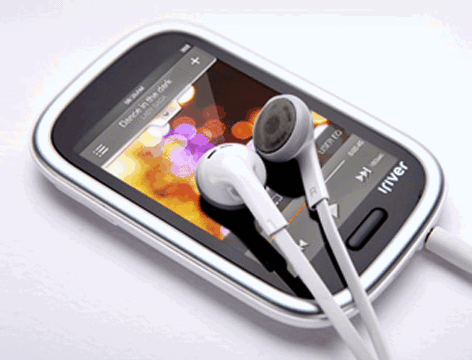
PowerPoint to iRiver B100

The iRiver recently released a new product, iRiver B100, a device with 3.1-inch screen, 320 x 480 resolution. It is able to play:
Audio: MP3, FLAC, OGG
Video: MPEG-4, WMV, MOV, MKV, TS, support up to 480p (720 x 480) video size
Text: ePub, txt, PDF
Other: comic book in JPEG image format

From above you know that iRiver is powerful enough to support so many multimedia formats, the most exciting is the video support. I still remember the first MP3 player I bought 7 years ago for my French learning. I love that MP3 player for it provides me practical functions like loop, replay, and 3 X speed play and 1/3 X speed play, which helped me a lot. I wonder whether these functions can be seen on iRiver B100.

Never mind, iRiver B100 is even stronger with the video playback ability. We can take full advantage of this to view PowerPoint presentations on iRiver B100. Some people complained that we are paying so much to watch PowerPoint presentations in college. It may sound extreme, but it shows how popular PowerPoint is among university professors. Most of the teaching materials are now in PowerPoint format. Read PowerPoint on your iRiver B100 anywhere as you want will surely help your study a lot.
PowerPoint to iRiver B100

To make iRiver B100, we need to convert PowerPoint to video first. I searched in Google and get this Moyea PPT to Video Converter. The trial worked fine for me, it runs fast, stable and output video with no loss of animations, transitions, music and embedded video clips. I am planning to share some funny Easter pictures on their Facebook and Twitter page, hoping to get a free license.

In 3 steps we can turn a PowerPoint slideshow to video for iRiver B100. Load PowerPoint files to the converter. (Batch conversion supported.) Select a video format and adjust the video and audio parameters for iRiver B100, like change the video size as 720 x 480 for high video quality. Convert PowerPoint to iRiver B100. At last copy the output videos to iRiver B100 and we can watch PowerPoint on iRiver B100 without any limitations.
Read More
Posted in PowerPoint Tips, Smartphone/Tablet | No comments

Thursday, 29 March 2012

PowerPoint to Kindle Touch 3G

Posted on 00:20 by Unknown
If you’re looking for a good eBook reader with low price, you may be considering cheap tablet like the Amazon Kindle Fire or the new Kindle Touch 3G. The Kindle Fire scores better because of content support and display type, while Kindle Touch 3G wins for the free 3G connectivity to Amazon and Wikipedia.

Amazon Kindle Touch 3G supports AZW, TXT, PDF, Audible (Audible Enhanced (AA, AAX)), MP3, unprotected MOBI, PRC natively; you can view HTML, DOC, DOCX, JPEG, GIF, PNG, BMP on Kindle Touch 3G after conversion to AZW for free.

Here is a brief comparison between Kindle Touch 3G and Kindle Fire:

Kindle Touch 3G Kindle Fire
Dimensions 172 x 120 x 10.1 mm 190 x 120 x 11.4 mm
Screen 6-inch, 800 x 600, E-ink 7-inch, 1024 x 600, LCD
Processor Dual-core 1 GHz Cortex-A9 TI OMAP 4430
Hardware 4 GB internal storage
512 MB RAM
8 GB internal storage
No MicroSD card
Camera No No
System Android 2.3
Network WiFi, 3G WiFi
Formats supported No video support
MP3, WAV, AAC, OGG
PDF, PRC, AZW
MP4, VP8
MP3, WAV, AAC, OGG
PDB, PDF, PRC, AZW

3 ways to view PowerPoint on Kindle Fire

Since Kindle Touch 3G has no video support so we cannot view PowerPoint on Kindle Touch 3G with no loss of the animations, transitions, music or video clips.
Read More
Posted in Smartphone/Tablet | No comments

Wednesday, 28 March 2012

List of Meaningful Graduation Songs for 2012

Posted on 01:58 by Unknown
Now, the graduation season is coming. Though the peak of graduation may be in the June or July, but in some countries, time is a bit earlier like in Philippines and Japan. Kindergarten pupils, middle school students and university students are going to their own graduation time.

At the every graduation ceremony, students will sing a song as a final ceremony, which will extremely generate the sense of unity, and also a sense that we're really going apart. These meaningful graduation songs for 2012 will resonate with your feelings, the overlook to a new start or the sad emotions of goodbyes between friends and classmates.
Graduation Songs


If you are going to make a PowerPoint slideshow or a short video with the photos taking in the past years, taking these graduation songs as background music is also great idea.

List of meaningful graduation songs for 2012:


1. Gift of a Friend – Demi Lovato
2. Best Friend – Auburn
3. A Place In This World – Taylor Swift
4. Song for a Friend – Jason Mraz
5. The World’s Greatest – R. Kelly
6. My Wish – Rascal Flatts
7. I’m Movin’ On – Rascal Flatts
8. The Graduation Song (Friends Forever) – Vitamin C
9. A Moment Like This – Kelly Clarkson
10. Here Comes Goodbye – Rascal Flatts
11. A Place in the Sun – Stevie Wonder
12. Do I Make You Proud – Taylor Hicks
13. I’ll Be There For You – The Rembrandts
14. Soar – Christina Aguilera
15. I Will Remember You – Sarah MacLachlan
16. Best Friend – Jason Chen
17. We Are One – Lion King 2
18. True Colors – Cyndi Lauper
19. Whenever You Remember – Carrie Underwood
20. There You’ll Be – Faith Hill
21. These are the Special Times – Christina Aguilera
22. You’ll Never Walk Alone – Jordin Sparks
23. Remember Me This Way – Jordan Hill
24. Graduation Day – Chris Isaak
25. Through the Years – Kenny Rogers
26. Unwritten – Natasha Bedingfield
27. Here’s to the Night – Eve 6
28. Breakaway – Kelly Clarkson
29. It’s So Hard to Say Goodbye – Boyz II Men
30. You Get What You Give – New Radicals

If you have any good idea or graduation songs suggestions, feel free to share with us below.

Read more:

15 graduation songs for 2011

Graduation quotes
Read More
Posted in Free Resources, PowerPoint Tips | No comments

Tuesday, 27 March 2012

The First PowerPoint Phone: PowerPoint to Samsung Galaxy Beam

Posted on 23:33 by Unknown
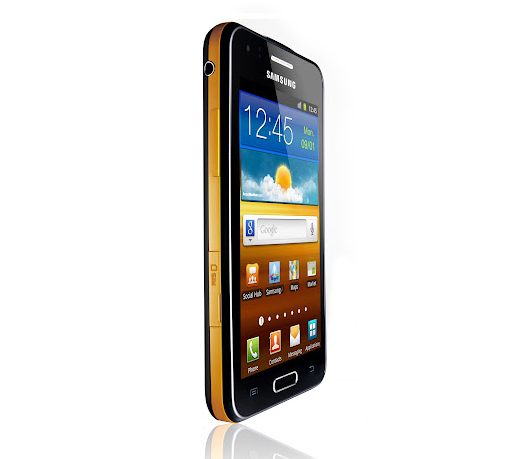
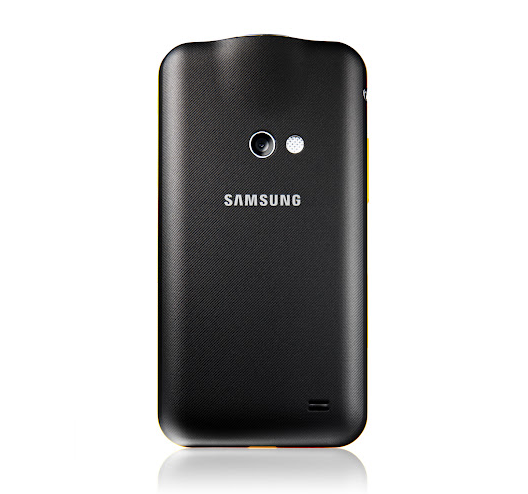
Samsung announced its first phone of Mobile World Congress (MWC) 2012, the Samsung Galaxy Beam, a unique Smartphone that distinguishes from all others, with a built-in projector. For a long time, people are discussing on the application of Smartphones or tablets in work place, not until Samsung Galaxy Beam came out.

The Galaxy Beam can project video, images or PowerPoint presentations up to 50-inches wide. The resolution of projected video is 640 x 360 pixels. The Galaxy Beam measures only 0.49 inches while packing in a 15 lumens projector. Most Pico projector accessories sold today are only 10 or 12 lumens bright. That’s why ever the image clarity was impressive: colors looked vivid and the picture looked sharp. So it is possible that you can bring your Samsung Galaxy Beam to show your PowerPoint presentations directly using the built-in projector.


Samsung Galaxy Beam-1

Samsung Galaxy Beam-2

Samsung Galaxy Beam-3

Samsung Galaxy Beam-4
Let’s take a look at the main features of Samsung Galaxy Beam:
Design

• Dimensions: 123 x 59.8 x 14.9 mm

• Weight: 156g

• Display type: Super AMOLED capacitive touchscreen, 16M colors

• Size: 480 x 800 pixels, 3.7 inches (~252 ppi pixel density)

• Multitouch

• Protection: Scratch-resistant glass (Projector UI and Handwriting recognition)

Memory

• Card slot: microSD, up to 32GB

• Internal: 16 GB storage, 512MB ROM, 384MB RAM

Features

• OS: Android OS, v2.1 (Eclair)

• CPU: 720 MHz

• Sensors: Accelerometer, proximity

• Messaging: SMS, MMS, Email, Push Email, IM, RSS

• Browser: WAP 2.0/xHTML, HTML, Adobe Flash Lite

• Radio: Stereo FM radio with RDS

• A-GPS support and Java MIDP emulator

Camera

• Primary: 8 MP, 3264×2448 pixels, autofocus, LED flash

• Geo-tagging, face, smile and blink detection features

• Video: 720p@30fps with video light

• Secondary: VGA

Sound

• Alert types: Vibration, MP3 ringtones

• Loudspeaker with stereo speakers

• 3.5mm jack

Data network

• GPRS: Class 12 (4+1/3+2/2+3/1+4 slots), 32 – 48 kbps

• EDGE: Class 12

• Speed: HSDPA 7.2 Mbps, HSUPA 5.76 Mbps

• WLAN: Wi-Fi 802.11 b/g/n, DLNA

• V3.0 bluetooth with A2DP

• microUSB v2.0

Battery

• Standard battery, Li-Ion 1800 mAh

• Stand-by: Up to 630 h (2G) / Up to 530 h (3G)

• Talk time: Up to 14 h 10 min (2G) / Up to 7 h 20 min (3G)

Other Features

• Social networking integration with live updates

• Built-in WVGA projector

• Google Search, Maps, Gmail

• YouTube, Google Talk integration

• MP3/WMA/WAV/eAAC+ player

• MP4/H.263/H.264/Xvid/DivX player

• Image editor

• Organizer

• ThinkFree Office Mobile document editor

• Voice memo/dial

• Predictive text input (Swype)

How to present your PowerPoint with Samsung Galaxy Beam: The built-in projector makes it possible for you to show PowerPoint up to 50-inches wide directly. The problem is that Microsoft PowerPoint cannot run on Android Smartphones and the Android Office apps like Documents to Go, ThinkFree Office cannot preserve PowerPoint animations, transitions, etc. So you’d better convert PowerPoint to video for Samsung Galaxy Beam, if you want to present PowerPoint with all original PowerPoint effects, like animations, transitions, intervals, music and embedded video clips, etc.
Read More
Posted in News, PPT Tool | No comments

Monday, 26 March 2012

Convert PowerPoint to FLV Video with All Animations, Video and Sounds Preserved

Posted on 23:48 by Unknown
Key benefits:

Moyea PPT to FLV converts PowerPoint presentations to FLV and other videos with sound;
Converts PowerPoint to video for Website (PowerPoint to HTML Document with flash video player for your own site);
Converts PowerPoint to YouTube ready videos;
Keeps all original animations, effects, videos of PowerPoint presentations.

More benefits:

Supported PowerPoint formats: PPT, PPS, POT, PPTX, PPSX, POTX, etc.;
Supported video formats: WMV, AVI, lossless AVI, FLV, MP4, MOV, MKV, VOB, 3GP, RM, RMVB, etc.;
Support all kinds of portable devices like iPod, iPad, iPhone, Blackberry, Android smartphone, WP7 smartphone and tablets;
Customize bit rate, frame rate, resolution are supported;
Batch conversion supported: convert multiple PowerPoint files to videos at a time;
Preserve all effects, animations, transitions, intervals, sounds and embedded videos in PowerPoint;
Add songs as background music for the output video;
New! You can choose to add your own watermark to the output video.

Below is the real video converted from a PowerPoint Presentation using Moyea PowerPoint to FLV converter:


10 Classic Christmas Movies You Should Never Miss


Requirements: Microsoft PowerPoint Version 2000/2002/2003/2007 and 2010 32 bit

For Experienced Users: Although the converter has embedded with optimal settings for each video format. You can also customize the output video parameters as you want, like video codec, audio codec, bit rate, frame rate, aspect ratio, video size, audio channel, etc.


How to Add Watermark on your PowerPoint video: Most times you don’t want watermark on the output video, because that is not your watermark. What if you want to add your own watermark on the output video, to credit your work or to advertise? The converter allows you to add pictures as watermark and set the alpha, color and tolerance.


Free download and install the PowerPoint to FLV converter on your computer.
Download PPT to Video ConverterPurchase PPT to Video Converter


Read More
Posted in PPT Tool | No comments
Newer Posts Older Posts Home
Subscribe to: Posts (Atom)

Popular Posts

  • How to Use Different themes in One PowerPoint File
    Usually when we create a PowerPoint slideshow, we would use a certain PowerPoint theme. We can get it by creating by ourselves, choose from ...
  • Earth Day 2012 PowerPoint Background Free Download
    Earth Day 2012 is coming in two days. This is the first Earth Day that I really pay some attention to. I know every April 22 is the annual...
  • Best Portable Devices of 2011
    The year 2011 has become a history but absolutely not the technical gadgets (Smartphones & Tablets) that hit the market. Here is a list ...
  • The new iPad Unboxed: What does it Look Like?
    On March 7 we finally get to know that the next generation iPad is neither iPad 3 nor iPad HD , but simply “ the new iPad ”. It seems tha...
  • How to Mute Video in a PowerPoint Presentation
    Really strange question, huh? Mostly people will ask you how to keep the sound in PowerPoint when playing on another computer or something...
  • 8 Online Applications to Save PDF as Word You Should Add to Your Favorites
    PDF has its advantage as a popular document file. As I know, many eBooks, contact, order and many other files are saved as PDF for various r...
  • Tutorial of Converting PPTX to MP4 Video with Professional PPTX to MP4 Converter
    How to convert PPTX to MP4 with this professional Moyea PPTX to MP4 Converter ? The following will show you the step by step guide on conver...
  • How to Add Captions to Photo Album in PowerPoint 2010
    If you have made a Christmas Photo slideshow using PowerPoint 2010 before, you should have noticed that although it is perfect to see each p...
  • How to Add Music to PowerPoint 2007 and Playing Across Slides
    Many people asked the question on how to add music to PowerPoint 2007 and at the same time the music can play across the entire PowerPoint s...
  • Three Spotlights of iPad 2
    Apple Inc. is expected to release iPad 2, its second generation iPad on March 2, and the CEO Steve Jobs may appear on the press conference s...

Categories

  • Back to School
  • Famous Quotes
  • Free Resources
  • Halloween
  • Holiday
  • iPhone 5
  • London Olympics
  • Moive Review
  • News
  • Others
  • photo slideshow maker
  • PowerPoint
  • PowerPoint background
  • PowerPoint Background Music
  • PowerPoint Templates
  • PowerPoint Tips
  • PPT Tool
  • Smartphone/Tablet
  • The Twilight Saga: Breaking Dawn Part 1
  • Wallpaper
  • Wallpapers
  • YouTube

Blog Archive

  • ▼  2013 (5)
    • ▼  April (2)
      • 5 PowerPoint Alternatives for Making Presentations...
      • How to View PowerPoint on Sony Xperia ZL?
    • ►  March (2)
    • ►  February (1)
  • ►  2012 (109)
    • ►  November (2)
    • ►  October (8)
    • ►  September (6)
    • ►  August (13)
    • ►  July (13)
    • ►  June (12)
    • ►  May (12)
    • ►  April (11)
    • ►  March (12)
    • ►  February (12)
    • ►  January (8)
  • ►  2011 (179)
    • ►  December (16)
    • ►  November (18)
    • ►  October (17)
    • ►  September (17)
    • ►  August (29)
    • ►  July (19)
    • ►  June (20)
    • ►  May (15)
    • ►  April (7)
    • ►  March (19)
    • ►  February (2)
Powered by Blogger.

About Me

Unknown
View my complete profile