ppt-bird

  • Subscribe to our RSS feed.
  • Twitter
  • StumbleUpon
  • Reddit
  • Facebook
  • Digg

Friday, 20 April 2012

Earth Day 2012 PowerPoint Background Free Download

Posted on 03:08 by Unknown
Earth Day 2012 is coming in two days. This is the first Earth Day that I really pay some attention to. I know every April 22 is the annual Earth Day. But I don’t know the detail about it. Today I searched on Google and got to know the history and mission of Earth Day. It is true that we need to do something to help saving our home, the planet we all lived on. Earth Day movement has very strong desire to get the support from governments, but 42 years passed, it seems that not much has been achieved. So the theme for Earth Day 2012, Mobilize the Earth, urges us to do our part to help make a better future for us.

I'm going to make a PowerPoint presentation about saving the Earth, about the problems of our planet like the pollution, huge population, global warm, natural disaster, etc. If you’re interested too, here I collected some free Earth Day 2012 pictures for your PowerPoint background. Join us and save the Earth! Convert Earth Day PowerPoint to YouTube video and share with more people.


Earth Day 2012 PowerPoint Background Free Download 1

Earth Day 2012 PowerPoint Background Free Download 2


Earth Day 2012 PowerPoint Background Free Download 1


Earth Day 2012 PowerPoint Background Free Download 2
Earth Day 2012 PowerPoint Background Free Download 3
Earth Day 2012 PowerPoint Background Free Download 4


Earth Day 2012 PowerPoint Background Free Download 3


Earth Day 2012 PowerPoint Background Free Download 4
Earth Day 2012 PowerPoint Background Free Download 5

Earth Day 2012 PowerPoint Background Free Download 6


Earth Day 2012 PowerPoint Background Free Download 5


Earth Day 2012 PowerPoint Background Free Download 6
Earth Day 2012 PowerPoint Background Free Download 7

Earth Day 2012 PowerPoint Background Free Download 8


Earth Day 2012 PowerPoint Background Free Download 7


Earth Day 2012 PowerPoint Background Free Download 8
Earth Day 2012 PowerPoint Background Free Download 9

Earth Day 2012 PowerPoint Background Free Download 10


Earth Day 2012 PowerPoint Background Free Download 9


Earth Day 2012 PowerPoint Background Free Download 10
Read More
Posted in Free Resources, Holiday | No comments

Thursday, 19 April 2012

PowerPoint 2007 Files to PowerPoint 2003

Posted on 20:07 by Unknown

Problem:

I did a PowerPoint on Microsoft office 2007 saved it on a flash drive, then went to another computer to load it on an older version of PowerPoint and it wouldn't open.

Answer:


This is from a question on Yahoo Answer. The next time when you need to ask question, you can say clearly what the older PowerPoint version is so that we don’t need to guess and say if this, if that. Anyway, I assume that the “another computer” has PowerPoint 2003 installed.

So the question would be how to make the PowerPoint 2007 file work on PowerPoint 2003. Please note that it is on “another computer”.

I came up 3 solutions for this question.

1. Change the PowerPoint format.

From PowerPoint 2007, the PowerPoint formats have changed, with an “X” as the suffix. Another trick of Microsoft to force users to upgrade their PowerPoint and pay once more. Anyway, older PowerPoint versions, say PowerPoint 2003 cannot open PowerPoint 2007 files.

You can click the “Office button” the round one with Microsoft logo on it and choose “Save As” and you will find the “PowerPoint 1997-2003 Presentation” on the right. That’s it. Save a copy of the PowerPoint 2007 file as PPT format so that you can open with PowerPoint 2003 directly.
Save PowerPoint 2007 as 2003 format


2. Microsoft Office Compatibility Pack

PowerPoint 2003 users can also install the Microsoft Office Compatibility Pack that enables you to open PowerPoint 2007 file directly in 2003.

It seems wonderful with the above two methods. But think about the following two problems:

A. The new features you included in PowerPoint 2007 will not be available if you use PowerPoint 2003 to view it.

B. To move the PowerPoint 2007 to “another computer” with PowerPoint 2003 installed, you should also copy the inserted music and videos with the PowerPoint file too, and make sure that you put them in the same folder, has the same path as the old computer. If not, you need to insert again and reset the parameters.

3. Convert PowerPoint 2007 to video

We can save PowerPoint 2007 to PDF too, and the reason why we convert PowerPoint 2007 to video is that you can save all the PowerPoint 2007 effects like the animations, transitions, music and video clips in the output video and in the right, proper order.
Convert PowerPoint 2007 to video

Convert PowerPoint 2007 to video


The output video can be played on any computer with media player installed like Windows Media Player or even QuickTime Player on Mac.

Have you any other solutions for this topic?

Read More
Posted in PowerPoint Tips | No comments

Monday, 16 April 2012

Add Invisible Shortcut to End PowerPoint Presentation Quickly

Posted on 23:13 by Unknown
When you’re doing the PowerPoint presentation, how will you end the PowerPoint slideshow in the following cases? You didn’t organize the time efficiently that the time is nearly out but the presentation is far to the end. You have an emergency and need to quit earlier. How can you end the PowerPoint presentation early without looking like you’ve shortchanged the audience?

In this article we will show you how to add an invisible shortcut to the end so that you can quickly end your PowerPoint. Your audience will never know that they have missed parts of the PowerPoint.

1. Jump to the end

We will add a button on the slide that links to the end slide in the presentation. Click “Insert” → “Shapes”, choose any of the shapes.
Invisible Shortcut to End PowerPoint -1

Drag your mouse to draw on the slide and place the shape at the corner of the slide.
Invisible Shortcut to End PowerPoint -2

Now add the hyperlink to the end slide on the shape. Right click and choose “Hyperlink”.
Invisible Shortcut to End PowerPoint -3

In the popup window, click “Place in this Document” and choose the last slide to hyperlink to.
Invisible Shortcut to End PowerPoint -4

2. Invisible the button

It will be much better if the inserted button is invisible, you only need to remember the location and move your mouse there and click it. That’s why we place it at the corner. Right click on the shape and choose “Format Shape”.
Invisible Shortcut to End PowerPoint -5

In the popup window, choose “No Fill” in both “Fill” and “Line Color” tab.
Invisible Shortcut to End PowerPoint -6

3. Invisible button on every slide

You will never know when you will need to jump to the end slide. It’s never in the plan, that’s why we create this quick shortcut to end the PowerPoint slideshow.

Method 1:
Copy and paste the button to every slide. The hyperlink and location will be the same as the original slide.

Method 2:
By adding button to the Slide Master, the button is available on all slides so you can click it at any time. In this way, you should create the invisible button in the Slide Master from the very beginning. Click “View” → “Slide Master”.
Invisible Shortcut to End PowerPoint -7

Then you create an invisible button on the first slide, the main slide just like how we do above. Then click “Close Master View” to return to normal mode.
Invisible Shortcut to End PowerPoint -8

That’s it! When you want to end the PowerPoint quickly, don’t click on the slide, it will advance to the next slide; click the invisible button and jump to the end slide directly.

The idea in this post is from:

How to create invisible buttons in PowerPoint
How to add hyperlink within PowerPoint
Read More
Posted in PowerPoint Tips | No comments

Use Google Docs to Convert PDF to Word for Free

Posted on 00:06 by Unknown
How to convert PDF to Word file?

Have you heard of these two document formats: PDF and Word. PDF is created by Adobe, you need PDF viewer to open it and you cannot edit it unless you have PDF editor. Word is part of Microsoft Office suite, with Microsoft Word and other Word-like programs, like WPS, Open Office, you can create, view and edit word documents.

Usually people need to convert Word to PDF for security and format reasons, because most of computers have Word installed, but no PDF editor. PDF is an ideal way to email or share your document with others. There are many free ways to convert Word/Excel/PowerPoint to PDF.

Sometimes you need the content in the PDF format, but you cannot copy it out directly and it will be a waste of time to type into word letter by letter. Converting PDF to Word is best choice, you can pay PDF to Word converter to do the job. But why not choose Google Docs if the free method is available for you?

Google Docs is an online application which is equivalent to Microsoft Office. Besides download Word as PDF, it can also convert PDF to Word for free, that is what Microsoft Word 2010 cannot do.

1. Upload PDF to Google Docs.


Login Google Docs with your Gmail account. Gmail account gives access to Google Docs and other Google services. Your Google Docs homepage is like this and click the “Upload” button.
PDF to Word Free: Google Docs -1


Click “Files” in the drop-down list, and then browse the PDF file on your computer you want to turn into Word.
PDF to Word Free: Google Docs -2


In the pop-up message, check the box of “Convert text from PDF and image files to Google documents” so that the content in your PDF file will be recognized and extracted into Word document instead of image. The settings should be the same as the picture shows.
PDF to Word Free: Google Docs -3


Then click “Start Upload” to upload PDF to Google Docs. Upload finished.
PDF to Word Free: Google Docs -4


2. Save as Word file

Open the converted PDF file in Google Docs, you will see that the content has been extracted out and you can copy and edit it freely, like below:
PDF to Word Free: Google Docs -5

Now click “File” → “Download as” → “Word” and you can save the Google Docs to Word on your computer.
PDF to Word Free: Google Docs -6


Now, we can use Microsoft Word to open it, view it and edit the PDF content.
PDF to Word Free: Google Docs -7


Done! Isn’t it easy to convert PDF to Word file using Google Docs for free? Do you have any other methods to convert PDF to Word for free?

Read More
Posted in Free Resources, PowerPoint Tips | No comments

Wednesday, 11 April 2012

Asus Transformer Pad 300 Sell Start from $359, May Be Best For Win 8

Posted on 22:41 by Unknown
We first heard of the all-plastic brother of the Asus Transformer Prime, the Transformer Pad 300, back at MWC 2012 at the end of February. If you are fond of the Transformer Prime but don’t get enough budget, then Transformer Pad 300 would be a perfect alternative.
Asus Transformer Pad 300

Thanks to the new information on Amazon, the Transformer Pad 300 is said to start selling at around $359 in the United States (the 16 GB model). And if you like, you can pay an extra $149 to get the keyboard dock. Once connected with Transformer Pad 300, you turned it to a super netbook, that’s what transformer means. Instead of the finger navigation on the touch screens, it would be much easier to type in words on the keyboard, if you’re taking notes at class or conference.

Because the 10-inch device is powered by a quad-core Nvidia Tegra 3 processor and feature a 1280 x 800 pixels resolution IPS display, as well as 1 GB of RAM, you have enough reason to expect a PC-like performance when your watch HD movies like the latest Titanic 3D. Camera is another essential that people care a lot, the 8MP rear-facing shooter has the ability to take wonder pictures and record high definition movies at 30 fps. And the 2 MP front-facing camera makes video calling and online chatting possible.

Asus’ Transformer lines of tablets seem great and innovative, but according to survey, Transformer Tablets are not favored by the customers. Instead, they rushed into Apple Store around the world. Like usual, Android devices focus their attentions on the hardware upgrade, like the quad-core processor, large or huge screen and high pixels cameras. Apple iPad 3 (the new iPad) is still running on dual-core A5X processor and equipped with 5 MP camera, but no hurdle to its mass success.

Another good example may be Samsung Galaxy Note, which has a 5.7-inch screen, just a little smaller than the 7-inch Amazon Kindle Fire. However, Galaxy Note is a great success, sold more than 5 million in the past 6 months after release.

I think the transformer idea (with a keyboard dock) is brilliant but it seems that Asus go a head of the times. The rising needs to create, edit and view Office documents on tablets make it Asus Transformer Pad 300 even more appealing. But due to the compatibility of Microsoft Office, it may be a perfect match if Transformer Pad 300 and Windows 8 would be together.


Read More
Posted in Smartphone/Tablet | No comments

Monday, 9 April 2012

How to Make a Photo Slideshow With Music Using PowerPoint and Share

Posted on 21:03 by Unknown
Want to create some video and share online with the whole world? There are many people who go out a lot or travel and they will share their digital videos on YouTube or Facebook to share. What if you don’t have though ready-made videos? Your family photos and home video can also be great resources. For the Easter 2012 just pasted, you should have taken lots of photos with your family and friends, recorded all those happy and fun moments. In this article we’ll tell you where and how to share as well as making your own amazing photo slideshow simply using PowerPoint. And with Moyea PPT to Video Converter, turn PowerPoint into video and upload to YouTube or Facebook.

How to make photo slideshow with music


To make a video with photos and music, you’ll need:

1. Digital photos and music
2. Microsoft PowerPoint
3. Video slideshow software (e.g. PowerPoint to Video Converter)
4. YouTube / Facebook account

Step 1: Add photos and music

Run PowerPoint program and click “Insert” → “Photo Album” → choose photos. This allows you to insert all the photos into PowerPoint at a time. Each PowerPoint slide will have one photo on it. Choose some picture styles, picture shape and picture effects to make the inserted photos lively. Click “Insert” →”Audio” → “Audio from File” to import music to PowerPoint. It will be better to set the song to play across entire PowerPoint slides as background music.

Step 2: Convert PowerPoint to video

PowerPoint is a document file with unique file formats and can be only uploaded to certain PPT sharing websites directly to be shown as pictures. Then what’s the purpose of adding music, animations and transitions? Moyea PPT to Video Converter helps converting PowerPoint to popular video formats like MP4, AVI, WMV, FLV, MKV, VOB, 3GP, etc. with all PowerPoint effects kept.

Step 3: Upload video to YouTube / Facebook

Now you can upload the PowerPoint slideshow to YouTube / Facebook freely as video. Sign in your account and click “Upload” to transfer your video to the web server. Depending on the video size and your Internet connection speed, it will take a few minutes to upload to YouTube / Facebook. While it is still uploading, take the time to fill some necessary information about your video for easily searched by others.

Things need to know about YouTube video


File size and duration for YouTube video need to be less than 2GB and 15 minutes. Before converting PowerPoint slideshow to video, you should know the recommended video parameters for YouTube.

• Video Format: MP4 AVC
• Resolution: 640 x 480 (1280 x 720 for High Definition)
• Video Frame Rate: 29.97fps
• Sample Rate: 44100

A wide range of formats are supported by YouTube, and you could also output video slideshow in these formats in the picture video software.

• Windows Media Video(WMV)
• 3GP (cell phones)
• AVI (windows)
• MOV (mac)
• MP4 (iPod/PSP)
• MPEG
• FLV (adobe flash)
• SWF (shockwave flash)
• MKV (H.264)

Things need to know about Facebook video


The following video formats are supported by Facebook, but not limited to. Among all the formats, MP4 is the best video format for Facebook.

• MPEG-4 Video (MP4, MPEG4)
• AVI Video (AVI)
• Windows Media Video (WMV)
• MPEG Video (MPG, MPEG)
• Windows Media Video (ASF)
• QuickTime Movie (MOV)
• Mobile Video (3GPP, 3GP, 3G2)
• Matroska Format (MKV)
• Flash Player Video (FLV)
• DVD Video (VOB)
• OGG Format (OGM)

That’s it. Have fun with creating your photo slideshow with music using PowerPoint and share on YouTube and Facebook.
Read More
Posted in PowerPoint Tips, PPT Tool | No comments

Sunday, 8 April 2012

Great Websites That PowerPoint Fans Should Know

Posted on 20:47 by Unknown
In the past year, I have got to know a lot about PowerPoint because it is needed for my work and daily life. Here I'd like to introduce websites that would be helpful for your PowerPoint.

1. Microsoft Office Online

Microsoft Office Online

It is the official website for Microsoft Office. I have to admit for a long time I don't know this website, although I have used Microsoft Office often for a long time. In fact, it is a very useful website for PowerPoint users, not matter you're beginners or professionals. Detailed PowerPoint tutorials, free office web apps, all kinds of PowerPoint materials like templates and clip art, and images searching are available on this site.

2. About.com – Tips about PowerPoint slideshow

About.com

This website helps me a lot to learn how to use PowerPoint efficiently. Lots of PowerPoint tips, skills and suggestions are available there for you to read and learn. The best thing is that all the guides are written with detailed screenshots for you to see what it like on PowerPoint. I'm sure if you can be patient enough to read all the articles on this site, you will become a PowerPoint expert by then.

3. Prezi

Prezi

It is widely known as the most innovative presentation online application. Prezi is cloud-based presentation software, so you don't need to download or install anything on your computer, you can create a Prezi presentation easily using a browser. Unlike Microsoft PowerPoint which divided the presentation into several slides. Prezi presentation is more like a zoomable map so you can zoom in to see the detail of a part. And that part is similar to the slide in PowerPoint.

4. Google Docs

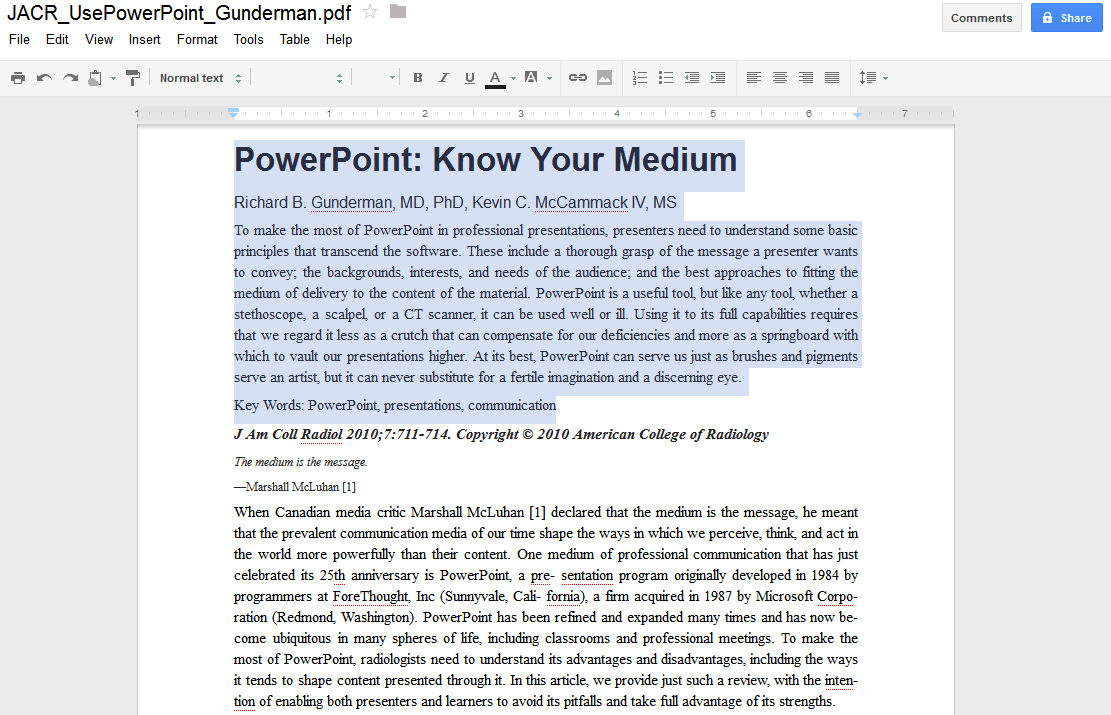
Google Docs

We should never forget to mention Google Docs. It is a PowerPoint-like presentation online application. Google Docs has all the basic functions you need to make a presentation slideshow: text, pictures, video, animation and transitions, etc. I don't understand why Google Docs don't allow inserting music. Besides, you can upload Microsoft PowerPoint to Google Docs or download Google Docs as PowerPoint or PDF file.

5. Slideshare

Slideshare

It is a website that only less popular than the official website in PowerPoint industry. Slideshare makes it possible to share PowerPoint presentations online without converting PowerPoint to video. You can directly upload PowerPoint to Slideshare to be shown as slideshow of pictures. In fact, there is many such kind of PPT sharing websites in the world. But this website stands out because of its image quantity and quality.

6. PowerPoint converter

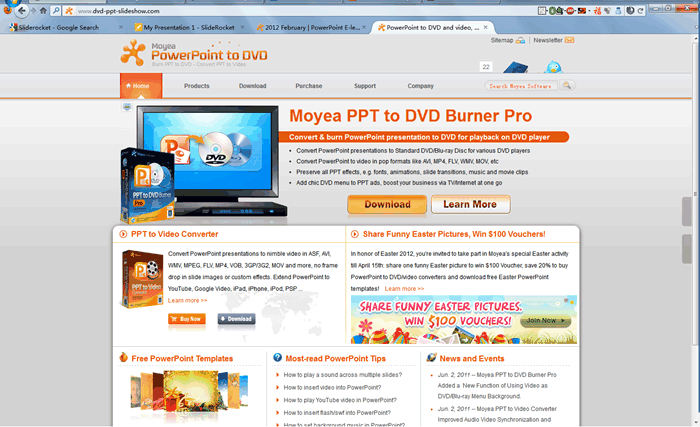
PowerPoint converter

Sometimes you may need to convert PowerPoint to other formats for different reasons. For example, convert PowerPoint to PDF for copyright protecting, easy email and reading; converting PowerPoint to video for sharing on YouTube and keep all the original effects; burning PowerPoint to DVD for storage or gift with best quality. This website offers great PowerPoint converters and abundant useful PowerPoint tips for PowerPoint learning.

I'm sure there are a great many of other good websites for PowerPoint that I don't mentioned or maybe I don't know. What are other websites that PowerPoint fans should know?


Read More
Posted in Free Resources, PowerPoint Tips, PPT Tool | No comments
Newer Posts Older Posts Home
Subscribe to: Posts (Atom)

Popular Posts

  • How to Use Different themes in One PowerPoint File
    Usually when we create a PowerPoint slideshow, we would use a certain PowerPoint theme. We can get it by creating by ourselves, choose from ...
  • Earth Day 2012 PowerPoint Background Free Download
    Earth Day 2012 is coming in two days. This is the first Earth Day that I really pay some attention to. I know every April 22 is the annual...
  • Best Portable Devices of 2011
    The year 2011 has become a history but absolutely not the technical gadgets (Smartphones & Tablets) that hit the market. Here is a list ...
  • The new iPad Unboxed: What does it Look Like?
    On March 7 we finally get to know that the next generation iPad is neither iPad 3 nor iPad HD , but simply “ the new iPad ”. It seems tha...
  • How to Mute Video in a PowerPoint Presentation
    Really strange question, huh? Mostly people will ask you how to keep the sound in PowerPoint when playing on another computer or something...
  • 8 Online Applications to Save PDF as Word You Should Add to Your Favorites
    PDF has its advantage as a popular document file. As I know, many eBooks, contact, order and many other files are saved as PDF for various r...
  • Tutorial of Converting PPTX to MP4 Video with Professional PPTX to MP4 Converter
    How to convert PPTX to MP4 with this professional Moyea PPTX to MP4 Converter ? The following will show you the step by step guide on conver...
  • How to Add Captions to Photo Album in PowerPoint 2010
    If you have made a Christmas Photo slideshow using PowerPoint 2010 before, you should have noticed that although it is perfect to see each p...
  • How to Add Music to PowerPoint 2007 and Playing Across Slides
    Many people asked the question on how to add music to PowerPoint 2007 and at the same time the music can play across the entire PowerPoint s...
  • Three Spotlights of iPad 2
    Apple Inc. is expected to release iPad 2, its second generation iPad on March 2, and the CEO Steve Jobs may appear on the press conference s...

Categories

  • Back to School
  • Famous Quotes
  • Free Resources
  • Halloween
  • Holiday
  • iPhone 5
  • London Olympics
  • Moive Review
  • News
  • Others
  • photo slideshow maker
  • PowerPoint
  • PowerPoint background
  • PowerPoint Background Music
  • PowerPoint Templates
  • PowerPoint Tips
  • PPT Tool
  • Smartphone/Tablet
  • The Twilight Saga: Breaking Dawn Part 1
  • Wallpaper
  • Wallpapers
  • YouTube

Blog Archive

  • ▼  2013 (5)
    • ▼  April (2)
      • 5 PowerPoint Alternatives for Making Presentations...
      • How to View PowerPoint on Sony Xperia ZL?
    • ►  March (2)
    • ►  February (1)
  • ►  2012 (109)
    • ►  November (2)
    • ►  October (8)
    • ►  September (6)
    • ►  August (13)
    • ►  July (13)
    • ►  June (12)
    • ►  May (12)
    • ►  April (11)
    • ►  March (12)
    • ►  February (12)
    • ►  January (8)
  • ►  2011 (179)
    • ►  December (16)
    • ►  November (18)
    • ►  October (17)
    • ►  September (17)
    • ►  August (29)
    • ►  July (19)
    • ►  June (20)
    • ►  May (15)
    • ►  April (7)
    • ►  March (19)
    • ►  February (2)
Powered by Blogger.

About Me

Unknown
View my complete profile