ppt-bird

  • Subscribe to our RSS feed.
  • Twitter
  • StumbleUpon
  • Reddit
  • Facebook
  • Digg

Thursday, 11 October 2012

Samsung Will Release Galaxy S3 Mini in October 11 in German

Posted on 04:32 by Unknown

According to the latest news reported by the foreign media, Samsung executives JK Shin announced that Samsung will release its new phone - Galaxy S3 mini in October in German.


When it comes to Mini, many people will definitely think of the top electronic products - Apple iPad Mini. Even thought Galaxy S3 mini is smartphone while iPad mini is tablet, we can also see the great competition between Samsung and Apple. Then, compared with Apple's new generation iPhone - iPhone5, what is the shinning point of Galaxy S3 mini?

JK Shin said Galaxy S3 mini is designed for the middle and lower-range market segment. According to the leak, by narrowing its screen size to 4 inches, Galaxy S3 mini has a similar appearance with the original Galaxy S3 but just with a smaller size. The screen on it is a super AMOLED display with an 800×480 resolution. The phone will run Android 4.1 Jelly Bean like the Galaxy Note II. And the Galaxy S III Mini will sport a 5MP rear-facing camera with LED flash, a front-facing camera (no additional details given), NFC, a microSD card slot, and a 1500mAh battery.


 Galaxy S3 mini

It is said that Samsung Galaxy S III mini has two colors – white and blue to be chosen from. And it is expected to be available on 29 this month. As to its price, rumors are that it is priced at about 399 euros which is much lower than the price of Galaxy S III.

More details about Galaxy S III are deserved to our further focus. Maybe it prepares for the consumers more surprises! Of course, we can know only after the conference. Let us waiting for it!

Read More
Posted in News | No comments

Wednesday, 10 October 2012

How to Make a PowerPoint Look Like a Book

Posted on 03:56 by Unknown

Several days ago, I found an excellent PowerPoint blog online. From that blog I have learned unintentionally a wonderful PowerPoint skill – how to make a PowerPoint look like a book. It is really amazing. So today I cannot help to sharing the skill with all of you. I am sure you will like it.

Step 1 Turn on your Microsoft Office PowerPoint, click “Insert”> “Picture” to insert a picture into the PPT. Adjust the size of the picture to the size of a book.


Insert a picture into PPT

Step 2 Copy the picture and paste it on the same slide show, and then put the two pictures together. It looks a little like a book now, isn’t it? Add some words on it will be more vivid.


 Copy and paste the picture

Step 3 Click “Insert”> “Text Box” to insert a text box into one picture and then write some words in it.


Insert a text box

Step 4 Click “Design” to choose a theme, then it looks more perfect.


Choose a theme

The following is my work, hope you will like it!


My PPT

Read More
Posted in PowerPoint Tips | No comments

Monday, 8 October 2012

How to Burn PowerPoint to DVD

Posted on 19:11 by Unknown

Several days ago, a friend wrote me a letter:

Dear Abby,

I have been fallen in love with my girlfriend for almost ten years and now I am preparing to propose to her. To give her a surprise, I have made a PowerPoint by using our photos. I am going to play the slide show during proposal. But now I find this plan will not work because I have to take so much equipment such as computer, projector, projection screen etc. Do you have any good suggestions? Your early reply will be truly appreciated.

After reading his letter, I was really moved. I think, in any case, I have to help him. Actually, I really have a good idea - Convert PowerPoint to DVD, then you can play the converted PowerPoint with a DVD player. Here I would like to share the method with all of you.

Before conversion you should download a PPT to DVD Burner and install it on your computer. Then you can finish the conversion within several steps.

Step 1 Import a Local PowerPoint
Click the “Import” button to import a local PowerPoint and soon you will see the following picture. If you want to remove the PowerPoint, you just click the “Del” button.


Import PPT

Step 2 Set Output Options
Click “Option” to set Aspect Ratio and output path.


Set Output Options

Step 3 Add Background Music
Click “Music” and select a Playback No. and click “add” icon to add background music to DVD.


Set Output Options

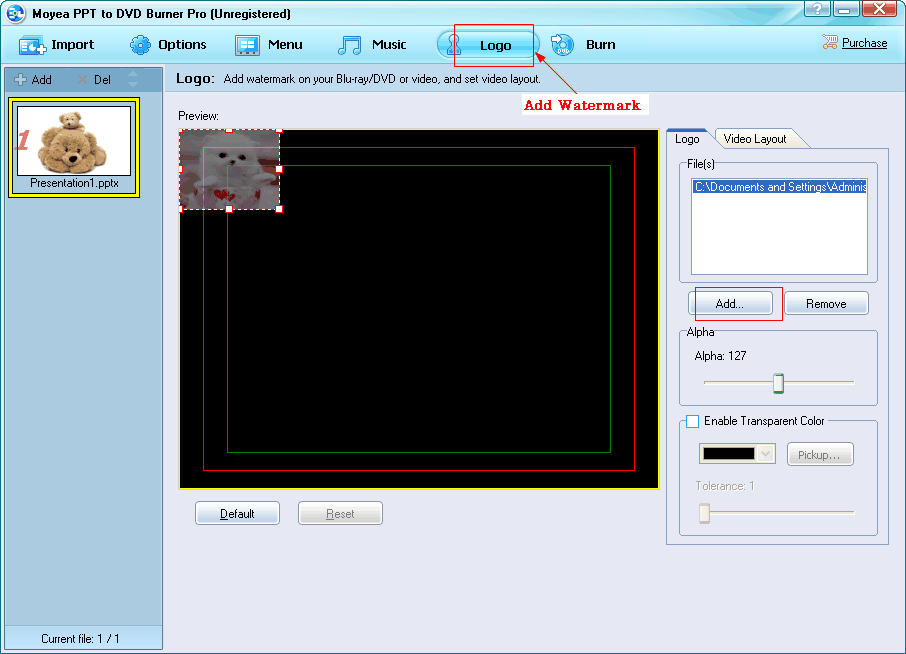
Step 4 Add Watermark
Click “Logo” and then click “Add” to add watermark to DVD.


 Add Watermark

Step 5 Start Burning
Click “Burn” and then click “Start” to start burning.


PPT to DVD

After all the steps, the PowerPoint was burned to DVD. Then you can enjoy it on your DVD player. Please try it, maybe it will come in handy one day when you are proposing to your lover.

Read More
Posted in Others | No comments

Monday, 24 September 2012

How to Make Two Pictures Move at the Same Time in PowerPoint 2010

Posted on 04:27 by Unknown

As we know, using animation program in the PowerPoint will make our PowerPoint looks more vivid and interesting. It has great significance in attracting audiences' attention. The more attention the audiences paid to our PowerPoint, the more possible we make efficient presentation.

PowerPoint 2010 provides its users with many animation effects. This was supposed to be an advantage, but, in PowerPoint 2010, animation effect of each picture can only be showed one by one. That is to say, we will have trouble in making two or more pictures move at the same time.

Is there any cool way to solve this problem? Of course there is. Actually, it is very easy. If you turn the two or more pictures into one, you can make it. Can you guess the resolution? Ok, let me introduce it to you.

Step 1: insert pictures Open Microsoft Office 2010 and click "Insert" > "Picture" to insert the pictures. Here I just insert two pictures.

make two pictures move at the same time in PowerPoint 2010

Step 2: Combine pictures Select both the two pictures and right click, choose "Group" > "Group". Then the two pictures become one.

make two pictures move at the same time in PowerPoint 2010

make two pictures move at the same time in PowerPoint 2010

Step 3: choose animation effects Click "Animations" > "Animation Styles" to choose animation effects for the picture. Then you have made it. You can see the effects when you click "Slide Show" > "From Current Slide". Here I choose "Swivel".

make two pictures move at the same time in PowerPoint 2010
It is incredibly easy to make it. Three simple steps are all it takes! Can you make it by yourself?

Read More
Posted in PowerPoint Tips | No comments

Sunday, 23 September 2012

The Lightest Tablet - Medias Tab UL N08-D

Posted on 23:32 by Unknown

Last Thursday, Japanese carrier NTT DoCoMo announced the news of selling Medias Tab UL N08-D from NEC. Employed carbon fiber materials used in modern aviation, it weighs only 249 grams, 63% the weight of 7 inches Kindle Fire HD on Amazon and 71% that of Nexus 7. In this case, Medias Tab UL N08-D is claimed to be the lightest tablet up to this point around the world. It deployed the Android 4.0 ICS system, LCD-display with a resolution of 1280*800, a 1.5 GHz dual-core processor, a rear camera with 8 million pixels and a 3100 mAh battery.

Medias Tab UL N08-D

As we can see, the specification of Medias Tab UL N08-D is quite similar to many other tablets, however, the greatest advance of Medias Tab UL N08-D does not lie in its hardware but its weight. It is really amazing that a tablet with 7 inches screen just weighs 249 grams! In addition to its light weight, its thickness of 7.9mm is another attraction.

Medias Tab UL N08-D
Medias Tab UL N08-D

These days, most of us tend to enjoy our leisure time in the outdoors with our families, friends or lovers. We often surf the internet, listen to music, take photos or watch movies by using our laptops. We really enjoy ourselves. But, I believe all of us are tired of carrying around a heavy laptop computer. We are longing for a lighter alternative. Medias Tab UL N08-D is just the perfect one. With it, we can enjoy ourselves without worrying about taking the heavy and cumbersome laptops. For this advantage, I believe it will soon become popular among people around the world.

What a wonderful tablet! It looks so nice that I really want to buy one. I even can’t help to imagining that I am watching my favorite movie on the grass with my friends at weekends. Do you feel the same way? Oh! It occurred to me that maybe I should choose a video converter for Medias Tab UL N08-D. As best I know, usually tablets support videos of many different formats downloaded from the Internet, but HD AVI video seems to be an exception. Besides, some tablets do not support WMV. For this reason, I think a video converter is really a necessity.

Read More
Posted in Smartphone/Tablet | No comments

Friday, 21 September 2012

Watching The Breaking Dawn on iPhone or iPod

Posted on 02:36 by Unknown

The Breaking Dawn is no doubt one of the 10 most anticipated Hollywood movies in 2012. It was divided into two parts. The first part is released in last year. According to the report, the second part will be released in November this year. Stephenie Meyer is its screenwriter. She was born in Connecticut in America and graduated from Brigham Young University. Her major is English literature. She was a full-time housewife as well as the mother of three children and she has no writing experience. However, one night in 2003 she had a dream. Since then her life has changed. She dreamed that a beautiful young girl and a handsome young man fell in love with each other on the grass on a sunny day. The young man was a vampire and he was telling his lover that he was trying his best to control the desire to kill her and it was so difficult for him. Finally, Stephenie Meyer wrote the novel Twilight from this dream. Then she wrote another three novels new moon, eclipse and breaking dawn. Now these books have become one of the best-sellers with millions of closet fans. Here I would like to share some beautiful pictures with you.


picture about the Twilight movies 1


picture about the Twilight movies 2


picture about the Twilight movies 3


picture about the Twilight movies 4


picture about the Twilight movies 5

Read More
Posted in Moive Review | No comments

Thursday, 20 September 2012

How to make teaching video from PowerPoint and audio

Posted on 23:40 by Unknown

College life is really rich and colorful! In college, you do not need to sit in the classroom and listen to the teachers as you do in the middle school, on the contrary, you can join in a bunch of different communities and take part in many different activities outside the classroom. All you should do is to make sure you succeed in the final examination. You have the right to arrange your time absolutely. In this case, it is common for college students to ditch class and study at the last moment. Have you ever been always absent in your class? Have you ever worried about the final examination? Don’t worry! Suppose you just watched the teaching video from the PowerPoint made by your teachers and audio recordings of your teachers in the class, would you be feeling so bad? I am sure you will not. Next, I will introduce you the skills in details.

Step1: insert the audio

Open your PowerPoint file, and insert click insert button to insert the audio.

Step2: install a software

To convert PowerPoint to video requires to install third-party software, here I would like to recommend Moyea PPT to Video Converter. After installing the software, you can convert the PPT. Here is the interface of the software:


Step 3: Import PPT

Click the “Add” button to import your PPT and soon you will see the following picture. If you want to clear the PPT, you just right click and choose the “Clear” option.


Step 4: Choose output format

Click “profile” combo box to choose an output format. Here you can also choose Video Quality and Audio Quality.


Step 5: Set output resolution (video size)

Click the Settings button to set video size.


Step 6: Start converting

Once all the parameters have been set, click the Start button to Start converting. After conversion you will see the following picture and you can review the lessons as soon as possible.


Come on, what are you waiting for? Read this article and learn how to make teaching video from PowerPoint and audio right now! Then you can try your best to study on your computer, smart phone or even MP4 at any time. In that case, you will free from the trouble of the final examination, good luck!

Read More
Posted in Back to School, Smartphone/Tablet | No comments
Newer Posts Older Posts Home
Subscribe to: Posts (Atom)

Popular Posts

  • How to Use Different themes in One PowerPoint File
    Usually when we create a PowerPoint slideshow, we would use a certain PowerPoint theme. We can get it by creating by ourselves, choose from ...
  • Earth Day 2012 PowerPoint Background Free Download
    Earth Day 2012 is coming in two days. This is the first Earth Day that I really pay some attention to. I know every April 22 is the annual...
  • Best Portable Devices of 2011
    The year 2011 has become a history but absolutely not the technical gadgets (Smartphones & Tablets) that hit the market. Here is a list ...
  • The new iPad Unboxed: What does it Look Like?
    On March 7 we finally get to know that the next generation iPad is neither iPad 3 nor iPad HD , but simply “ the new iPad ”. It seems tha...
  • How to Mute Video in a PowerPoint Presentation
    Really strange question, huh? Mostly people will ask you how to keep the sound in PowerPoint when playing on another computer or something...
  • 8 Online Applications to Save PDF as Word You Should Add to Your Favorites
    PDF has its advantage as a popular document file. As I know, many eBooks, contact, order and many other files are saved as PDF for various r...
  • Tutorial of Converting PPTX to MP4 Video with Professional PPTX to MP4 Converter
    How to convert PPTX to MP4 with this professional Moyea PPTX to MP4 Converter ? The following will show you the step by step guide on conver...
  • How to Add Captions to Photo Album in PowerPoint 2010
    If you have made a Christmas Photo slideshow using PowerPoint 2010 before, you should have noticed that although it is perfect to see each p...
  • How to Add Music to PowerPoint 2007 and Playing Across Slides
    Many people asked the question on how to add music to PowerPoint 2007 and at the same time the music can play across the entire PowerPoint s...
  • Three Spotlights of iPad 2
    Apple Inc. is expected to release iPad 2, its second generation iPad on March 2, and the CEO Steve Jobs may appear on the press conference s...

Categories

  • Back to School
  • Famous Quotes
  • Free Resources
  • Halloween
  • Holiday
  • iPhone 5
  • London Olympics
  • Moive Review
  • News
  • Others
  • photo slideshow maker
  • PowerPoint
  • PowerPoint background
  • PowerPoint Background Music
  • PowerPoint Templates
  • PowerPoint Tips
  • PPT Tool
  • Smartphone/Tablet
  • The Twilight Saga: Breaking Dawn Part 1
  • Wallpaper
  • Wallpapers
  • YouTube

Blog Archive

  • ▼  2013 (5)
    • ▼  April (2)
      • 5 PowerPoint Alternatives for Making Presentations...
      • How to View PowerPoint on Sony Xperia ZL?
    • ►  March (2)
    • ►  February (1)
  • ►  2012 (109)
    • ►  November (2)
    • ►  October (8)
    • ►  September (6)
    • ►  August (13)
    • ►  July (13)
    • ►  June (12)
    • ►  May (12)
    • ►  April (11)
    • ►  March (12)
    • ►  February (12)
    • ►  January (8)
  • ►  2011 (179)
    • ►  December (16)
    • ►  November (18)
    • ►  October (17)
    • ►  September (17)
    • ►  August (29)
    • ►  July (19)
    • ►  June (20)
    • ►  May (15)
    • ►  April (7)
    • ►  March (19)
    • ►  February (2)
Powered by Blogger.

About Me

Unknown
View my complete profile