ppt-bird

  • Subscribe to our RSS feed.
  • Twitter
  • StumbleUpon
  • Reddit
  • Facebook
  • Digg

Wednesday, 17 August 2011

View PowerPoint on LG Optimus 3D

Posted on 02:05 by Unknown

Do you know what the three keywords of Smartphones of 2011 are? Dual-core processor, 3D and 720p HD touch screen are the hottest debated and might be the standard features of future Smartphones. It seems that LG is always the first one to apply new technologies and lead a new fashion in Smartphone market. Its LG Optimus 2X is the first Smartphone with dual-core processor. Now most of Android Smartphones are using dual-core processors. After LG uses 720p HD touch screen which means 1080x720 resolution, HTC vigor is following up too. Besides, LG releases the first 3D Smartphone – LG Optimus 3D!
View PowerPoint on LG Optimus 3D - 1


Measuring 128x68x11.9mm, you can see it is really thin, a little thicker than iPhone 4 (9.3mm), and big, the screen is 4.3-inch. The big screen will be perfect when you watching a 3D movie or playing a 3D game. The layout of controls are all regular, with the four soft buttons under the screen giving you menu, home, back and search, with a sleep/standby button on the top along with the 3.5mm headphone jack. On the left-hand side you’ll find both the Micro-USB and micro HDMI ports covered by little flaps and on the right-hand side you get the volume rocker and a key marked “3D”.
View PowerPoint on LG Optimus 3D - 2

With dual 5M cameras, you could also record your own 3D movies. Awesome, isn’t it? If you’re looking for the 3D function, LG Optimus 3D would be the best choice for now.
View PowerPoint on LG Optimus 3D - 3

Have you ever watched PowerPoint on portable devices, like iPad 2? With the help of Moyea PPT to Video converter, you can watch PowerPoint on LG Optimus 3D with all the original PowerPoint elements like transitions, animations, fonts, languages, music and video clips. Sounds great? Why not have a try!
Read More
Posted in Smartphone/Tablet | No comments

Monday, 15 August 2011

Blackberry Bold 9930, Blackberry Torch 9850 Launched on Verizon

Posted on 19:17 by Unknown
Previously RIM has announced it will release 5 new Smartphones with Blackberry OS 7 soon, 3 from the Torch line – 9810, 9850 and 9860, 2 from the Bold line – 9900 and 9930. These Smartphones attracted great attention for their strong hardware and the new Blackberry OS 7. Recently two of them Blackberry Bold 9930 and Blackberry Torch 9850 has launched. We could see the sales page on Verizon’s official website.

How to View PowerPoint on Blackberry Smartphone?

We could get Blackberry Bold 9930 at $499.99 or $249.99 for a 2-year contact, Blackberry Torch 9850 at $449.99 or $149.99 for a 2-year-contact.

Blackberry Bold 9930 is a business Smartphone. It is equipped with a 1.2GHz processor, 768MB of RAM, 8GB of memory. The 2.8-inch touch screen has a resolution of 640x480 pixels. The embedded 5MP camera is capable of 720p HD video recording.

The Blackberry Torch 9850 has a 3.7-inch touch screen at a resolution of 800x480. Also a 5MP camera with 720p HD video recording function is equipped.
Read More
Posted in Smartphone/Tablet | No comments

Monday, 8 August 2011

How to Convert Word, Excel, PowerPoint to PDF for Free

Posted on 00:50 by Unknown
Microsoft PowerPoint is a great tool for creating impressive slides with great fonts and images. PowerPoint presentations are usually made with a lot of graphics to reinforce the information that the presenter is presenting. A good PowerPoint presenter usually shares the PowerPoint slides with his audience, a few days before the actual presentation. This gives the audience a high level idea of what will happen during the presentation session and this would also make the session more interactive.

The presenter could choose to share a PDF document of the PowerPoint presentation, as PDF is a great way to share documents by email or any other means and the content cannot be easily changed.

Do you know that you could convert your Word, Excel, PowerPoint documents to PDF? Yes, this can be accomplished without using any third-party tools. Moreover, the PDF copy of the Word, Excel, PowerPoint documents will retain the fonts, images and the formatting! The PDF documents would also look the same on most computers.

How to convert Word, Excel, PowerPoint to PDF?

In Office 2010, click “File” > “Save & Send” > “Create PDF/XPS document”.
Save as PDF in Office 2010 - 1

You could also optimize the PDF file for online publishing and printing, by choosing “Standard” or “Minimum Size” options, while saving the PDF.
Save as PDF in Office 2010 - 2

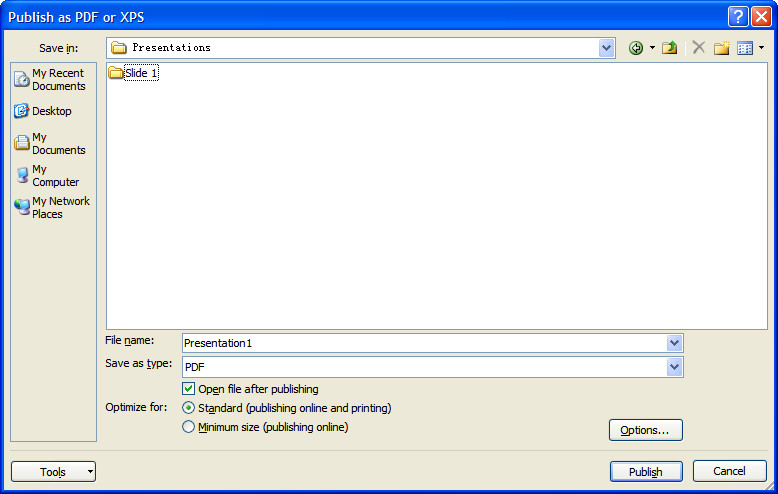
For Office 2007, a Microsoft add-in was released to publish Word, Excel, PowerPoint as PDF. After installing the add-in, you need to open the presentation, Click on the “Office” button in the top left corner of PowerPoint 2007, choose “Save as” and click on PDF or XPS in the pop-up menu. You will then be presented with a “Publish as PDF or XPS” dialog box. You then have to specify a location to save the converted PDF file.
PowerPoint 2007 add-in

It seems that Microsoft doesn’t give solutions for Office 2003. As I know there is still a large population of Microsoft Office 2003 users, here I suggest a software for converting Word, Excel, PowerPoint to PDF for FREE – Moyea PPT to PDF Converter. Besides what its name says PPT to PDF, it can also help convert Word and Excel to PDF. Though a freeware, it is really powerful for all Microsoft Office versions are supported. So it deserves a try.
Free PPT to PDF converter

While Word, Excel and PowerPoint are great tools to create impressive documents, PDF is a great way to share the content as it reduces the file size considerably.
Read More
Posted in PowerPoint Tips | No comments

Friday, 5 August 2011

How to Reduce Your PowerPoint File Size

Posted on 23:10 by Unknown
If you think your PowerPoint file size is too big like more than 20M, which is not convenient when sending by email, the following 6 tips will help you reduce your PowerPoint file size.
  1. File > Save As
  2. Compress Pictures
  3. Break Links
  4. Turn off Fast Saves
  5. Turn off the Activated Review Feature
  6. Sneaky trick … use save as a CD to compress


1. How to Use File > Save As:

Step 1 - On the File menu, click Save As
Step 2 - Type a new name, and click OK
** In some cases, this can reduce the size of the file by up to 50%

2. How to Compress Pictures in PowerPoint:

If you have any pictures in your PowerPoint presentation, then you can optimize the size by compressing pictures.
Step 1 - Click on the picture to bring up the Picture toolbar
Step 2- Click the compress picture button


Step 3 - On the Compress Pictures menu:
  • Apply to: All pictures in document
  • Change resolution: Web/Screen
  • Options: Compress pictures and Delete cropped areas of pictures
  • Click OK

When the command finishes, you can save the file at a fraction of it’s prior size. In this case we had 100+ maps in a 70 Meg file. After the Compress Picture command finished, the file was only 12 Meg.


3. How to Break Links in PowerPoint:

For our operational finance decks, we link to Excel.  Before emailing your final PowerPoint file, I suggest breaking all links.  More links = bigger file size.
Step 1: Type [ALT+ E], then [ALT+K] to view the Links menu or on the Edit menu, click Links
Step 2: Select all links.  Click on the first link, hold the shift key and click on the last link.  All Links will be highlighted in blue.


Step 3: Select Break Link, and all links will be removed from the PowerPoint


4. Turn off Fast Saves

Step 1: On the Tools menu, click Options, click the Save tab, and then clear the Allow fast saves check box. (This removes excess data from your presentation file each time you save)
Step 2: On the File menu, click Save As, type a name for the new version of your presentation in the File namebox, and then click OK.


5. How to turn off the Activated Review Feature in PowerPoint:

This only works on PowerPoint 2007
Step 1: On the Tools menu, click Options, click the Advanced E-mail tab
Step 2: Clear the check box next to “add properties to attachments to enable reply with changes”


6. How to use save as a CD to compress your PowerPoint file:

When all else fails, this trick always has a big impact on reducing the size of a PowerPoint file.
Step 1: On the Files menu, click Package for CD
(img)
Step 2: Select a folder where the new file will be saved

Another Tips on how to reduce PowerPoint file size > >
Read More
Posted in PowerPoint Tips | No comments

PowerPoint 2010 New Function: Laser Pointer

Posted on 22:46 by Unknown
I don’t know how many of you have upgraded your Microsoft PowerPoint to 2010. There are a few new functions added to PowerPoint 2010 like the support of inserting MP4, SWF and FLV, saving PowerPoint as PDF and WMV video. Have you ever seen some presenter use a laser pointer to focus attention on a key point during a PowerPoint presentation? Now you can directly use your mouse as a laser pointer in PowerPoint 2010.

Step 1: Begin your PowerPoint slideshow by pressing “F5” or clicking “From Beginning” under the “Slide Show” tab.
mouse as a laser pointer

Step 2: During the slideshow, hold down the “Ctrl” key and left click the mouse and the laser pointer will appear on the screen.
mouse as a laser pointer

You can also drag your mouse to move the laser pointer across the screen.

Step 3: You can change the color of the laser pointer in the “Set Up Slide Show” options. In the pop up “Set Up Show” dialog box, you can choose 3 colors – red, green and blue from the “Laser pointer color” drop down menu.
mouse as a laser pointer

This function is quite simple but very useful during a PowerPoint presentation. Hope you use this flexibly to keep your audiences following up with your presentation.

More PowerPoint Tips > >
Read More
Posted in PowerPoint Tips | No comments

Wednesday, 3 August 2011

How to Preserve Fonts in PowerPoint 2007

Posted on 20:52 by Unknown
Hi, guys! Have you ever been bothered when taking your PowerPoint presentation to another computer and cannot be correctly played because the different PowerPoint versions? Today I will tell you a small skill to preserve the fonts in PowerPoint 2007 so that the fonts you used will come with you to anywhere.

In fact you need to embed the fonts when saving the PowerPoint file. Remember to embed only the fonts you used not all the fonts to reduce the file size.

In order to embed the fonts in PowerPoint 2007:

1. Start by clicking on the big round Office button at the top-left and then clicking on the “PowerPoint Options” button at the bottom of the menu that appears.

2. Once you have the PowerPoint Options window open, select the “Save” tab and then check the “Embed fonts in the file” checkbox.
How to Preserve Fonts in PowerPoint 2007


3. You then have the option to include all of the characters (increases the file size) or only the characters used (reduces the file size).

If you’re using PowerPoint 2003, you can access the “PowerPoint Options” from the “Tools” menu on the top menu bar (Tools > Options > Save tab).

Easy, isn’t it? Hope this will help you! If you have some wonderful PowerPoint skills, please don’t hesitate to share with us!

I also find a wonderful blog which shares lots of useful PowerPoint skills, visit it here:
http://www.dvd-ppt-slideshow.com/blog/category/knowledge-tips-skills/

Download Free PowerPoint Templates Download Free PowerPoint Templates
Read More
Posted in PowerPoint Tips | No comments

Tuesday, 2 August 2011

The Next Generation Asus Eee Pad May Use Nvidia Quad-core Kal-EI CPU

Posted on 23:25 by Unknown
Asus Eee Pad Transformer

Even Asus itself may have never expected its Asus Eee Pad Transformer could be such a success in the global market. Across to Fox report, Eee Pad Transformer sold more than Apple iPad 2, Samsung Galaxy Tab, Motorola Xoom and HP TouchPad on Amazon in the last two weeks.

President of Asus Jonney Shih confirmed that Asus Eee Pad Transformer sold 300,000 pieces in June and more than 400,000 in July. He also told the public that Asus is busy working on the next generation of Eee Pad which will remain powerful and competitive.

Rumors say it will be released this October for Nvidia will release its next generation quad-core Kal-EI CPU in September. So probably the next Asus Eee Pad will come with this qual-core Kal-EI processor and the new Android Ice Cream Sandwich system.
Read More
Posted in News, Smartphone/Tablet | No comments
Newer Posts Older Posts Home
Subscribe to: Posts (Atom)

Popular Posts

  • How to Use Different themes in One PowerPoint File
    Usually when we create a PowerPoint slideshow, we would use a certain PowerPoint theme. We can get it by creating by ourselves, choose from ...
  • Earth Day 2012 PowerPoint Background Free Download
    Earth Day 2012 is coming in two days. This is the first Earth Day that I really pay some attention to. I know every April 22 is the annual...
  • Best Portable Devices of 2011
    The year 2011 has become a history but absolutely not the technical gadgets (Smartphones & Tablets) that hit the market. Here is a list ...
  • The new iPad Unboxed: What does it Look Like?
    On March 7 we finally get to know that the next generation iPad is neither iPad 3 nor iPad HD , but simply “ the new iPad ”. It seems tha...
  • How to Mute Video in a PowerPoint Presentation
    Really strange question, huh? Mostly people will ask you how to keep the sound in PowerPoint when playing on another computer or something...
  • 8 Online Applications to Save PDF as Word You Should Add to Your Favorites
    PDF has its advantage as a popular document file. As I know, many eBooks, contact, order and many other files are saved as PDF for various r...
  • Tutorial of Converting PPTX to MP4 Video with Professional PPTX to MP4 Converter
    How to convert PPTX to MP4 with this professional Moyea PPTX to MP4 Converter ? The following will show you the step by step guide on conver...
  • How to Add Captions to Photo Album in PowerPoint 2010
    If you have made a Christmas Photo slideshow using PowerPoint 2010 before, you should have noticed that although it is perfect to see each p...
  • How to Add Music to PowerPoint 2007 and Playing Across Slides
    Many people asked the question on how to add music to PowerPoint 2007 and at the same time the music can play across the entire PowerPoint s...
  • Three Spotlights of iPad 2
    Apple Inc. is expected to release iPad 2, its second generation iPad on March 2, and the CEO Steve Jobs may appear on the press conference s...

Categories

  • Back to School
  • Famous Quotes
  • Free Resources
  • Halloween
  • Holiday
  • iPhone 5
  • London Olympics
  • Moive Review
  • News
  • Others
  • photo slideshow maker
  • PowerPoint
  • PowerPoint background
  • PowerPoint Background Music
  • PowerPoint Templates
  • PowerPoint Tips
  • PPT Tool
  • Smartphone/Tablet
  • The Twilight Saga: Breaking Dawn Part 1
  • Wallpaper
  • Wallpapers
  • YouTube

Blog Archive

  • ▼  2013 (5)
    • ▼  April (2)
      • 5 PowerPoint Alternatives for Making Presentations...
      • How to View PowerPoint on Sony Xperia ZL?
    • ►  March (2)
    • ►  February (1)
  • ►  2012 (109)
    • ►  November (2)
    • ►  October (8)
    • ►  September (6)
    • ►  August (13)
    • ►  July (13)
    • ►  June (12)
    • ►  May (12)
    • ►  April (11)
    • ►  March (12)
    • ►  February (12)
    • ►  January (8)
  • ►  2011 (179)
    • ►  December (16)
    • ►  November (18)
    • ►  October (17)
    • ►  September (17)
    • ►  August (29)
    • ►  July (19)
    • ►  June (20)
    • ►  May (15)
    • ►  April (7)
    • ►  March (19)
    • ►  February (2)
Powered by Blogger.

About Me

Unknown
View my complete profile