ppt-bird

  • Subscribe to our RSS feed.
  • Twitter
  • StumbleUpon
  • Reddit
  • Facebook
  • Digg

Wednesday, 26 October 2011

Android 4.0 Brings 8 New Features

Posted on 00:47 by Unknown

Android 4.0 Ice Cream SandwichGoogle and Samsung teamed up for a joint announcement on Android 4.0 “Ice Cream Sandwich” in Hong Kong on Wednesday. Samsung was involved because it’s manufacturing the first Android 4.0 device, the Galaxy Nexus, which becomes the latest “Google phone,” following in the footsteps of the Nexus One and the Nexus S.

Thankfully, the announcement was dominated by updates about Android 4.0, which reunites the platform around one OS for both smartphones and tablets. On Wednesday, Google was mostly talking about Android 4.0’s smartphone features and there were a lot to like.

While Google showed off plenty of the improvements were just eye candy, here’s my list of eight new features in Ice Cream Sandwich that will actually be quite useful:

1. Android Beam

This is a secure peer-to-peer sharing mechanism using NFC that lets you quickly send content or information from one Android device to another. My colleague Larry Dignan said it reminds him of using IR to beam a digital business card on the old Palm devices. Hopefully, Beam will prove to be more versatile and reliable.

2. Data usage tools

Android 4.0 Phone Home ScreenAndroid 4.0 integrates its own built-in tools for tracking and controlling your data usage so that you don’t go over your data plan cap and owe your carrier extra money at the end of the month. This is more important than ever with the inevitable advent of usage caps in 4G.

3. Voice typing

There’s a new “voice input engine” in Ice Cream Sandwich that allows you to dictate an extended message like an email or a text message. Don’t confuse this with the iPhone’s new Siri digital assistant, but it could be a very useful feature for when you’re in the car.

4. Face unlock

Google has introduced facial recognition to its unlock screen. Instead of using a PIN or pattern recognition, you can now choose facial recognition as your login/unlock method. In the demo at the announcement, the feature failed, so this could need a couple iterations before it works smoothly.

5. Universal copy-and-paste

Android already has copy-and-paste but the various Android skins from the OEMs (and even some apps) implement it differently. In Android 4.0, Google has improved the feature and made it universal.

6. Quick responses to calls

When you receive a call but choose to send it to voicemail, you can now select from a series of canned messages (like “Sorry, in a meeting” or “Call me back in 20 min”) and an automatic text message will be sent to the caller.

7. Screenshots

You can now take screenshots in Android by holding down the power and volume-down buttons. Thank you! This is especially helpful for us journalists, but it’s also useful for IT and business pros who need to put together documentation or show an employee how to do something in Android. No longer do we have to install the whole SDK just to take a simple screenshot.

8. Camera improvements

The camera app has gotten a big upgrade. Google promises “continuous focus, zero shutter lag exposure, and decreased shot-to-shot speed.” I have my doubts about zero shutter lag, but if they’ve improved significantly on the laggy camera app in most Android phones then it will be a welcome upgrade.

Related Links:

5 Methods to View PowerPoint on Android

Android Smartphones' 20 Most Useful Apps

12 Best Free Mac Apps in Apple Store

Read More
Posted in Smartphone/Tablet | No comments

The Almight Shift and Ctrl Key in PowerPoint

Posted on 00:27 by Unknown

PowerPoint TipsI have beening using PowerPont for many years, from the PowerPoin 2003 to PowerPoint 2010 now. All the progress Microsoft have made, all the new functions Microsoft have added as well the changes between the different versions, I knew quite well.

But when I came acroo the following PowerPoint tips, I realize that there are so many things I still don't know about PowerPoint, and something really basic and simple. For long I have used to use mainly the mouse to ctrol the PowerPoint program. From now on, I will try to use these keyboard shortcut. So I put them down here, hope it would help you when you create PowerPoint presentations

1. The Mighty Shift Key
Hold down the SHIFT key when drawing a line to get a perfectly straight line.
Hold down the SHIFT key when drawing an oval to get a perfectly round circle.
Hold down the SHIFT key when drawing a rectangle to get a square.
Hold down the SHIFT key while clicking on the normal view icon to get the Master slide.
Hold down the SHIFT key while clicking on the slide sorter view to get the handouts master.
Hold down the SHIFT key while pressing Enter to get a blank line without a bullet.
Hold down the SHIFT key to select multiple objects on a slide at the same time.
Hold down the SHIFT key while resizing a graphic to retain the same proportions in the resized graphic.
Hold down the SHIFT key while pressing F3 to change the case of letters.

2. The Mighty Ctrl Key
Hold down the CTRL key while clicking the slide show view button when you are editing a slide show. This will open a preview window so you can see that slide in slide show mode.
Hold down the CTRL key while dragging an existing Guide to create a new guide.
Hold down the CTRL key while turning the wheel on the mouse to zoom in and out of the slide
Hold down the CTRL key plus the HOME key to go to the first slide
Hold down the CTRL key plus the END key to go to the last slide in your presentation
CTRL + A (on the Slides tab) to select all objects
CTRL + A (in slide sorter view) to select all slides
CTRL + A (on the Outline tab) to select all text in your slide show
CTRL + B to apply bold formatting
CTRL + C to copy the selected object
CTRL + D to duplicate (make a copy of) the selected slide
CTRL + E to center a paragraph
CTRL + F to find text
CTRL + G to open the grids and guidelines dialog box
CTRL + H to replace text
CTRL + I to apply italic formatting
CTRL + J to justify a paragraph (full alignment)
CTRL + K to insert a hyperlink
CTRL + L to left align a paragraph
CTRL + M to insert a new slide
CTRL + N to create a new presentation
CTRL + O to open an existing presentation
CTRL + P to print a presentation
CTRL + Q to quit PowerPoint
CTRL + R to right align a paragraph
CTRL + S to save a presentation
CTRL + T to change the formatting of characters between sentence, lowercase, and uppercase
CTRL + U to apply underline formatting
CTRL + V to paste a cut or copied object
CTRL + W to close a presentation
CTRL + X to cut a selected objected
CTRL + Y to redo or repeat an action
CTRL + Z to undo the last action
CTRL + Equal Sign to apply subscript formatting
CTRL + SHIFT + Plus Sign to apply superscript formatting
CTRL + Space Bar to remove subscript and superscript

For more useful PowerPoint tips and skills:


http://www.dvd-ppt-slideshow.com/blog/category/knowledge-tips-skills/

Download Free PowerPoint Templates Download Free PowerPoint Templates
Read More
Posted in PowerPoint Tips | No comments

Tuesday, 25 October 2011

View 4 PowerPoint Files in One Window

Posted on 02:54 by Unknown
Microsoft PowerPoint the most widely use presentation program for all kinds of people, no matter students, teachers, businessmen, researchers or governors. It is part of the Microsoft Office Suite. The latest version for Windows system is PowerPoint 2010 and PowerPoint 2011 for Mac system. If you have ever tried to view several PowerPoint presentations at a time, you may have noticed that only one presentation will show up, others will be placed at the background. How can you view several PowerPoint presentations in one window? Let’s take PowerPoint 2007 as example to show you how to make it:

Step 1: Run PowerPoint 2007 and click the Office button at the top of the page. You can open, save and print PowerPoint files from its menu.

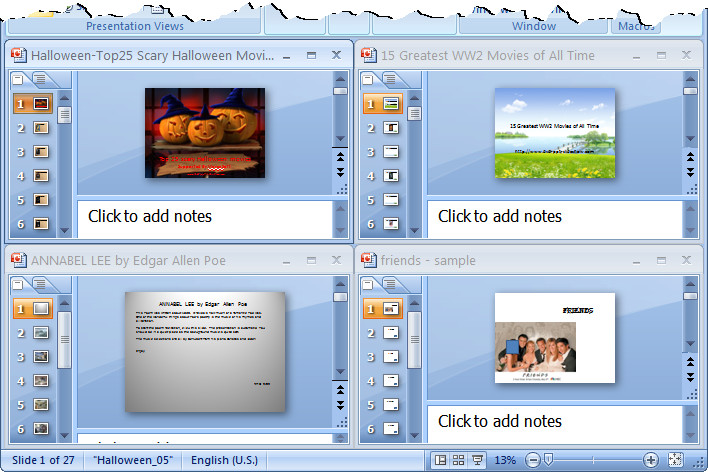
Step 2: Click Open to open several PowerPoint presentations, for example 4 PowerPoint files at one time. You will see only the last one and the former 3 PowerPoint files are hidden behind it.

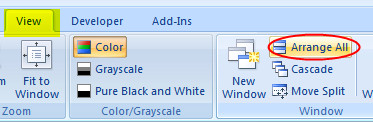
Step 3: Click the View tab at the top, and find the Window section below. There click Arrange All and you will see all the 4 PowerPoint presentations show in one window.


Tips:

To view several PowerPoint presentations in just one window would be very useful if you need to compare data on different PowerPoint files.


Download Free PowerPoint Templates Download Free PowerPoint Templates
Read More
Posted in PowerPoint Tips | No comments

Friday, 21 October 2011

Top Romantic Hindi Love Songs as Love PowerPoint Background Music

Posted on 00:29 by Unknown
India is such a wonderful land! It is one of the remaining civilizations of the world which has gestated such a special culture. After 400 years of colonization by the Great Britain, India lost a lot of things, but also gains a lot: the English language and the freest democracy.

We all know that Hollywood is the dream of movies all over the world, but except one – India. Why? Because India has Bollywood – the largest Hindi movie making center. The most important part of a Bollywood movie is the singing and dancing part. We may not understand that. But that means a lot to Indians. They say they come to cinema for fun and rest, so the singing and dancing part is indispensible.

Out of these Bollywood movies come lots of great Hindi love songs that are really amazing for us to sit down, listen, take a nap and recall the romantic feelings.

Romantic Hindi Love Songs:

  • 1. My Dil Goes Mmmm – By Salaam Namaste
  • 2. Tere Liye – By Veer Zaara
  • 3. Humein Tumse Pyar Kitna – By Female
  • 4. Tujhe Dekha Toh Yeh Jaana Sanam – By Dilwale Dulhaniya Le Jayenge
  • 5. O Sanam – By Lucky Ali
  • 6. O Sathi Re Din Doobe Na – By Omkara
  • 7. Tere Naina – By Chandni Chowk to China
  • 8. Woh Pehli Baar – By Pyaar Mein Kabhi Kabhi
  • 9. Lo Shuru Ab Chahto Ka – By Shabd
  • 10. Shukran Allah – By Kurbaan
  • 11. What's Your Rashee? – By Jao Na
  • 12. Everything I do – By Bryan Adams
  • 13. Mujhe Neend Na Aaye – By Dil
  • 14. Chand Ne Kuch Kaha – By Madhuri Dixit and Shah Rukh Khan
  • 15. Don't Say Alvida – By Main aur Mrs. Khanna
  • 16. Main Yahaan Hoon – By Veer Zaara
  • 17. Jaage Jaage – By Mere Yaar Ki Shaadi Hai
  • 18. Are re Are – By Dil Toh Pagal Hai
  • 19. Saathiya – By Saathiya Title Track
  • 20. Tera Hone Laga Hoon – By Ajab Prem Ki Ghazab Kahani
  • 21. Kuch Kuch Hota Hai – By Kuch Kuch Hota Hai
  • 22. Pehla Nasha – By Jo Jeeta Wohi Sikander
  • 23. Bol Na Halke Halke – By Jhoom Barabar Jhoom
  • 24. Tera Chehra – By Adnan Sami
  • 25. Akele Hain Toh Kya Gham Hai – By Qayamat Se Qayamat Tak

Top 5 Romantic Hindi Love Songs:

  • 1. Pyar Hua Ikraar Hua Hai (Film – Shree 420)
  • 2. Kya Yahi Pyar Hai (Film- Rocky)
  • 3. Kabhi Kabhi Mere Dil Me Khayal Aataa Hai (Film – Kabhi Kabhi)
  • 4. Tujhe dekha to ye jaana sanam (Film - Dilwale Dulhaniya le Jayenge)
  • 5. Pehla nasha (Jo Jeeta Wohi Sikandar)

Related Readings:

Love Songs: Best Romantic Songs as Romantic PowerPoint Background Music

Goodbye Songs: Songs for Your Goodbye DVD Slideshow

Top 50 Sad Songs for Expressing Your Inner Feelings

Top 20 Thanksgiving Songs for Thanksgiving Day 2011

Classical Spooky Halloween Songs for the 2011 Halloween Night

Download Free Love PowerPoint Templates Download Free Love PowerPoint Templates
Download Free Love PowerPoint Templates
Read More
Posted in PowerPoint Background Music, PowerPoint Templates | No comments

Thursday, 20 October 2011

HTC Vigor Changed Name and New Appearance

Posted on 19:58 by Unknown
HTC Rezound Front Appearance
While Apple releases one phone a year, and let us to guess and wait. Android Smartphone makers use a quite different strategy. There would a new Android Smartphone every a few weeks. And this week should be really fruitful. After the new iPhone 4S comes out, especially the SiRi personal assistant, Android Smartphones have nothing to do but release new gadgets with stronger hardware.

This week Motorola announced its new Smartphone Droid RAZR, which is claimed to be the thinnest Smartphone ever at 7.1mm thick. Together with the release of Android 4.0 Ice Cream Sandwich, Samsung and Google announced the new Galaxy Nexus, which is the first Smartphone to be equipped with Android 4.0.

Now the hot-rumored, previously named HTC Vigor, will be actually released as HTC Rezound. HTC really confuses us by developing so many phones with so many names. What’s worse, the rumored Smartphones recently even have 2 or more names!

Anyway, the HTC Rezound will give us a new, fresh look with its red tinted soft keys and several colors are offered, like red, purple, black, etc.
HTC Rezound Different Colors
 It is said that HTC Rezound would meet us on November 10th, so it is getting quite closer.

Related:
If you wish to view PowerPoint on HTC Rezound, use PPT to video converter to save PowerPoint as video would be much better than Office apps for Android, for only by this can you preserve all the original PowerPoint elements and effects like fonts, languages, background music, embedded video clips, transitions and animations, etc.
Read More
Posted in Smartphone/Tablet | No comments

Tuesday, 18 October 2011

10 Sites to Free Download Images as Wallpaper or PowerPoint Background

Posted on 03:00 by Unknown
10 Sites to Free Download Images as Wallpaper or PowerPoint Background

1. Flickr.com allows you to share, store, search, and sort your photos. There are always plenty of images available for you to use. Flickr is free, though you will have to register if you want to upload and edit your own images. The photographers establish the terms, so read the permissions carefully. If you use someone else’s Flickr image, it’s always in good taste to link back to its source.

2. Bigfoto.com offers pictures from around the world, including America, Asia, Europe, Africa, and Pacific. Each main category has subcategories, for instance “aviation,” which allows you to choose from pictures in a certain theme.

3. Fotogenika.net has photos for free download for personal, educational, and nonprofit use. However, you cannot use them commercially, sell them, or claim authorship. The site is well organized, and it includes categories such as architecture, animals, people, and textures.

4. FreeDigitalPhotos.net has over 2000 free images that you can use in commercial and noncommercial work. You are not allowed to sell, redistribute, or claim these images as your own. You can browse by category or search for exactly what you need.

5. FreePhotosBank.com allows users to have non-exclusive, non-transferable license to images. You can search for photos, see which photos are the most popular, and which ones have the highest ratings or the most downloads.

6. FreeMediaGoo.com has a large collection of images, audio, textures, and other visual mediums that you can use for free with some restrictions. You do not even have to credit the images. The site also features some amazing digital images if you are looking for something different.

7. MorgueFile.com offers stock photographs in high resolution digital. With over 55,000 images, divided into several categories, they are sure to have something you can use. The thumbnails are small, but your search results display quickly, and the photos are of top quality.

8. PhotoRogue.com offers a different concept. If you cannot find what you need, you can send a request. The service is free and uses volunteer photographers. If you like, you can also sign up for an RSS feed that will let you know when new images become available.

9. SXC.hu offers high quality images taken around the world by amateur photographers. If you have an interest in photography, you can even submit your own pictures. There are various searching options and over 100,000 images. The photographers establish the terms, so read the fine print, but most pictures can be reused immediately.

10. Picsearch.com is another option for those who are not sure exactly what they are seeking. Picseach is a search engine that crawls the web and indexes images. However, make sure that you see the site’s licensing terms or contact the copyright holder before you download pictures. You can edit your search by animation, color, or size to find exactly what you need.

Find more free PowerPoint templates for your PowerPoint presentation themed in education, technology, holiday, wedding, sports, etc.
free PowerPoint templates
Read More
Posted in PowerPoint Templates | No comments

Equip Your iPhone 4S: Best 10 iPhone 4S Accessories

Posted on 00:06 by Unknown

Have you got your new iPhone 4S? Now that you have got the iPhone 4S, it is needed to know what you can have to increase the enjoyment with iPhone 4S. Besides the millions of wonderful apps, all kinds of accessories will help you a lot. Some of them would add new functions while some will protect your iPhone 4S in safety. Check out these best 10 iPhone 4S accessories.

Menu:
1. Apple TV
2. Otterbox Commuter Series Case
3. SOL Republic Tracks Headphones
4. Plantronics Voyager Pro HD
5. Philips Fidelio DS3010 Docking Speaker
6. Griffin AirCurve Play
7. Scosche reviveLITE II Docking Travel Charger
8. Mophie Juice Pack Air
9. Breffo Spiderpodium
10. iPhone SLR Mount

1. Apple TV – $99 Top

Well, this isn’t specifically an iPhone accessory, but Apple just gave every iPhone and iPad owner another good reason to pick up an Apple TV: AirPlay. Now you can wirelessly mirror your iOS 5 device to any screen connected to an Apple TV. Not just videos or picture but everything on the screen. Give a presentation, browse the web, or show off your Angry Birds skills on an HDTV.
Apple TV

2. Otterbox Commuter Series Case – $34.95 Top

Some cases are just there to look good, but Otterbox’s aims to protect your treasured iPhone, too. Boasting three layers of protection, including a screen protector, the commuter series also looks good (and comes in sweet colors).
Otterbox Commuter Series Case


3. SOL Republic Tracks Headphones — $99 Top

The crappy white earbuds that come with your iPhone 4S aren’t any better than the earbuds that came with the last model. Save yourself from the terrible audio quality and upgrade to this new on-ear cans from Sol Republic. Not only do they deliver superior audio quality for not too much money (compared to headphones like the Beats line from Monster), they’re also really tough. Bend and twist them all you want, you likely can’t break them. They include volume control on the wire plus a mic, so you can answer incoming calls without having to take them off.
SOL Republic Tracks Headphones


4. Plantronics Voyager Pro HD — $99 Top

With Siri on board your iPhone 4S you can control certain actions and apps just with your voice. And having a Bluetooth headset that captures your voice accurately will make this process even easier in noisy environments or the car. This model from Plantronics is a good pick because it delivers really good audio quality (both in and out) and can even sense when it’s on your ear, so it knows when to send a call to your iPhone or to the headset audio.
Plantronics Voyager Pro HD


5. Philips Fidelio DS3010 Docking Speaker — $70 Top
Philips’ line of Fidelio speakers for the iPhone, iPod and iPad all deliver great sound, but this particular model is my favorite because it offers a good balance between compact size, big, beautiful sound, and decent price. Plus, the way it’s designed most users won’t have to remove their cases. Download the Fidelio app for equalizer controls, an alarm clock, and Internet radio.
Philips Fidelio DS3010 Docking Speaker


6. Griffin AirCurve Play — $19.99 Top

The speakers on the iPhone 4S are decent but could use a volume boost. The AirCurve Play is handy when you need amplification and don’t have access to powered speakers. It’s a great addition to a travel bag. The stand can hold the iPhone in portrait or landscape and has cutouts so you can easily access the charging port and the buttons on the edges. Griffin’s coiled waveguide horn channels and amplifies the sound from the speakers, pumping it up to 10 – 14 decibels.
Griffin AirCurve Play


7. Scosche reviveLITE II Docking Travel Charger — $24.99 Top

Take this useful accessory with you on travels and have one less cord to worry about. This dock/charger holds the iPhone 4S and plugs right into the wall. The nightlight is a nice touch as well, just in case you need to find your phone in the dark. If you download Scosche’s reVIVE app you’ll also see how much time it’ll take to recharge the phone once plugged in and get notifications when it reaches charging benchmarks.
Scosche reviveLITE II Docking Travel Charger


8. Mophie Juice Pack Air — $58 Top

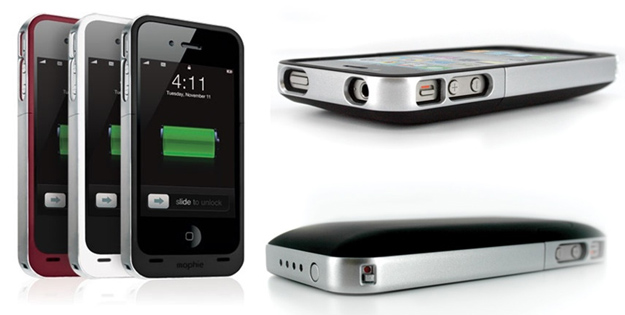
Though it looks like the iPhone 4S will last you all day on a charge, you can several more hours out of it with this combo case/extended battery. This case won’t add too much bulk or weight to the phone while providing extra juice and extra protection. A status indicator shows how much power the pack has left with just one press. If you plan to spend your days watching video or listening to music, some extra power is definitely in order.
Mophie Juice Pack Air


9. Breffo Spiderpodium — $9.49 Top

This versatile little stand will not only prop up the iPhone 4S for watching videos but will also attach it to other surfaces, such as the vents in your car or the handles of your bike. It can also act as a tripod, keeping the phone still for shots with the new, improved camera.


10. iPhone SLR Mount — $249 Top

The iPhone 4S has a new and much improved camera that takes beautiful pictures. However, if you want to go a bit further and get crazy, pick up this SLR Mount, which allows you to attach serious lenses to your iPhone. This adapter/case will mount Canon EOS or Nikon SLR lenses, so you can have a telephoto, wide-angle, fish-eye or tilt-shift lens. It has a tripod attachment and a strap, so you can go full-on camera. It’s a little like having a micro four-thirds that also makes calls.

Source from: http://www.gottabemobile.com/2011/10/15/10-best-iphone-4s-accessories/

Related Useful Readings:
How to view PowerPoint on iPhone 4S?
The iPhone 4S supported formats and full specifications
10 Free Halloween iPhone Apps to Get Into Halloween Spirit
Read More
Posted in Smartphone/Tablet | No comments
Newer Posts Older Posts Home
Subscribe to: Posts (Atom)

Popular Posts

  • How to Use Different themes in One PowerPoint File
    Usually when we create a PowerPoint slideshow, we would use a certain PowerPoint theme. We can get it by creating by ourselves, choose from ...
  • Earth Day 2012 PowerPoint Background Free Download
    Earth Day 2012 is coming in two days. This is the first Earth Day that I really pay some attention to. I know every April 22 is the annual...
  • Best Portable Devices of 2011
    The year 2011 has become a history but absolutely not the technical gadgets (Smartphones & Tablets) that hit the market. Here is a list ...
  • The new iPad Unboxed: What does it Look Like?
    On March 7 we finally get to know that the next generation iPad is neither iPad 3 nor iPad HD , but simply “ the new iPad ”. It seems tha...
  • How to Mute Video in a PowerPoint Presentation
    Really strange question, huh? Mostly people will ask you how to keep the sound in PowerPoint when playing on another computer or something...
  • 8 Online Applications to Save PDF as Word You Should Add to Your Favorites
    PDF has its advantage as a popular document file. As I know, many eBooks, contact, order and many other files are saved as PDF for various r...
  • Tutorial of Converting PPTX to MP4 Video with Professional PPTX to MP4 Converter
    How to convert PPTX to MP4 with this professional Moyea PPTX to MP4 Converter ? The following will show you the step by step guide on conver...
  • How to Add Captions to Photo Album in PowerPoint 2010
    If you have made a Christmas Photo slideshow using PowerPoint 2010 before, you should have noticed that although it is perfect to see each p...
  • How to Add Music to PowerPoint 2007 and Playing Across Slides
    Many people asked the question on how to add music to PowerPoint 2007 and at the same time the music can play across the entire PowerPoint s...
  • Three Spotlights of iPad 2
    Apple Inc. is expected to release iPad 2, its second generation iPad on March 2, and the CEO Steve Jobs may appear on the press conference s...

Categories

  • Back to School
  • Famous Quotes
  • Free Resources
  • Halloween
  • Holiday
  • iPhone 5
  • London Olympics
  • Moive Review
  • News
  • Others
  • photo slideshow maker
  • PowerPoint
  • PowerPoint background
  • PowerPoint Background Music
  • PowerPoint Templates
  • PowerPoint Tips
  • PPT Tool
  • Smartphone/Tablet
  • The Twilight Saga: Breaking Dawn Part 1
  • Wallpaper
  • Wallpapers
  • YouTube

Blog Archive

  • ▼  2013 (5)
    • ▼  April (2)
      • 5 PowerPoint Alternatives for Making Presentations...
      • How to View PowerPoint on Sony Xperia ZL?
    • ►  March (2)
    • ►  February (1)
  • ►  2012 (109)
    • ►  November (2)
    • ►  October (8)
    • ►  September (6)
    • ►  August (13)
    • ►  July (13)
    • ►  June (12)
    • ►  May (12)
    • ►  April (11)
    • ►  March (12)
    • ►  February (12)
    • ►  January (8)
  • ►  2011 (179)
    • ►  December (16)
    • ►  November (18)
    • ►  October (17)
    • ►  September (17)
    • ►  August (29)
    • ►  July (19)
    • ►  June (20)
    • ►  May (15)
    • ►  April (7)
    • ►  March (19)
    • ►  February (2)
Powered by Blogger.

About Me

Unknown
View my complete profile