ppt-bird

  • Subscribe to our RSS feed.
  • Twitter
  • StumbleUpon
  • Reddit
  • Facebook
  • Digg

Wednesday, 7 March 2012

The New iPad vs. iPad 2

Posted on 23:49 by Unknown
We know everything about the new iPad but the name. After Wednesday’s hour-plus-long launch event in San Francisco, Apple CEO Tim Cookies and team unveiled details about the company’s new tablet, simply calling it the “new iPad” throughout. In the weeks and days leading up to today's event, there was much talk about whether the next-gen iPad would be called the iPad HD or the iPad 3. Maybe we could only know the final name until March 16, when the new iPad released in U.S. and other 9 countries.

The New iPad vs. iPad 2


The coming iPad will cost the same as the iPad 2 -- from $499 to $829 based on storage capacity and Wi-Fi capacity. Let’s take a look at what’s new in the new iPad compares to iPad 2.


The new iPad vs. iPad 2


"It is amazing," Apple CEO Tim Cook said at a San Francisco unveiling. "We've taken it to a whole new level, and we are redefining the category that Apple created with the original iPad." Well, the following the new iPad vs. iPad 2 specifications may tell you whether the new iPad is worth waiting for.


SpecsThe new iPad (2012)iPad 2
Operating System iOS 5.1iOS 5
Dimensions 9.5x7.31x0.37inch, 1.44pound9.5x7.31x0.34inch, 1.34pound
Display 9.7-inch, 2048x1536, Retina Display touch screen9.7-inch, 1024x768, touch screen
Camera 5MP iSight camera with LED flash, F2.4 aperture, autofocus, 1080p HD video recording, front-facing VGA cameraCamera with autofocus, 720p HD video recording, front-facing VGA camera
Processor Dual-core A5X processor with quad-core graphicsDual-core 1GHz A5 processor with dual-core graphics
Storage 16GB, 32, GB, 64GB16GB, 32, GB, 64GB
Expansion slotNoNo
ConnectivityBluetooth 4.0, Wi-Fi (802.11 b/g/n)Bluetooth 4.0, Wi-Fi (802.11 b/g/n)
Battery life Standard battery, Li-Po 42.5 WhStandard battery, Li-Po 25 Wh
Celluar options4G LTE AT&T and Verizon models3G AT&T and Verizon models
Pricing
Wi-Fi model: $499 for 16GB, $599 for 32GB, $699 for 64GB;

4G LTE model: $629 for 16GB, $729 for 32GB, and $829 for 64GB
WiFi model: $399 for 16GB; 3G model $529 for 16GB
Cloud ServicesYesNo
Siri NoNo


The new iPad has made great improvement in these features:


Resolution: The astonishing 2048x1536 pixels resolution retina display brings real life-like pictures you have never imagined before.


Processor: Apple’s next-gen A5X dual-core processor, based on ARM design, brings high performance, low power consumption and quad-core graphics.


The New iPad


Camera: The new iPad comes with LED flash and autofocus to support the camera. The 5MP iSight camera is capable of 1080p HD video recording at 30 frames per second.


4G: The first iPad to be embedded with 4G networks support by AT&T and Verizon thus gives users super-fast web browsing experiment. Even if you’re in a location without 4G, you can still get access to fast 3G networks.


But here are a few things about the new iPad that disappointed us:


No Siri: It’s bad to hear that the voice assistant, Siri, won’t be included in the new iPad. Siri allows users to access information just by talking, without having to find the right app.


Inadequate multimedia support: As usual, the new iPad supports MP4 (H.264, MPEG-4 video codec) and MOV (H.264, MPEG-4 video codec) video formats and no PowerPoint support, you will need video converter or PowerPoint to iPad converter if you want to watch other videos, DVD movies and PowerPoint presentations on the new iPad.


Read More
Posted in News | No comments

Thursday, 1 March 2012

PowerPoint Tips: Align Objects with Gridlines and Guides

Posted on 01:44 by Unknown
Lately I’m trying to learn how to use the powerful Photoshop, so powerful that I have tried many times to learn and failed. If you’re a person like me who don’t know how to use Photoshop, you can also use PowerPoint to do some simple (really simple) picture editing.

For instance, once I need to join two pictures together, add an arrow between and add some text to it. After that I will use HyperSnap to screenshot the picture. After I inserted the two pictures into PowerPoint slide, I have to place them to make them at the same level. Every time I just estimated it.

In fact I can use PowerPoint's gridlines and guides to keep objects aligned.

First insert the two pictures into PowerPoint.

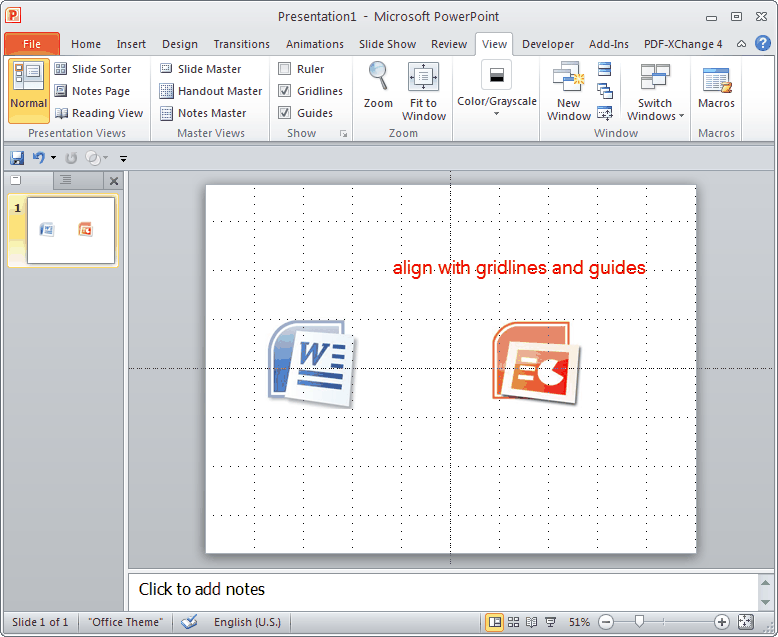
Click “View” tab on the ribbon and in the “Show” group you will see “Gridlines” and “Guides”.

Check the “Gridlines” option and you will see the slide be divided into several frames like this:

Check the “Guides” option and you will see the slide with a cross like this:

You see, now you can easily drag the pictures to make them align with the same height.


Other PowerPoint picture editing features:

Emphasis a section of a picture in PowerPoint

Blur Background of a picture in PowerPoint

Create your own shapes in PowerPoint

Make curved shapes in PowerPoint

Create invisible buttons on picture in PowerPoint

Create drop-down menu in PowerPoint 2010
Read More
Posted in PowerPoint Tips | No comments

Wednesday, 22 February 2012

How to Loop Play PowerPoint Slideshow?

Posted on 19:17 by Unknown

Question:

For an assignment I need a continuous loop. For the last slide I need it to go back to the first slide so it can start again. How do I do this?

Solution:

PowerPoint is really a great presentation tool that you can put all your text content, pictures, animations, transitions, music and video clips together, arrange them to make a wonderful PowerPoint slideshow.

For this question, how to loop play PowerPoint, in fact it is really simple. Follow the guides below:

Open your file with PowerPoint.
Loop Play PowerPoint-1

Click on “Slide Show” on the ribbon, and click “Set Up Slide Show” below.
Loop Play PowerPoint-2

In the pop up window, check “Loop continuously until ‘Esc’”.
Loop Play PowerPoint-3

By checking this option, when you press “F5” to view the PowerPoint, it will play continuously. The only way to make it stop is by clicking “Esc” on the keyboard.

Note: In order to make your PowerPoint play continuously by itself without you to click on it, you should set the animations, transitions, music and video clips to play automatically.

At last, click “File” → “Save As” → in the pop up window, choose “PowerPoint Show” as output format.
Loop Play PowerPoint-4

Loop Play PowerPoint-5

Then you PowerPoint will be saved as a PPS or PPSX file, which you could directly double click and play automatically.

Extended Tips:

Actually the above method is not the best way to play PowerPoint slideshow continuously. First, you need a computer to play it. Second, when you show the PowerPoint, it will take up the screen. Second, different computer may have different Microsoft PowerPoint versions installed, which may not be compatible.

I think the best way is to burn PowerPoint slideshow to DVD disc, so that you can play it directly using DVD player or projector. Moyea PPT to DVD Burner is the best to burn PowerPoint (PPT, PPS, PPTX, PPSX, etc.) to CD/DVD/Blu-ray and also convert PowerPoint to video formats like MP4, FLV, AVI, WMV, MOV, MKV, etc. with all the original PowerPoint elements kept intact.
Loop Play PowerPoint-6

Read More
Posted in PowerPoint Tips, PPT Tool | No comments

Current Best Dance Party Songs

Posted on 01:37 by Unknown

If you’re going to hold a party, then some dance party songs that make everyone get up and dace would be great. It is not easy to choose from the millions of great songs to give to the DJ to play at your party. For dance party songs, they should have a strong beat and can make people dance to their feet. This article gives you a list of some of the new dance party songs.

Dance Party Songs

Current Best Dance Party Songs


1. Place Your Hands – by Reef

2. Dancing Queen – by Abba

3. One More Time – by Daft Punk

4. Unfinished Sympathy – by Massive Attack

5. Blue Monday – by New Order

6. Where's Your Head At – by Basement Jaxx

7. This Charming Man – by The Smiths

8. The Only Way Is Up – by Yazz

9. I Will Survive – by Gloria Gaynor

10. Believe – by Cher

11. Where Have You Gone – by Surisan

12. Dance (A$$) – by Big Sean

13. Ni**as In Paris – by Jay-Z and Kanye West

14. Love You Like a Love Song – by Selena Gomez and the Scene

15. Umbrella – by Rihanna

16. Whenever Wherever – by Shakira

17. Just Dance – by Lady Gaga

18. Bad Girl – by Danity Kane

19. Rule The World – by IYAZ

20. Mr. Right Now – by Pitbull

21. Change It Up – by Mario

22. I’m On One – by Talib Kweli

23. On The Floor – by Jennifer Lopez

24. Look At Me Now – by Chris Brown

25. Blow – by Ke$ha

26. Call On Me – by Eric Prydz

27. I Won't Let You Down – by Jay Frog

28. Infinite Dream – by The White Panda

29. Crazy – by Gnarls Barkley

30. Hey Sexy Lady – by i SQUARE

More Songs Suggestions:

Top 15 Graduation Songs for 2011 Graduation PowerPoint Slideshow

Top Hindi Wedding Songs and Hindi Wedding Dance Songs

Top Romantic Hindi Love Songs as Love PowerPoint Background Music

Michael Jackson Wallpapers and 10 Best Songs

Top 50 Songs for Baby Slideshow

30 Great Broken Heart Songs Suggestions
Read More
Posted in Free Resources, PowerPoint Background Music | No comments

Monday, 20 February 2012

PowerPoint to Flash eBook

Posted on 23:44 by Unknown
Besides saving PowerPoint as video or saving PowerPoint as PDF, I find this software very interesting too. Flip PowerPoint can save your PowerPoint as a page-flip eBook (Flipbook). You may see how it looks here.

Flip PowerPoint first convert your PowerPoint slides into picture and then combine them together to make an eBook. It is amazing that the hyperlink (links out to webpage) can still work in the output Flash eBook. There are dozens of preset eBook styles for you to choose and you can set every eBook parameters like the button bar, download setting, search, share button, auto flip, etc. The output Flash eBook could be saved as Html, EXE, Zip or burn to CD.

If you like you can have a try.
PowerPoint to Flash eBook
Read More
Posted in PPT Tool | No comments

Thursday, 16 February 2012

Burn PowerPoint to DVD in iDVD

Posted on 01:23 by Unknown

If you want to burn your PowerPoint presentations to DVD on Mac for viewing on TV with DVD player directly, you got to read this article on how to burn Mac PowerPoint to DVD disc using iDVD.

As you know, iDVD is an application for you to burn movies and photo slideshows to DVD. PowerPoint formats are not supported. So before you can import PowerPoint to iDVD, you should save PowerPoint as QuickTime movie to keep most of the PowerPoint effects like animations, transitions, music and video clips.

Save PowerPoint as QuickTime movie (MOV)


Microsoft PowerPoint for Mac allows you to save PowerPoint as QuickTime movie directly. Click “File” on the ribbon and choose “Save as Movie” in the drop-down menu.

PowerPoint to dvd in iDVD

Then in the “Movie Settings” tab, you can adjust the output movie parameters like video size, quality, slide transitions, background soundtrack, etc.

PowerPoint to dvd in iDVD

You should also know the limitations of saving PowerPoint as QuickTime Movie. In order to preserve all the original PowerPoint effects, you can use Moyea PPT to Video Converter to convert PowerPoint to MP4, FLV, MOV, WMV, AVI, etc. and then burn to DVD. With the help of Parallels for Mac, you can run the PPT converter on Mac.

Burn your movie to DVD


This is done by sending your movie to the media browser and then burning to DVD in iDVD.

In iMovie, go to “Share” menu and choose “Media Browser” to share your movie to the Media Browser so that it can be imported to other applications such as iDVD and iWeb.
PowerPoint to dvd in iDVD


A window will appear with file size options. Select the Large option for the highest quality movie to burn in iDVD. Then click “Publish” to add your movie to Media Browser.
PowerPoint to dvd in iDVD


Open iDVD and create a new project.
PowerPoint to dvd in iDVD


Once in project mode, click the “Media” button (1), then click the “Movies” tab (2).
PowerPoint to dvd in iDVD


Then select the movie project you added to iMovie and drag it to the iDVD project window.
PowerPoint to dvd in iDVD


When you’ve finished your project in iDVD, click the “Burn” button.
PowerPoint to dvd in iDVD


Insert a recordable DVD disc and burn the PowerPoint movie to DVD disc using iDVD.
PowerPoint to dvd in iDVD


Read More
Posted in PowerPoint Tips | No comments

Monday, 13 February 2012

PowerPoint Movie Mac Limitations - PowerPoint to Movie on Mac

Posted on 22:28 by Unknown
PowerPoint movies created on PowerPoint for Mac do not support every feature or option in PowerPoint. Specifically:

Slide to Slide navigation will be lost, unless programmed using buttons.
No navigation between slides.
Most transitions are lost.

If you are creating a presentation that you want to deliver as a PowerPoint Movie, follow these rules to make sure that all of the elements of your presentation appear the way you expect in your PowerPoint Movie.

Use a single slide master. For presentations that use multiple slide masters, only the first title master and the first slide master used in the presentation will be used for all slides in the PowerPoint Movie.

Add navigation buttons to the slide master. If you want to control your PowerPoint Movie by advancing the presentation one slide at a time, add an action button to the slide master that hyperlinks to the next slide.

Avoid certain hyperlinks and action settings. The following hyperlinks and action settings are not supported in PowerPoint Movies:

All Mouse Over action settings
Hyperlink to Last Slide Viewed
Hyperlink to End Show
Hyperlink to Custom Show
Hyperlink to Other PowerPoint Presentation
Hyperlink to Other File
Hyperlink to E-mail Address
Run program
Run macro
Object action
Play sound
Highlight click

Avoid certain animations. The following animations do not appear the same way in PowerPoint Movies as they do in ordinary presentations:
Blinds
Box
Checkerboard
Dissolve
Peek In/Peek Out
Random Bars
Strips
Wipe

Avoid certain movie and sound settings. PowerPoint Movies do not support the following movie and sound settings:
While playing, continue slide show
Stop playing, after a specific number of slides
Loop until stopped
Hide while not playing
CD Options (CD track as background soundtrack)

Load the presentation into iMovie and burn a DVD from there.


Read More
Posted in PowerPoint Tips | No comments
Newer Posts Older Posts Home
Subscribe to: Posts (Atom)

Popular Posts

  • How to Use Different themes in One PowerPoint File
    Usually when we create a PowerPoint slideshow, we would use a certain PowerPoint theme. We can get it by creating by ourselves, choose from ...
  • Earth Day 2012 PowerPoint Background Free Download
    Earth Day 2012 is coming in two days. This is the first Earth Day that I really pay some attention to. I know every April 22 is the annual...
  • Best Portable Devices of 2011
    The year 2011 has become a history but absolutely not the technical gadgets (Smartphones & Tablets) that hit the market. Here is a list ...
  • The new iPad Unboxed: What does it Look Like?
    On March 7 we finally get to know that the next generation iPad is neither iPad 3 nor iPad HD , but simply “ the new iPad ”. It seems tha...
  • How to Mute Video in a PowerPoint Presentation
    Really strange question, huh? Mostly people will ask you how to keep the sound in PowerPoint when playing on another computer or something...
  • 8 Online Applications to Save PDF as Word You Should Add to Your Favorites
    PDF has its advantage as a popular document file. As I know, many eBooks, contact, order and many other files are saved as PDF for various r...
  • Tutorial of Converting PPTX to MP4 Video with Professional PPTX to MP4 Converter
    How to convert PPTX to MP4 with this professional Moyea PPTX to MP4 Converter ? The following will show you the step by step guide on conver...
  • How to Add Captions to Photo Album in PowerPoint 2010
    If you have made a Christmas Photo slideshow using PowerPoint 2010 before, you should have noticed that although it is perfect to see each p...
  • How to Add Music to PowerPoint 2007 and Playing Across Slides
    Many people asked the question on how to add music to PowerPoint 2007 and at the same time the music can play across the entire PowerPoint s...
  • Three Spotlights of iPad 2
    Apple Inc. is expected to release iPad 2, its second generation iPad on March 2, and the CEO Steve Jobs may appear on the press conference s...

Categories

  • Back to School
  • Famous Quotes
  • Free Resources
  • Halloween
  • Holiday
  • iPhone 5
  • London Olympics
  • Moive Review
  • News
  • Others
  • photo slideshow maker
  • PowerPoint
  • PowerPoint background
  • PowerPoint Background Music
  • PowerPoint Templates
  • PowerPoint Tips
  • PPT Tool
  • Smartphone/Tablet
  • The Twilight Saga: Breaking Dawn Part 1
  • Wallpaper
  • Wallpapers
  • YouTube

Blog Archive

  • ▼  2013 (5)
    • ▼  April (2)
      • 5 PowerPoint Alternatives for Making Presentations...
      • How to View PowerPoint on Sony Xperia ZL?
    • ►  March (2)
    • ►  February (1)
  • ►  2012 (109)
    • ►  November (2)
    • ►  October (8)
    • ►  September (6)
    • ►  August (13)
    • ►  July (13)
    • ►  June (12)
    • ►  May (12)
    • ►  April (11)
    • ►  March (12)
    • ►  February (12)
    • ►  January (8)
  • ►  2011 (179)
    • ►  December (16)
    • ►  November (18)
    • ►  October (17)
    • ►  September (17)
    • ►  August (29)
    • ►  July (19)
    • ►  June (20)
    • ►  May (15)
    • ►  April (7)
    • ►  March (19)
    • ►  February (2)
Powered by Blogger.

About Me

Unknown
View my complete profile