ppt-bird

  • Subscribe to our RSS feed.
  • Twitter
  • StumbleUpon
  • Reddit
  • Facebook
  • Digg

Monday, 26 March 2012

How to View PowerPoint on Huawei Ascend P1 S

Posted on 20:22 by Unknown

Yesterday we heard the news that Huawei is disqualified to bid in the BroardBrand Project by Australia government due to Cyber security reasons. Because Huawei CEO Ren Zhengfei was a former PLA soldier before he throw himself into the business world.

It is a tough time for Huawei, but Huawei is going to release the slimmest Smartphone in world, Huawei Ascend P1 S, according to schedule. The release date given to us by Huawei Australia is April 2012 with no partners announced just yet.

The Ascend P1 S looks nice, mainly because it is designed to riff off Samsung Galaxy S 2, so it has also great specs to boot.

Huawei Ascend P1 S v.s. Samsung Galaxy S 2:


Huawei Ascend P1 S Samsung Galaxy S 2

Dimensions 127.4 x 64.8 x 6.7 mm 125.3 x 66.1 x 8.5 mm
Screen 4.3-inch 4.3-inch
Resolution 540 x 960 480 x 800
Processor Dual-core 1.5 GHz Cortext-A9 TI OMAP 4460 Dual-core 1.2 GHz Cortex-A9 Exynos
Hardware 1 GB RAM
4 GB internal storage
microSD, up to 32 GB
1 GB RAM
16 GB/32 GB internal storage
microSD, up to 32 GB
Camera 8MP, 1080p@30fps
1.3MP, front-facing
8MP, 1080p@30fps
2MP, front-facing
System Android 4.0 Android 2.3
Battery Li-Ion 1800 mAh Li-Ion 1650 mAh
Network 3G 3G

Another Huawei Smartphone, the Ascend P1 mimics the specs of the Ascend P1 S expect for a smaller 1670mAh battery and is slightly thicker (though still thin) at 7.69mm.

How to view PowerPoint on Huawei Ascend P1 S?

In the past I love Apple iPhones every much, because they are really slim and you cannot even feel it in your pocket. Now I think Huawei Ascend P1 S would be my final choice, it is slimmer, powerful and running on my favorite Android system. While most people are using Smartphones for movies, YouTube videos, games, photos, there is also increasing demand that a Smartphone could be able to handle documents like PDF, Word, PowerPoint, Excel, etc. If you want to view PowerPoint on Huawei Ascend P1 S with all the animations, transitions, sound and video clips just like on PC, you should convert PowerPoint to video first.

If you have anything ask or anything to share, please feel free to write down your thoughts below.
Read More
Posted in PowerPoint Tips, Smartphone/Tablet | No comments

4 Methods Enables PowerPoint to Play on HTC One XL

Posted on 02:15 by Unknown
HTC One XLThe HTC One XL is a 4G Smartphone. It features a 4.7-inch screen with resolution of 720 x 1280. It is powered by Android 4.0, dual-core Qualcomm MSM8960 Snapdragon processor that provides noticeable performance improvement and smoother UI, 1 GB of RAM, 16 GB of built-in storage. Other features include GPS, Bluetooth, 8MP camera with LED flash and 1080p full HD video recording, 1.3MP front-facing camera for video calls, and 1800 mAh battery which makes HTC One XL last long enough.

The smartphone has changed our lives. Now you don’t use smartphones for phone calls, text messages, web browsing, emails, but more like video games, all kinds of useful apps, movies (even 3D movies). People even debate on whether smartphones will take over laptops in the future. Maybe it will, but for now you may find it is a problem if you want to play PowerPoint on HTC One XL. Here are 4 methods that could help solve this problem.

Method 1: Office apps for Android.


Microsoft Office has only Windows and Mac versions officially, so as an Android phone, HTC One XL cannot run Microsoft Office programs to open PowerPoint files. However, there are some Android apps (Documents to Go, ThinkFree Office, Quick Office, etc.) that have some basic functions similar to Microsoft Office and you can use them to view PowerPoint on HTC One XL. But some of the features like animations and transitions will be removed when displaying the presentation. Anyway, you cannot ask too much from these small Android apps, not to mention most of them are free.

Method 2: View PowerPoint as pictures.


Saving PowerPoint slides as pictures is a basic function in all PowerPoint versions. By saving PowerPoint slides as a series of pictures, you can view PowerPoint on HTC One XL as if you are viewing the photo gallery. Just click “Save As” and choose an image format you like, GIF, PNG, JPG, etc. After conversion, all you need to do is to transport the exported pictures to your HTC One XL. What you should know is that all animations, transitions, audio and video clips will be removed.

Method 3: View PowerPoint as PDF.


PDF is a common document file other than TXT and Word, created by Adobe. Different from other two, PDF storages information in a much safer way: the PDF file is protected; the content cannot be changed unless you use some PDF editor. Adobe also releases Free Adobe Reader for Android so you can view PDF files on Android devices for free. Convert PowerPoint to PDF for free and then you can view PowerPoint on HTC One XL.

Method 4: View PowerPoint as videos.


This alternative solution provides the closest output effect to the original PowerPoint presentations. The PowerPoint to video conversion process will save all the original PowerPoint contents and effects include fonts, languages, animations, transitions, sound and video clips. It is the best PowerPoint to HTC One XL solution until Microsoft releases Android version of Office. Moyea PPT to Video Converter (work on Windows) will help you to convert PPT, PPS, PPTX and PPXT, etc. to HTC One XL in 3 steps:
PowerPoint to HTC One XL

Step 1: Run the program and click “Add” to import PowerPoint files.

Step 2: Click on the “Profile” box and choose an output video format for HTC One XL. Click “Settings” to set the video resolution as 1280 x 720 for full screen playback on HTC One XL.

Step 3: Click “Start” to convert PPT to HTC One XL.

Enjoy your PowerPoint presentations on HTC One XL! Have fun!
Read More
Posted in PPT Tool, Smartphone/Tablet | No comments

Wednesday, 14 March 2012

The new iPad Unboxed: What does it Look Like?

Posted on 23:12 by Unknown

On March 7 we finally get to know that the next generation iPad is neither iPad 3 nor iPad HD, but simply “the new iPad”. It seems that Tim Cook has played a game with all of us, “whatever you predicted, and it’s just not.”

the new iPadThe new iPad is sported with a 2048 x 1536 pixels 9.7-inch retina display (that is 264 ppi pixel density, twice of iPad 2 and nearly catch up with 326 ppi of iPhone 4 and iPhone 4S), dual-core A5X (1 GHz Cortex-A9) processor, 5MP iSight camera which is able to take 1080p HD video @30fps, front-facing camera for video and more excitingly the 4G support.

The new iPad will be sold to the first round countries like U.S., UK, France, Canada, Japan, etc. on March 16. Apple recently told USA Today that the demand for the new iPad is "off the charts" and that the first pre-order batch of the tablet has been sold out. That’s why the Vietnamese tech site has got the new iPad already, let’s take a look at what does the new iPad really look like?

The new iPad Unboxed:


Related to the new iPad:

The new iPad vs. iPad 2

6 methods to view PowerPoint presentations on iPad 3

What you should know before viewing PowerPoint on iPad 3 using Keynote

iPad/ iPhone/ iPod wallpapers

20 beautiful iPhone 4S HD wallpapers
Read More
Posted in News, Smartphone/Tablet | No comments

Sunday, 11 March 2012

How to Set New Tab as Homepage in Firefox

Posted on 20:34 by Unknown
I have been using Firefox since 2008 when it is still Firefox 2.0 at that time. For those who have been used Firefox for a long time and get used to it, you should have feel the convenience that Firefox has brought. One of the reasons why Firefox is so powerful is its function of supporting all kinds of add-ons.

I use the homepage button a lot, but I need to click it with the roller of the mouse so that I can open a new tab as homage. Recently I am thinking is there a way to take use of the “New Tab” button to open a new homepage? By default, after you click “New Tab” button, Firefox will open a blank tab, or a speed dial page.

I have tried to search scripts for GreaseMonkey or Scriptish, but nothing is found. So I have to return to the add-ons. And there they are:

NewTabURL - https://addons.mozilla.org/firefox/addon/newtaburl

New Tab Homepage - https://addons.mozilla.org/firefox/addon/new-tab-homepage

Tab Mix Plus: https://addons.mozilla.org/en-US/firefox/addon/tab-mix-plus/

After you installed one of these add-ons to your Firefox, you can set your homepage there, like https://www.google.com/.

You can also set the homepage as the website you visit often, like PowerPoint E-learning Center for me. The homepage can be easily changed, just enter any website URL you like and set it as the homepage, so that a simple clicking on “New Tab” button will open the homepage.

Hope this little trick be helpful to you ^_^

Read More
Posted in PowerPoint Tips | No comments

Thursday, 8 March 2012

Happy St. Patrick's Day iPhone Wallpapers Free Download

Posted on 01:14 by Unknown

Happy St. Patrick's Day iPhone Wallpaper 1” Happy St. Patrick's Day iPhone Wallpaper 2

Happy St. Patrick's Day iPhone Wallpaper 3 Happy St. Patrick's Day iPhone Wallpaper 4

How to install Happy St. Patrick’s Day wallpaper on your iPhone


Connect the iPhone to your computer:

1. Launch iTunes then click the Photos tab and select “Sync photos from:”

2. From the pop-up menu, do one of the following:

- If your using a Mac, choose iPhoto or your Pictures folder.

- If you’re using a PC, choose Photoshop Album, Photoshop Elements, or your My Pictures folder.

3. Choose Folder, then choose any folder on your computer that has images.

4. Choose "All photos" or choose "Selected folders" or "Selected albums" and choose the folders or albums you want to sync.

On your iPhone:

1. Go to the Photos section of your camera. Browse through the albums or camera roll until you find the picture you wish to use.

2. Select the picture so it is displayed full screen.

3. Tap the icon in the lower left corner of the screen. If you don't see the icon, single tap the picture to display the menus.

4. Here you can select if you want to email the picture, save the picture as a wallpaper, or assign to a contact.

5. If you want to assign to a contact, press that button. The contact list will open and you can select the contact you wish to link to the picture.

6. Select "Done" to complete the process.

More St. Patrick's Day related:

St Patrick’s Day Symbols and Traditions

Funny Irish Quotes for St. Patrick’s Day Tickle You Green

Celebrate St Patrick’s Day with Green DVD Slideshow

Happy St. Patrick's Day PowerPoint Backgrounds free download

More Beatiful PowerPoint Backgrounds & Templates
Read More
Posted in Free Resources, Wallpaper | No comments

Wednesday, 7 March 2012

The New iPad vs. iPad 2

Posted on 23:49 by Unknown
We know everything about the new iPad but the name. After Wednesday’s hour-plus-long launch event in San Francisco, Apple CEO Tim Cookies and team unveiled details about the company’s new tablet, simply calling it the “new iPad” throughout. In the weeks and days leading up to today's event, there was much talk about whether the next-gen iPad would be called the iPad HD or the iPad 3. Maybe we could only know the final name until March 16, when the new iPad released in U.S. and other 9 countries.

The New iPad vs. iPad 2


The coming iPad will cost the same as the iPad 2 -- from $499 to $829 based on storage capacity and Wi-Fi capacity. Let’s take a look at what’s new in the new iPad compares to iPad 2.


The new iPad vs. iPad 2


"It is amazing," Apple CEO Tim Cook said at a San Francisco unveiling. "We've taken it to a whole new level, and we are redefining the category that Apple created with the original iPad." Well, the following the new iPad vs. iPad 2 specifications may tell you whether the new iPad is worth waiting for.


SpecsThe new iPad (2012)iPad 2
Operating System iOS 5.1iOS 5
Dimensions 9.5x7.31x0.37inch, 1.44pound9.5x7.31x0.34inch, 1.34pound
Display 9.7-inch, 2048x1536, Retina Display touch screen9.7-inch, 1024x768, touch screen
Camera 5MP iSight camera with LED flash, F2.4 aperture, autofocus, 1080p HD video recording, front-facing VGA cameraCamera with autofocus, 720p HD video recording, front-facing VGA camera
Processor Dual-core A5X processor with quad-core graphicsDual-core 1GHz A5 processor with dual-core graphics
Storage 16GB, 32, GB, 64GB16GB, 32, GB, 64GB
Expansion slotNoNo
ConnectivityBluetooth 4.0, Wi-Fi (802.11 b/g/n)Bluetooth 4.0, Wi-Fi (802.11 b/g/n)
Battery life Standard battery, Li-Po 42.5 WhStandard battery, Li-Po 25 Wh
Celluar options4G LTE AT&T and Verizon models3G AT&T and Verizon models
Pricing
Wi-Fi model: $499 for 16GB, $599 for 32GB, $699 for 64GB;

4G LTE model: $629 for 16GB, $729 for 32GB, and $829 for 64GB
WiFi model: $399 for 16GB; 3G model $529 for 16GB
Cloud ServicesYesNo
Siri NoNo


The new iPad has made great improvement in these features:


Resolution: The astonishing 2048x1536 pixels resolution retina display brings real life-like pictures you have never imagined before.


Processor: Apple’s next-gen A5X dual-core processor, based on ARM design, brings high performance, low power consumption and quad-core graphics.


The New iPad


Camera: The new iPad comes with LED flash and autofocus to support the camera. The 5MP iSight camera is capable of 1080p HD video recording at 30 frames per second.


4G: The first iPad to be embedded with 4G networks support by AT&T and Verizon thus gives users super-fast web browsing experiment. Even if you’re in a location without 4G, you can still get access to fast 3G networks.


But here are a few things about the new iPad that disappointed us:


No Siri: It’s bad to hear that the voice assistant, Siri, won’t be included in the new iPad. Siri allows users to access information just by talking, without having to find the right app.


Inadequate multimedia support: As usual, the new iPad supports MP4 (H.264, MPEG-4 video codec) and MOV (H.264, MPEG-4 video codec) video formats and no PowerPoint support, you will need video converter or PowerPoint to iPad converter if you want to watch other videos, DVD movies and PowerPoint presentations on the new iPad.


Read More
Posted in News | No comments

Thursday, 1 March 2012

PowerPoint Tips: Align Objects with Gridlines and Guides

Posted on 01:44 by Unknown
Lately I’m trying to learn how to use the powerful Photoshop, so powerful that I have tried many times to learn and failed. If you’re a person like me who don’t know how to use Photoshop, you can also use PowerPoint to do some simple (really simple) picture editing.

For instance, once I need to join two pictures together, add an arrow between and add some text to it. After that I will use HyperSnap to screenshot the picture. After I inserted the two pictures into PowerPoint slide, I have to place them to make them at the same level. Every time I just estimated it.

In fact I can use PowerPoint's gridlines and guides to keep objects aligned.

First insert the two pictures into PowerPoint.

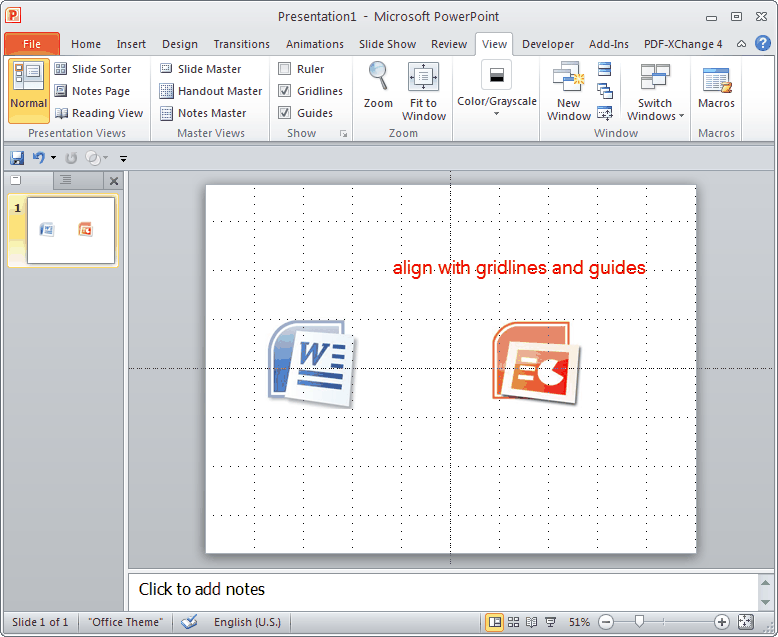
Click “View” tab on the ribbon and in the “Show” group you will see “Gridlines” and “Guides”.

Check the “Gridlines” option and you will see the slide be divided into several frames like this:

Check the “Guides” option and you will see the slide with a cross like this:

You see, now you can easily drag the pictures to make them align with the same height.


Other PowerPoint picture editing features:

Emphasis a section of a picture in PowerPoint

Blur Background of a picture in PowerPoint

Create your own shapes in PowerPoint

Make curved shapes in PowerPoint

Create invisible buttons on picture in PowerPoint

Create drop-down menu in PowerPoint 2010
Read More
Posted in PowerPoint Tips | No comments
Newer Posts Older Posts Home
Subscribe to: Posts (Atom)

Popular Posts

  • How to Use Different themes in One PowerPoint File
    Usually when we create a PowerPoint slideshow, we would use a certain PowerPoint theme. We can get it by creating by ourselves, choose from ...
  • Earth Day 2012 PowerPoint Background Free Download
    Earth Day 2012 is coming in two days. This is the first Earth Day that I really pay some attention to. I know every April 22 is the annual...
  • Best Portable Devices of 2011
    The year 2011 has become a history but absolutely not the technical gadgets (Smartphones & Tablets) that hit the market. Here is a list ...
  • The new iPad Unboxed: What does it Look Like?
    On March 7 we finally get to know that the next generation iPad is neither iPad 3 nor iPad HD , but simply “ the new iPad ”. It seems tha...
  • How to Mute Video in a PowerPoint Presentation
    Really strange question, huh? Mostly people will ask you how to keep the sound in PowerPoint when playing on another computer or something...
  • 8 Online Applications to Save PDF as Word You Should Add to Your Favorites
    PDF has its advantage as a popular document file. As I know, many eBooks, contact, order and many other files are saved as PDF for various r...
  • Tutorial of Converting PPTX to MP4 Video with Professional PPTX to MP4 Converter
    How to convert PPTX to MP4 with this professional Moyea PPTX to MP4 Converter ? The following will show you the step by step guide on conver...
  • How to Add Captions to Photo Album in PowerPoint 2010
    If you have made a Christmas Photo slideshow using PowerPoint 2010 before, you should have noticed that although it is perfect to see each p...
  • How to Add Music to PowerPoint 2007 and Playing Across Slides
    Many people asked the question on how to add music to PowerPoint 2007 and at the same time the music can play across the entire PowerPoint s...
  • Three Spotlights of iPad 2
    Apple Inc. is expected to release iPad 2, its second generation iPad on March 2, and the CEO Steve Jobs may appear on the press conference s...

Categories

  • Back to School
  • Famous Quotes
  • Free Resources
  • Halloween
  • Holiday
  • iPhone 5
  • London Olympics
  • Moive Review
  • News
  • Others
  • photo slideshow maker
  • PowerPoint
  • PowerPoint background
  • PowerPoint Background Music
  • PowerPoint Templates
  • PowerPoint Tips
  • PPT Tool
  • Smartphone/Tablet
  • The Twilight Saga: Breaking Dawn Part 1
  • Wallpaper
  • Wallpapers
  • YouTube

Blog Archive

  • ▼  2013 (5)
    • ▼  April (2)
      • 5 PowerPoint Alternatives for Making Presentations...
      • How to View PowerPoint on Sony Xperia ZL?
    • ►  March (2)
    • ►  February (1)
  • ►  2012 (109)
    • ►  November (2)
    • ►  October (8)
    • ►  September (6)
    • ►  August (13)
    • ►  July (13)
    • ►  June (12)
    • ►  May (12)
    • ►  April (11)
    • ►  March (12)
    • ►  February (12)
    • ►  January (8)
  • ►  2011 (179)
    • ►  December (16)
    • ►  November (18)
    • ►  October (17)
    • ►  September (17)
    • ►  August (29)
    • ►  July (19)
    • ►  June (20)
    • ►  May (15)
    • ►  April (7)
    • ►  March (19)
    • ►  February (2)
Powered by Blogger.

About Me

Unknown
View my complete profile